APPENDIX D: FREEMIDI AND OMS
154
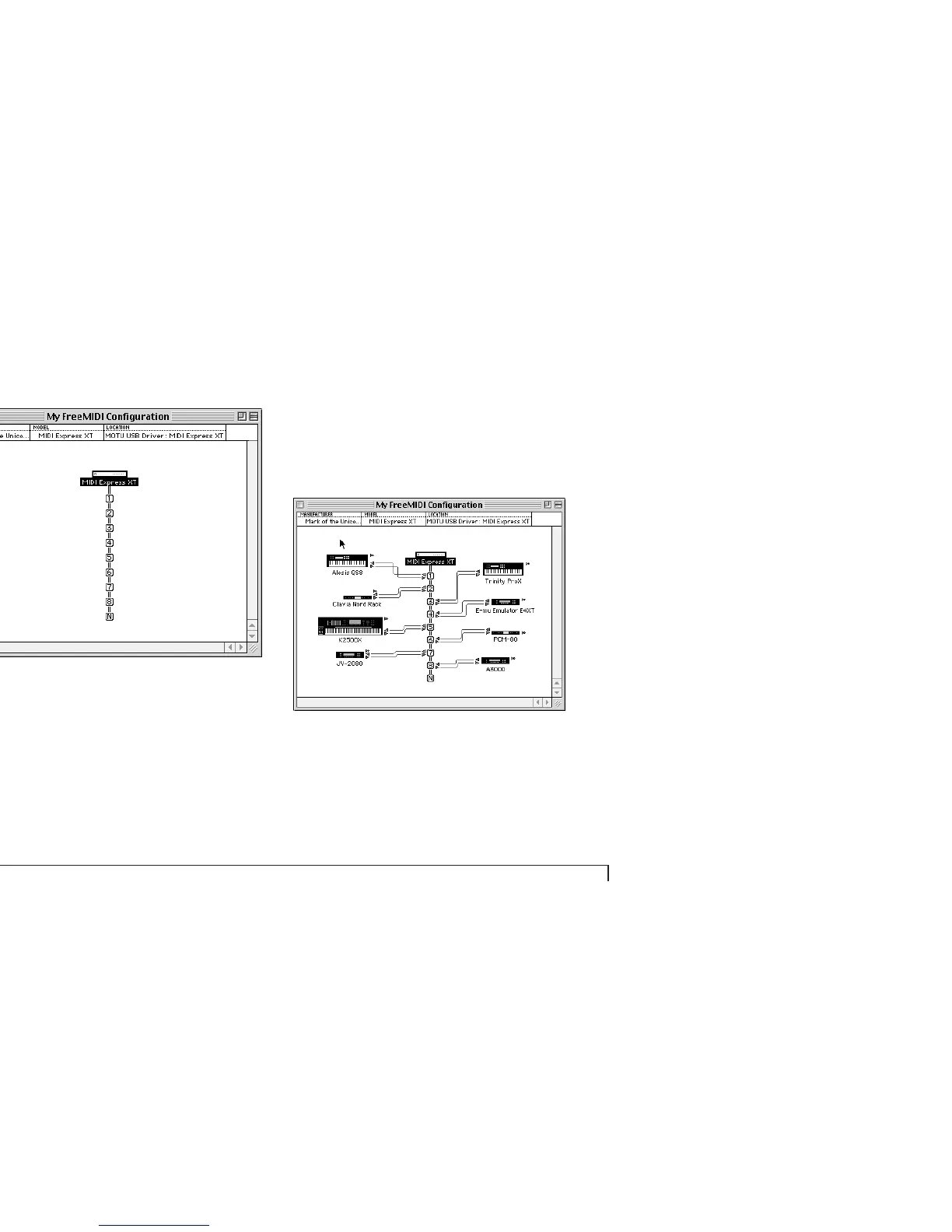
Figure D-2: An example of a bare-bones FreeMIDI Configuration — with a MIDI
Express XT in this example. This is the minimum setup you need to run Clock-
Works and other FreeMIDI software with your MOTU interface.
9 If, however, you would like your MOTU MIDI software
programs to display the names of the MIDI devices
connected to your MIDI interface, you can use the Quick
Setup dialog in Figure D-1 to identify them by their
manufacturer and model names. If you can’t find one of
your devices by name in the pop-up menu lists, just use
the “other” designation for now. You can rename the
device in the next step. When you are finished with the
Quick Setup window, click Done, and the FreeMIDI
Configuration window appears.
Figure D-3: A FreeMIDI Configuration window with MIDI devices. Click a device
name to change it. The devices here appear automatically in various Clock-
Works windows. To add a device, use the Create Device or Quick Setup
commands in the Configuration menu. To delete a device, click it and press the
delete key.



 To Next Page