RT-14 Quick Start Guide
9
Managing LAN addresses with Flair
The factory-set IP address of the RT-14 is 192.168.1.234.
If the IP address of the RT-14has been changed to an unknown value so
you can’t load the RT-14, you can find out the RT-14’s IP address by
connecting the RT-14 to a Windows PC that has Flair Motion Control
Software installed on it and using Flair to interrogate the RT-14 on the
network.
The procedure below tells you how to use Flair to find the IP address of
the RT-14, and if necessary change it. You can also use Flair to change the
IP, SN, and GW addresses of the RT-14 if necessary.
1. Find a PC that has Flair Motion Control Software installed on it, or
install Flair on your own PC.
2. Attach the RT-14 to the PC with an Ethernet cable.
3. Make sure the RT-14 has power, by checking that the
power indicator LED on the head lights up.
4. Start Flair on the PC.
5. If you get any error messages, click on OK to close them.
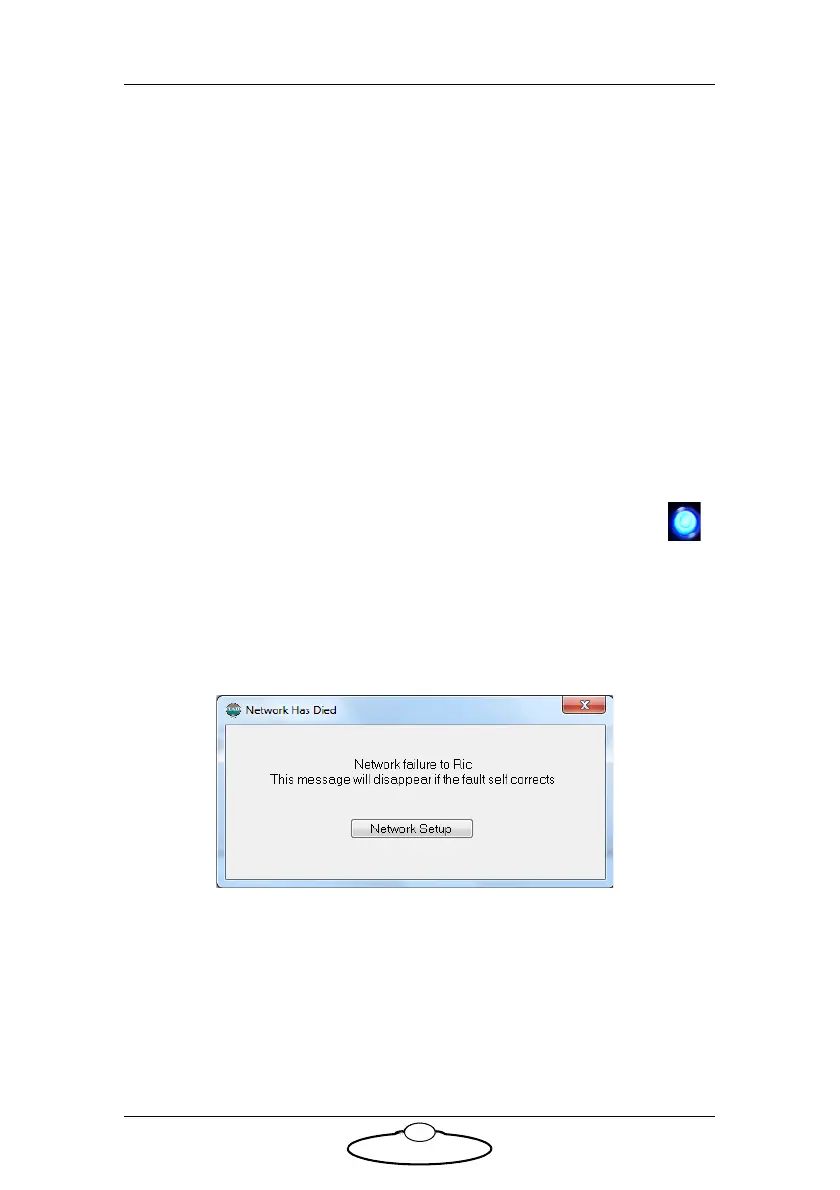
6. When you get a message about network failure, click on the
Network Setup button in the message:
or...
If the Flair installation already has a valid RT-14 connection on a
network then you might not get the network failure message. In this
case, start the Network Setup facility manually by choosing the
Setups > Network Setup menu option in Flair.


 To Next Page