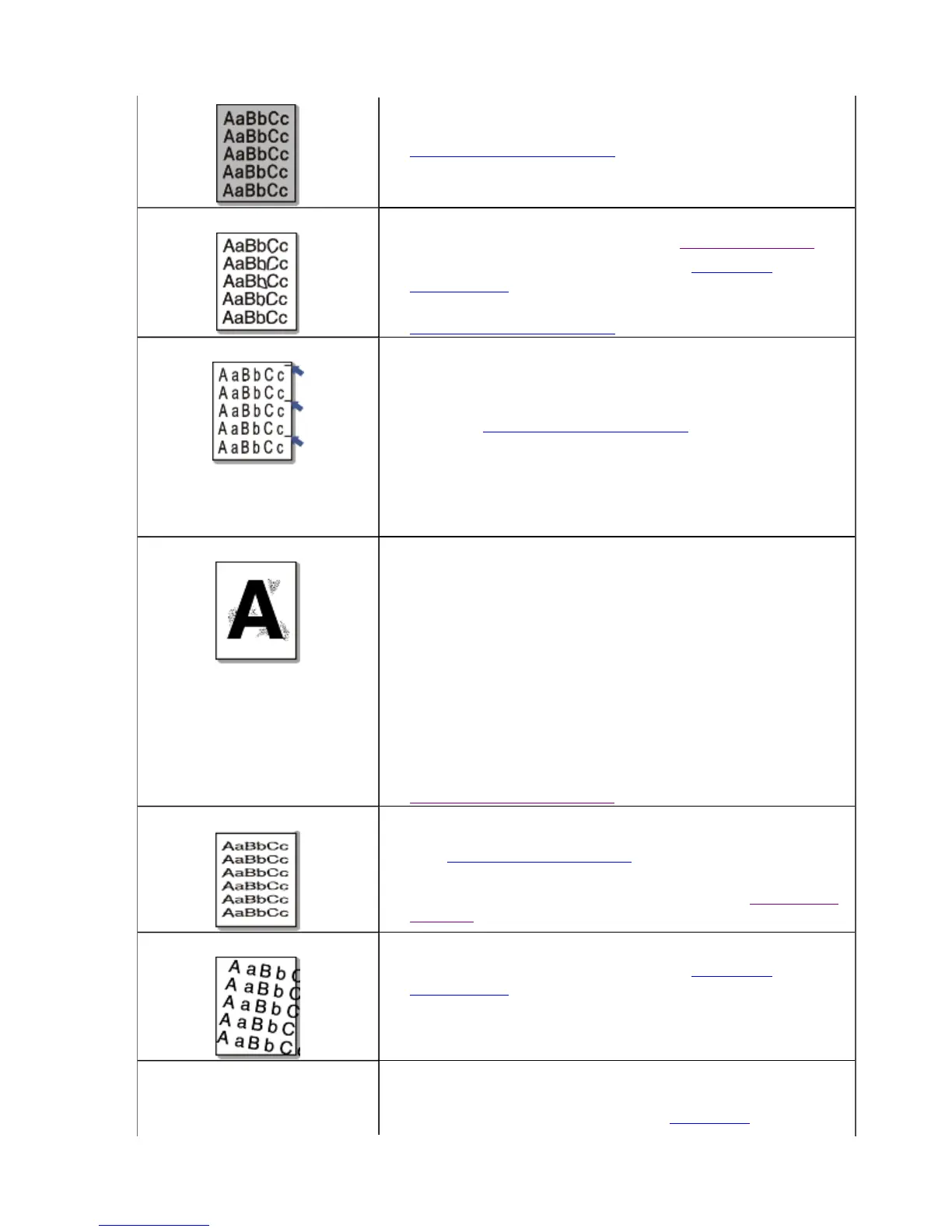
amount of background shading.
z
Remove the old toner cartridge and, install a new one. (See
Replacing the toner cartridge
.)
Toner smear
If toner smears on the page:
z
Clean the inside of the machine. (See Cleaning the inside.)
z
Check the paper type and quality. (See Print media
specifications .)
z
Remove the toner cartridge and then, install a new one. (See
Replacing the toner cartridge
.)
Vertical repetitive defects
If marks repeatedly appear on the printed side of the page at
even intervals:
z
The toner cartridge may be damaged. If you still have the
same problem, remove the toner cartridge and, instll a new
one. (See Replacing the toner cartridge
.)
z
Parts of the machine may have toner on them. If the defects
occur on the back of the page, the problem will likely correct
itself after a few more pages.
z
The fusing assembly may be damaged. Contact a service
representative.
Background scatter
Background scatter results from bits of toner randomly
distributed on the printed page.
z
The paper may be too damp. Try printing with a different
batch of paper. Do not open packages of paper until
necessary so that the paper does not absorb too much
moisture.
z
If background scatter occurs on an envelope, change the
printing layout to avoid printing over areas that have
overlapping seams on the reverse side. Printing on seams can
cause problems.
z
If background scatter covers the entire surface area of a
printed page, adjust the print resolution through your
software application or in Printing Preferences. (See
Opening printing preferences
.)
Misformed characters
z
If characters are improperly formed and producing hollow
images, the paper stock may be too slick. Try different paper.
(See Print media specifications
.)
z
If characters are improperly formed and producing a wavy
effect, the scanner unit may need service. (See Cleaning the
scan unit.)
Page skew
z
Ensure that the paper is loaded properly.
z
Check the paper type and quality. (See Print media
specifications .)
z
Ensure that the guides are not too tight or too loose against
the paper stack.
Curl or wave
z
Ensure that the paper is loaded properly.
z
Check the paper type and quality. Both high temperature and
humidity can cause paper curl. (See Print media
Pa
e 20 of 27Troubleshootin
8/4/2009htt
://downloadcenter.samsun
.com/content/UM/200907/20090721152022250/EN/en
lish/t...







 To Next Page