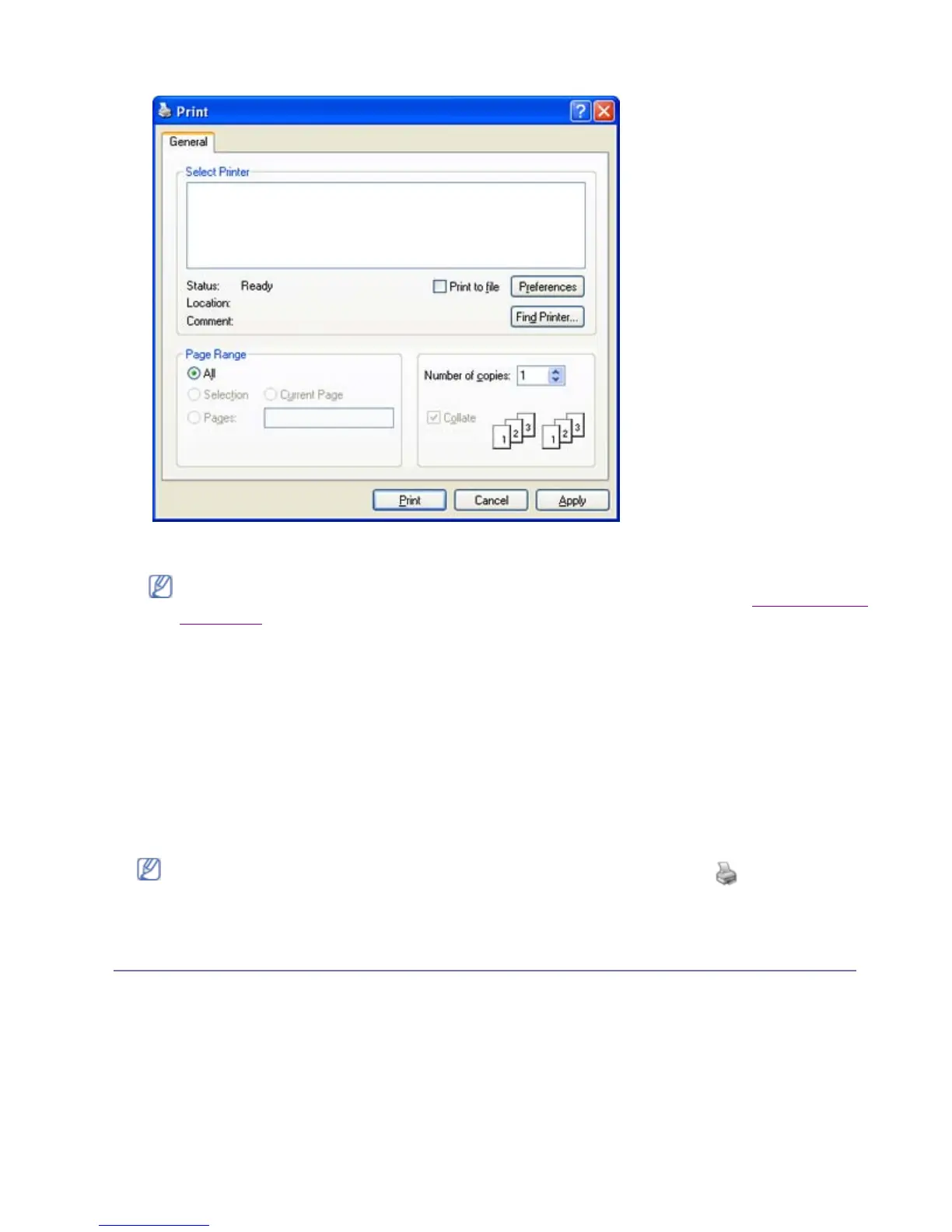
The basic print settings including the number of copies and print range are selected within the Print
window.
4. To start the print job, click OK or Print in the Print window.
Canceling a print job
If the print job is waiting in a print queue or print spooler, cancel the job as follows:
1. Click the Windows Start menu.
z
For Windows 2000, select Settings > Printers.
z
For Windows XP/2003, select Printers and Faxes.
z
For Windows Vista, select Control Panel > Hardware and Sound > Printers.
2. Double-click your machine.
3. From the Document menu, select Cancel.
OPENING PRINTING PREFERENCES
You can preview the settings you selected on the upper right of the Printing Preferences.
1. Open the document you want to print.
2. Select Print from the file menu. The Print window appears.
3. Select your machine from the Select Printer.
4. Click Properties or Preferences.
To take advantage of the printer features provided by your printer driver, click Properties or
Preferences in the application’s Print window to change the print setting. (See Opening printin
preferences. )
You can also access this window by simply double-clicking the machine icon ( ) in the
Windows task bar.
You can also cancel the current job by pressing Stop on the control panel.
Pa
e 3 of 23Printin
8/4/2009htt
://downloadcenter.samsun
.com/content/UM/200907/20090721152022250/EN/en
lish
...







 To Next Page