EasyManua.ls Logo

MUTOH RJ-901C - User Manual

MUTOH RJ-901C
348 pages
Print Icon
To Next Page IconTo Next Page
Loading...
Rev.
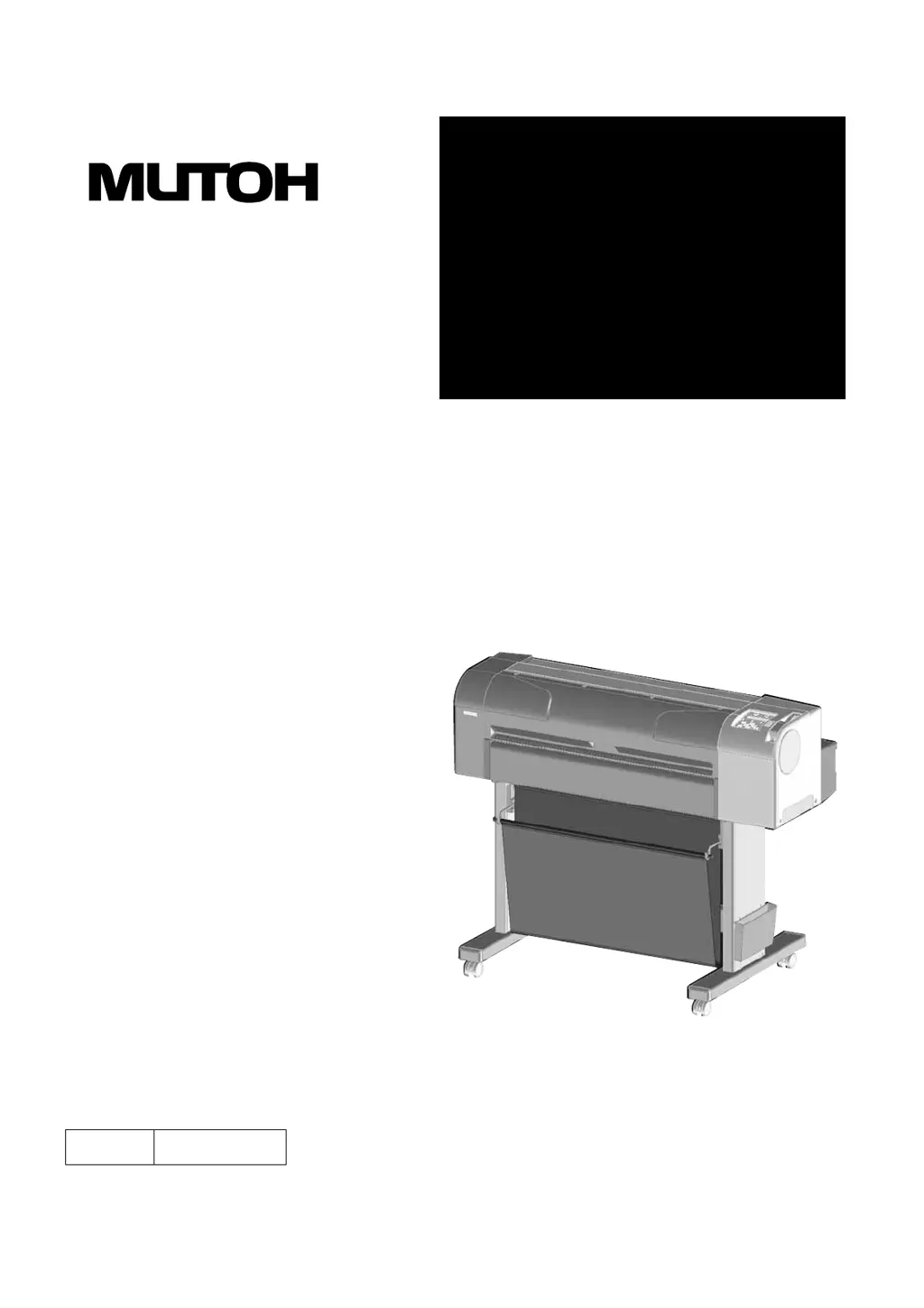
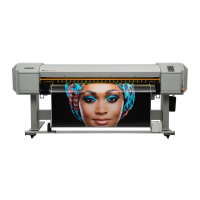
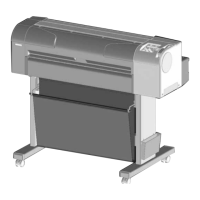
Full-Color Inkjet Plotter
RJ-900C / RJ-901C
MAINTENANCE
MANUAL
RJ91C90-M-02
Use this manual for the maintenance
and inspection of machine.

Table of Contents

Questions and Answers

  • C
    Charles WatsonAug 17, 2025
    How to fix MUTOH RJ-901C when machine power cannot be turned ON?
    • G
      gonzalezyvonneAug 17, 2025
      If the MUTOH Plotter's power won't turn on, there are several potential causes. Check if the operation panel unit assembly cable is broken or shorted, and if so, replace the panel cable. The panel unit assembly itself may be damaged, requiring replacement. The inlet assembly or the power board assembly could also be defective, each necessitating replacement.
  • G
    Gloria EllisAug 19, 2025
    Why does my MUTOH Plotter LCD show no display or garbled characters?
    • M
      Mark WadeSep 12, 2025
      If your MUTOH Plotter's LCD is showing no display or garbled characters, it could be due to power supply voltage issues. Specifically, check the power supply voltage (AC100V, DC5V, DC24V, DC42V). If there are any problems with the power supply, you may need to replace the power board assembly.
  • T
    Tammy SilvaAug 22, 2025
    What to do if MUTOH Plotter operation panel accepts no inputs?
    • J
      Jennifer HenryAug 22, 2025
      If the operation panel on your MUTOH Plotter isn't responding to inputs, there are a few things to check. First, see if the operation panel cover is broken or contaminated and replace the operation panel cover if needed. Then, check the panel cable connectors at both the operation panel unit assembly side and the main board assembly side, ensuring they are securely and correctly connected by reconnecting connectors J125 on the main board assembly and the operation panel unit assembly. The operation panel unit assembly or the main board assembly may be damaged, needing replacement.
  • K
    Kiara MeyerAug 25, 2025
    Why MUTOH RJ-901C Plotter makes no operations after turned ON?
    • L
      Linda ShepardAug 26, 2025
      If your MUTOH Plotter isn't operating after being turned on, check if 'Sen: Cover open' is displayed on the LCD when the plotter cover is closed. Also, verify the cover sensor assembly function through 'Test: Sensor' in the self-diagnosis function. Try adjusting the cover sensor assembly height or replacing the cover sensor assembly. Also check main board assembly connector J105.
  • E
    Eric CowanAug 27, 2025
    What to do if MUTOH Plotter does not stop even if front cover is opened?
    • B
      Brian PrinceAug 27, 2025
      If your MUTOH Plotter continues to run even after the front cover is opened, check the power supply voltage (DC5V, DC24V, DC42V) and replace the power board assembly if necessary. Also, ensure the DC cable assembly is correctly connected between the power board assembly and the main board assembly by reconnecting it, and replace the DC cable assembly if needed. If the problem persists, the main board assembly may be defective and require replacement.
  • A
    Amber Jennings MDAug 30, 2025
    Why ink is not discharged from MUTOH Plotter though ink charge is finished?
    • I
      ihughesAug 30, 2025
      If ink isn't discharging from your MUTOH Plotter even after the ink charge is complete, check the damper assembly, ink tube, and SUS pipe joint screws (K1, K2, Y, M, C) to ensure they are securely tightened and the O-ring is properly installed. Remove the head cover to inspect the damper assembly, and remove the side covers (L, R) and cartridge cover to check the ink tube and SUS pipe joint screws. Also, check the damper assembly for air leaks and replace it if necessary, verifying ink inflow during the cleaning operation. Inspect the ink tube in the ink system assembly for bends and replace the ink system assembly if needed, also checking for ink inflow during cleaning.
  • I
    isabella67Sep 1, 2025
    Why MUTOH RJ-901C displays "Initializing" and resets itself?
    • D
      Dawn HunterSep 2, 2025
      If your MUTOH Plotter displays 'Initializing' after being turned on and resets itself, even with media set, check the panel cable connectors at the operation panel unit assembly and main board assembly. Ensure the panel cable isn't inserted obliquely and is securely locked. Reconnect the following connectors: J125 on the main board assembly and the operation panel unit assembly.
  • J
    James FreemanSep 4, 2025
    What to do if MUTOH RJ-901C Plotter does not start operation even if front cover is closed?
    • L
      Lisa SandovalSep 5, 2025
      If your MUTOH Plotter doesn't start even when the front cover is closed, check if the P_REAR sensor assembly is functioning normally through the 'Test: Sensor' function in the self-diagnosis menu. Inspect connectors J130 and J131 on the main board assembly. If necessary, replace the P_REAR sensor assembly.
  • T
    thomasjacksonSep 7, 2025
    Why MUTOH RJ-901C ink cartridge cannot be detected even if installed?
    • R
      Regina LinSep 7, 2025
      If your MUTOH Plotter isn't detecting the ink cartridge even after installation, verify the self-diagnosis functions. Check for the detection of ink presence from 'Sen: Ink NOT' and the detection of cartridge presence from 'Ink Not' with the specified cartridge securely inserted. Follow the troubleshooting steps for the message '[K1K2CMY] No Cartridge'. After adjustment or replacement, perform an initial ink charge from 'Adj: Input Rank' in the self-diagnosis function.
  • A
    ashannonSep 10, 2025
    Why is initial ink charge not available on MUTOH RJ-901C?
    • R
      Ricardo BrownSep 12, 2025
      If the initial ink charge is not available on your MUTOH Plotter, and 'Sen: Cover open' is displayed on the LCD even with the front cover closed, check the connection of the cover sensor assembly connector. If the connection is correct, replace the cover sensor assembly.

Summary

Important Notice

For Users in Europe

This section details compliance for European users regarding radio interference.

For Users in the United States

This section details FCC compliance for US users regarding radio interference.

Trademark Mentioned in this Manual

This section lists trademarks and registered product names used in the manual.

Warranty Limitations

Warranty Scope and Exclusions

Outlines warranty scope for repair/replacement and specifies exclusions.

About this Manual

Purpose and Target Readers

Explains the manual's objective and intended audience for maintenance personnel.

Manual Configuration

Details the structure and content of the manual's sections for easy navigation.

Safety Instructions

Important Safety Instructions

Provides general safety guidelines that must be observed to use the equipment safely.

Warning Labels

Explains the handling, attachment locations, and types of warning labels.

Operation Labels

Describes operation labels, their types, and attaching positions for important operations.

Product Overview

Features

Details the key features of the plotter, such as high-resolution output and ink system.

Part Names and Functions

Explains the names and functions of various parts of the plotter.

Operation Panel

Explains the operation keys, status lamps, and LCD monitor on the plotter.

Specifications

Product Specifications

Details the technical specifications of the plotter's main unit, including dimensions and performance.

Interface Specifications

Outlines the interface specifications supported by the plotter, including USB and Network.

Choosing a Place for the Plotter

Provides guidelines for selecting an appropriate installation location based on environmental requirements.

Parts Replacement

Removal of Covers

Describes the procedures for removing external covers before accessing internal parts.

Replacement of Board Base Section Components

Covers replacement procedures for main electronic boards, NIC, and cooling fan.

Replacement of CR Driving Section Components

Covers replacement procedures for components related to the CR drive section.

Replacement of Head Section Components

Details the procedures for replacing components within the head section.

Self-Diagnosis Mode

Preparation

Outlines the necessary steps to prepare the machine for running the diagnosis menu.

Operations in Self-Diagnosis Mode

Explains how to operate within the self-diagnosis mode and lists available diagnosis items.

Inspection Menu

Performs various inspections on circuit boards, sensors, and fans.

Adjustment Menu

Aligns printing positions and corrects media feed operations.

Maintenance Mode2

Operations in Maintenance Mode2

Explains how to start up and operate Maintenance Mode2.

Maintenance Menu

Lists the diagnosis items available within the Maintenance Mode2 menu.

Adjustment

Adjustment Item

Describes adjustment items required in part replacement and self-diagnosis functions.

Working with Dedicated Network Software

Explains installing parameters and firmware via network using dedicated software.

PF Speed Reduction Belt Tension Adjustment

Describes the procedure to adjust the tension of the PF speed reduction belt.

Head Slant Adjustment(Horizontal)

Describes the procedure to adjust the head slant in the horizontal direction.

Maintenance

Periodical Services

Describes the services required for stable plotting quality and periodic inspections.

Part Life Information

Shows how to check the life of service parts using the maintenance counter.

Lubrication;Bonding

Covers lubrication and bonding information required after disassembly/assembly.

Troubleshooting

Troubleshooting with Error Messages

Describes messages displayed during normal operation and errors, with correction methods.

Troubleshooting Without Error Messages

Describes error symptoms without messages, check items, and recovery actions.

Printing Problems

Addresses common problems encountered during the printing process.

Appendix

Maintenance Part List

Lists all maintenance parts with their part numbers and remarks for reference.

Jigs and Tools

Lists jigs and tools required for service operations and adjustments.

Exploded View

Provides exploded views and maintenance parts information for visual identification.

MUTOH RJ-901C Specifications

General IconGeneral
Print Resolution1440 x 1440 dpi
Number of Inks4
Ink ColorsCyan, Magenta, Yellow, Black
TechnologyInkjet
Media Width91.4 cm (36 inches)
Number of Colors4
ConnectivityUSB 2.0, Ethernet
Media Thickness0.08 mm to 0.28 mm

Related product manuals