12
EN
hyperion X5 2D/3D - TECHNICAL MANUAL
EN
PC CONFIGURATION
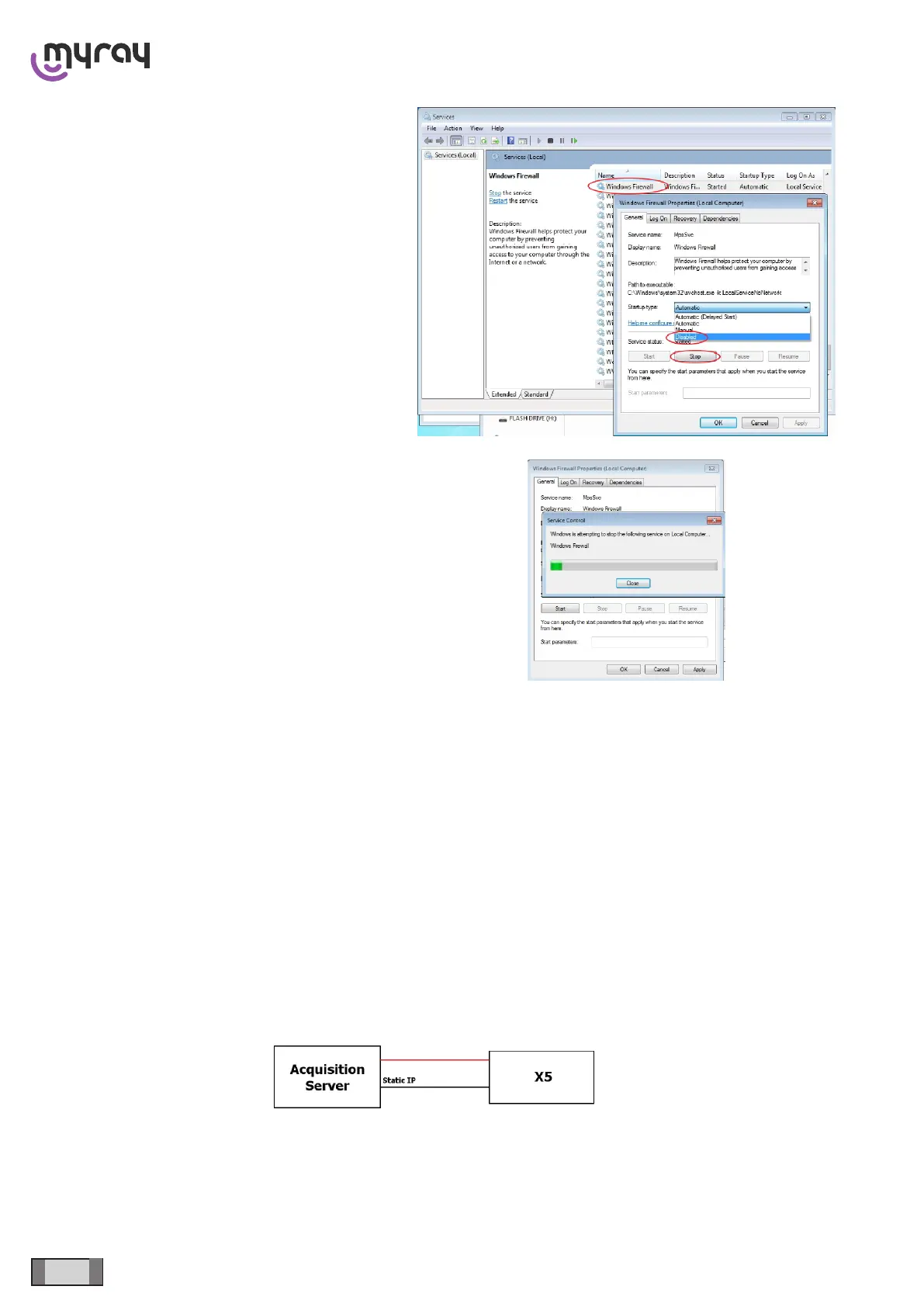
Scroll down the service list, right click on the “Windows
rewall” service and double click.
Go to the “Startup type” drop-down menu and select
“Disabled”. Then press the “Stop” key to stop the
service currently being executed.
Wait until the service is stopped:
Click on “OK” to close the dialogue window.
From the Windows Services list, search for “Windows
update”, stop the service and disable the automatic
startup.
3.5 PC-DEVICE CONNECTION
The device may be connected to a local area network or directly to the Acquisition Server PC. In both cases, the 3D
panel Ethernet connection must absolutely be point-to-point and is always managed autonomously by the software
and the machine. Therefore, it is not necessary to set any IP address on the INTEL PRO 1000 board, as it will be set
autonomously during the software installation procedure described in the following chapters. On the other hand, it may
be necessary to set a static IP address for the network card dedicated to PC – device communication. If this network
card too is characterised by a direct connection (see the following gure), then it will be necessary to set an IP address
compatible with the default address of the device (192.168.1.160).


 To Next Page