24
Part
3
-
Setting
up
and
programming
the
terminal
Light
adjust
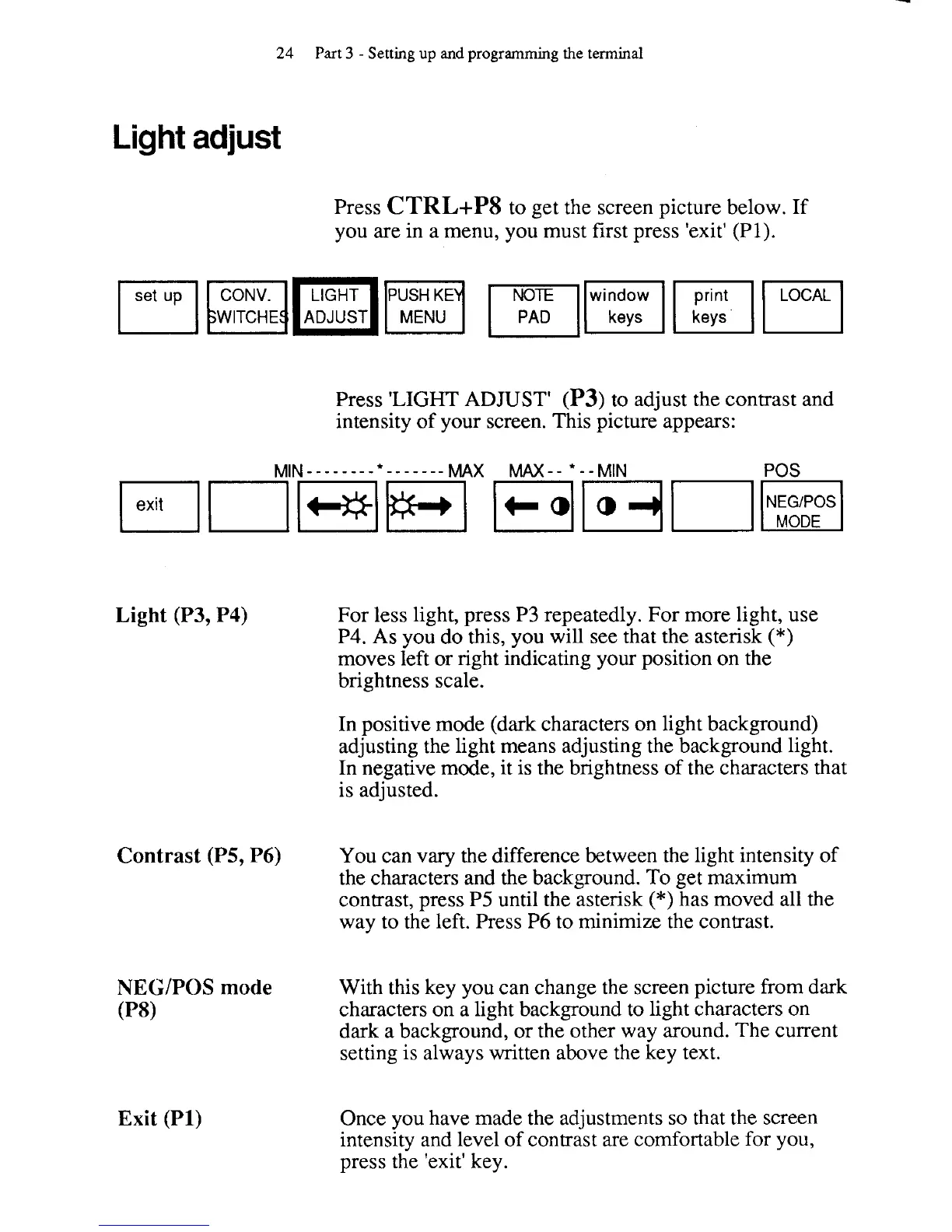
Press
CTRL+PS
to get the screen picture below. If
you are in a menu, you must first press 'exit'
(PI).
~""""JFIE~
WITCHE ADJUST
Press 'LIGHT ADJUST'
(P3)
to adjust the contrast and
intensity of your screen. This picture appears:
MIN
--------
*
-------
MAX
MAX--
*--MIN
POS
Light (P3, P4)
For less light, press P3 repeatedly. For more light, use
P4. As you do this, you will see that the asterisk
(*)
moves left or right indicating your position on the
brightness scale.
In positive mode (dark characters on light background)
adjusting the light means adjusting the background light.
In negative mode, it is the brightness of the characters that
is adjusted.
Contrast (PS, P6)
You can vary the difference between the light intensity of
the characters and the background. To get maximum
contrast, press
P5 until the asterisk
(*)
has moved all the
way to the left. Press
P6
to minimize the contrast.
NEGIPOS
mode
With this key you can change the screen picture from dark
(PSI
characters on a light background to light characters on
dark a background, or the other way around. The current
setting is always written above the key text.
Exit
(PI)
Once you have made the adjustments so that the screen
intensity and level of contrast are comfortable for you,
press the 'exit' key.



 To Next Page