3
6
Part
3
-
Setting
up
and
programming
the
terminal
Pan window
(P8)
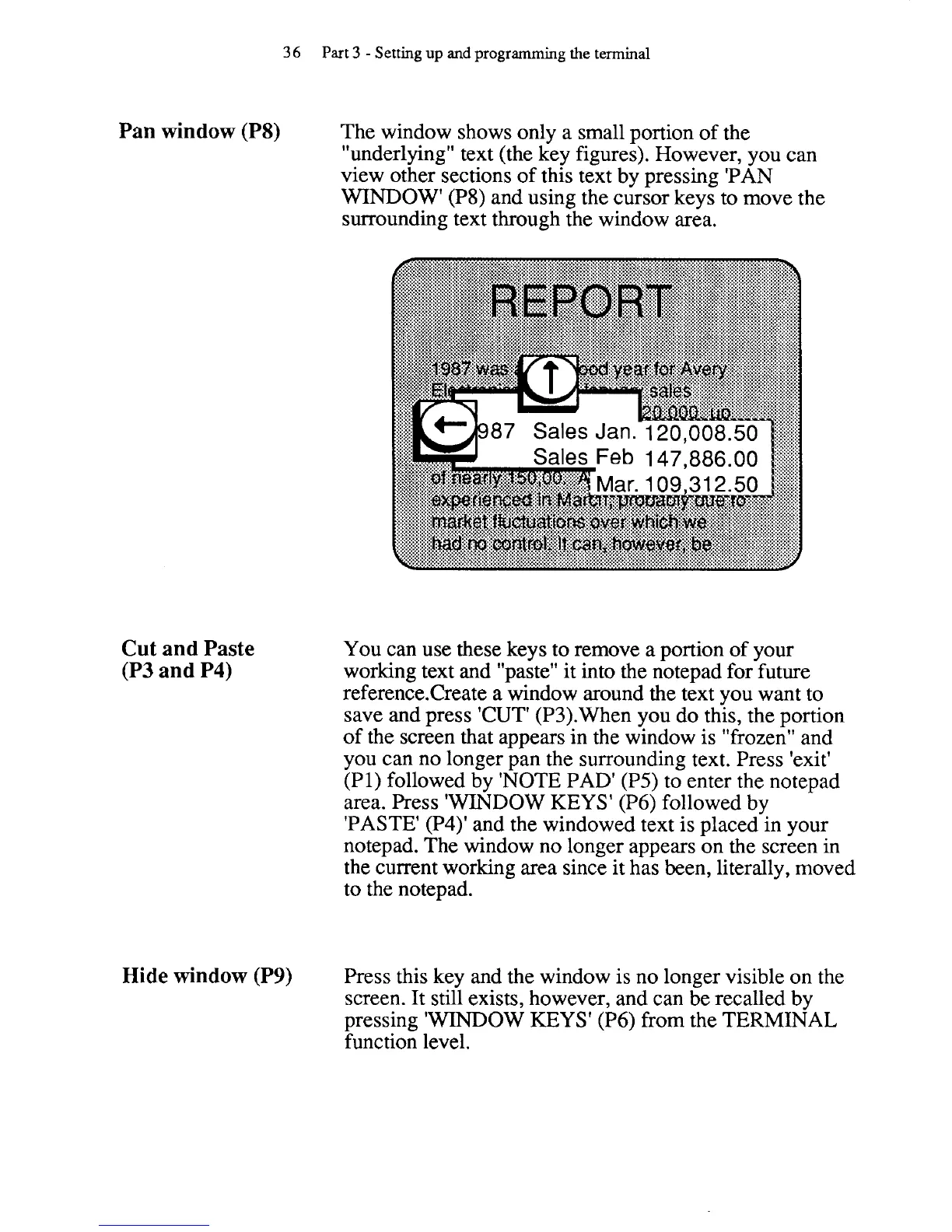
The window shows only a small portion of the
"underlying" text (the key figures). However, you can
view other sections of this text by pressing 'PAN
WINDOW'
(P8)
and using the cursor keys to move the
surrounding text through the window area.
Cut
and
Paste
(P3
and
P4)
You can use these keys to remove a portion of your
working text and "paste" it into the notepad for future
reference.Create a window around the text you want to
save and press 'CUT'
(P3).When you do this, the portion
of the screen that appears in the window is "frozen" and
you can no longer pan the surrounding text. Press 'exit'
(PI) followed by 'NOTE PAD' (P5) to enter the notepad
area. Press 'WINDOW KEYS' (P6) followed by
'PASTE'
(P4)' and the windowed text is placed in your
notepad. The window no longer appears on the screen in
the current
working area since it has been, literally, moved
to the
notepad.
Hide window
(P9)
Press this key and the window is no longer visible on the
screen. It still exists, however, and can be recalled by
pressing 'WINDOW KEYS' (P6) from the TERMINAL
function level.



 To Next Page