EasyManua.ls Logo

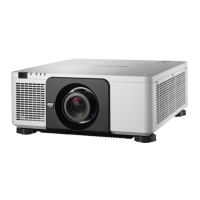
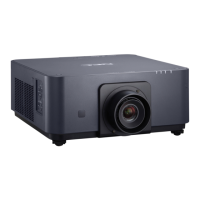
NEC PX803UL-WH - User Manual

NEC PX803UL-WH
212 pages
Print Icon
To Next Page IconTo Next Page
Loading...
Projector
PX803UL-WH/PX803UL-BK
User’s Manual
Model No.
NP-PX803UL-WH/NP-PX803UL-BK

Table of Contents

Questions and Answers

  • J
    jamessanchezAug 20, 2025
    Why won't my NEC Projector turn on or off?
    • C
      Corey White DVMAug 20, 2025
      If your NEC Projector doesn't turn on or shut down, first, ensure the power cord is correctly plugged in and the power button on the projector or remote is on. Second, check for overheating by ensuring sufficient ventilation or moving the projector to a cooler location. Third, the light module may have failed to light; wait a minute before turning it on again. As a last resort, unplug the power cord, wait 5 minutes, and then plug it back in.
  • H
    Hannah HoffmanAug 22, 2025
    What to do if my NEC PX803UL-WH has no picture?
    • S
      Steven FisherAug 22, 2025
      If your NEC Projector displays no picture, verify that the correct input is selected and your cables are properly connected. Adjust the brightness and contrast in the menu. Also, check that the SHUTTER or AV MUTE buttons are not activated. Ensure the [POWER ON SHUTTER] in the onscreen menu is not set to [CLOSE]. If problems persist, reset the settings to factory defaults using the [RESET] option in the Menu. If the Security function is enabled, enter your registered keyword. Reinstall or update your graphics card driver. Connect the projector and notebook PC while the projector is in standby mode before powering on the notebook PC.
  • D
    Donna GrantAug 25, 2025
    Why is my NEC Projector remote control not working?
    • A
      allisonjamesAug 25, 2025
      If the remote control for your NEC Projector isn't working, try installing new batteries. Ensure there are no obstructions between the remote and the projector. Also, make sure you are within 22 feet (7 m) of the projector.
  • M
    Mary JohnsonAug 26, 2025
    Why does my NEC Projector keep turning off?
    • E
      Erik FowlerAug 27, 2025
      If your NEC Projector keeps turning off, make sure that the [OFF TIMER], [AUTO POWER OFF] or [PROGRAM TIMER] settings are disabled.
  • C
    Clarence OdomAug 28, 2025
    How to fix a blurred picture on my NEC Projector?
    • J
      jamestinaAug 28, 2025
      If the picture on your NEC Projector is blurred, start by adjusting the focus. Reposition the projector to improve its angle to the screen. Make sure the distance between the projector and the screen is within the lens's adjustment range and that the lens hasn't been shifted beyond its guaranteed range. If the projector was cold and brought into a warm place, condensation may have formed on the lens. Let the projector stand until the condensation clears.
  • Q
    qsimonAug 30, 2025
    How to square the image on my NEC PX803UL-WH Projector screen?
    • R
      Rhonda ShortAug 30, 2025
      If the image from your NEC Projector isn’t square to the screen, try repositioning the projector to improve its angle relative to the screen. You can also use the Keystone correction function to correct any trapezoid distortion.
  • J
    Jeffrey WarrenSep 1, 2025
    What to do if my NEC PX803UL-WH is in Forced ECO Mode because of high temperature?
    • S
      Sarah OrtizSep 1, 2025
      If your NEC Projector is in Forced ECO Mode due to high surrounding temperature, lower the room temperature.
  • M
    Michelle WilsonSep 3, 2025
    Why did the picture on my NEC Projector suddenly become dark?
    • A
      Amanda HolmesSep 3, 2025
      If the picture on your NEC Projector suddenly becomes dark, check to see if it's in Forced ECO mode due to a high ambient temperature.
  • M
    Michael HodgeSep 5, 2025
    How to fix the unusual color tone on my NEC PX803UL-WH Projector?
    • B
      Bianca DouglasSep 5, 2025
      If the color tone or hue on your NEC Projector is unusual, check if an appropriate color is selected in [WALL COLOR]. You can also adjust the [HUE] in [PICTURE].
  • E
    eduardoperezSep 7, 2025
    Why is the image scrolling on my NEC PX803UL-WH?
    • A
      Angela HansenSep 7, 2025
      If the image on your NEC Projector is scrolling vertically, horizontally, or both, check the computer’s resolution and frequency. You can also manually adjust the computer image using the Horizontal/Vertical settings in the [IMAGE OPTIONS].

Summary

Introduction

Whats in the Box?

Lists all items included in the projector box for user verification.

Introduction to the Projector

Introduces the projector's features, capabilities, and general information.

Part Names of the Projector

Identifies and labels the various physical parts of the projector.

Part Names of the Remote Control

Identifies and labels the buttons and components of the remote control.

Projecting an Image (Basic Operation)

Flow of Projecting an Image

Outlines the step-by-step process for setting up and projecting an image.

Connecting Your Computer;Power Cord

Details how to connect the projector to a computer and power source.

Turning on the Projector

Explains the procedure for powering on the projector and its indicators.

Selecting a Source

Guides on how to choose the input signal source for projection.

Adjusting Picture Size and Position

Covers adjustments like lens shift, focus, and zoom for image optimization.

Turning off the Projector

Details the steps for safely turning off the projector.

Convenient Features

Lens Shutter and Image Off Functions

Explains how to temporarily turn off the light source and projected image.

Picture Adjustments (Magnify, Light Mode)

Covers image magnification and adjusting light modes for energy saving.

Geometric Correction and Security

Guides on correcting image distortion and setting projector security.

Projecting 3 D Videos

Details the procedure for projecting 3D videos with compatible eyewear.

Multi-Screen Projection

Multi-Screen Capabilities Overview

Introduces multi-screen capabilities like PIP, Picture-by-Picture, and Tiling.

Displaying Two Pictures (PIP;PBP)

Explains how to use PIP and Picture-by-Picture modes for dual-screen display.

Edge Blending for Seamless Displays

Details how to blend edges of multiple projected images for a seamless display.

Using On-Screen Menu

Navigating the On-Screen Menu

Provides instructions on navigating and operating the on-screen menu system.

Input and Adjust Menu Functions

Explains functions within the INPUT and ADJUST menus.

Display and Setup Menu Functions

Details functions within the DISPLAY and SETUP menus.

Network and Power Settings

Covers wired LAN setup, power options, and network configurations.

Returning to Factory Default

Describes how to reset projector settings to factory defaults.

Connecting to Other Equipment

Mounting and Removing Lenses

Provides instructions for installing and removing optional projector lenses.

Making Cable Connections

Explains how to connect computers and video equipment via various cables.

Network and HDBaseT Connections

Guides on setting up LAN and HDBaseT connections for the projector.

Portrait Projection and Stacking

Details vertical installation for portrait mode and projector stacking.

Maintenance

Cleaning the Lens and Cabinet

Provides instructions on how to safely clean the projector's lens and cabinet.

User Supportware

Bundled Software and Installation

Lists bundled software, their features, and installation guides for Windows/Mac.

Remote Projector Control (LAN;Virtual Remote)

Explains remote control of the projector via LAN using utility software.

Appendix

Throw Distance and Screen Size

Provides lens specifications, throw distances, and screen size charts.

Compatible Input Signals

Lists supported analog computer, component, and video signals.

Specifications and Dimensions

Details projector technical specifications and physical cabinet dimensions.

Terminal Pin Assignments

Details pin assignments and signal levels for main projector terminals.

Troubleshooting and Checklists

Provides solutions for common problems and a diagnostic checklist.

NEC PX803UL-WH Specifications

General IconGeneral
Brightness8000 lumens
Light SourceLaser
Display TechnologyDLP
HDBaseTYes
Resolution1920 x 1200
ConnectivityHDMI, USB, LAN
Lamp Life20000 hours
Dimensions500 x 200 x 500 mm
Input PortsHDMI x 2, VGA x 1, USB, LAN x 1
Output PortsLAN
Power Consumption600W

Related product manuals