125
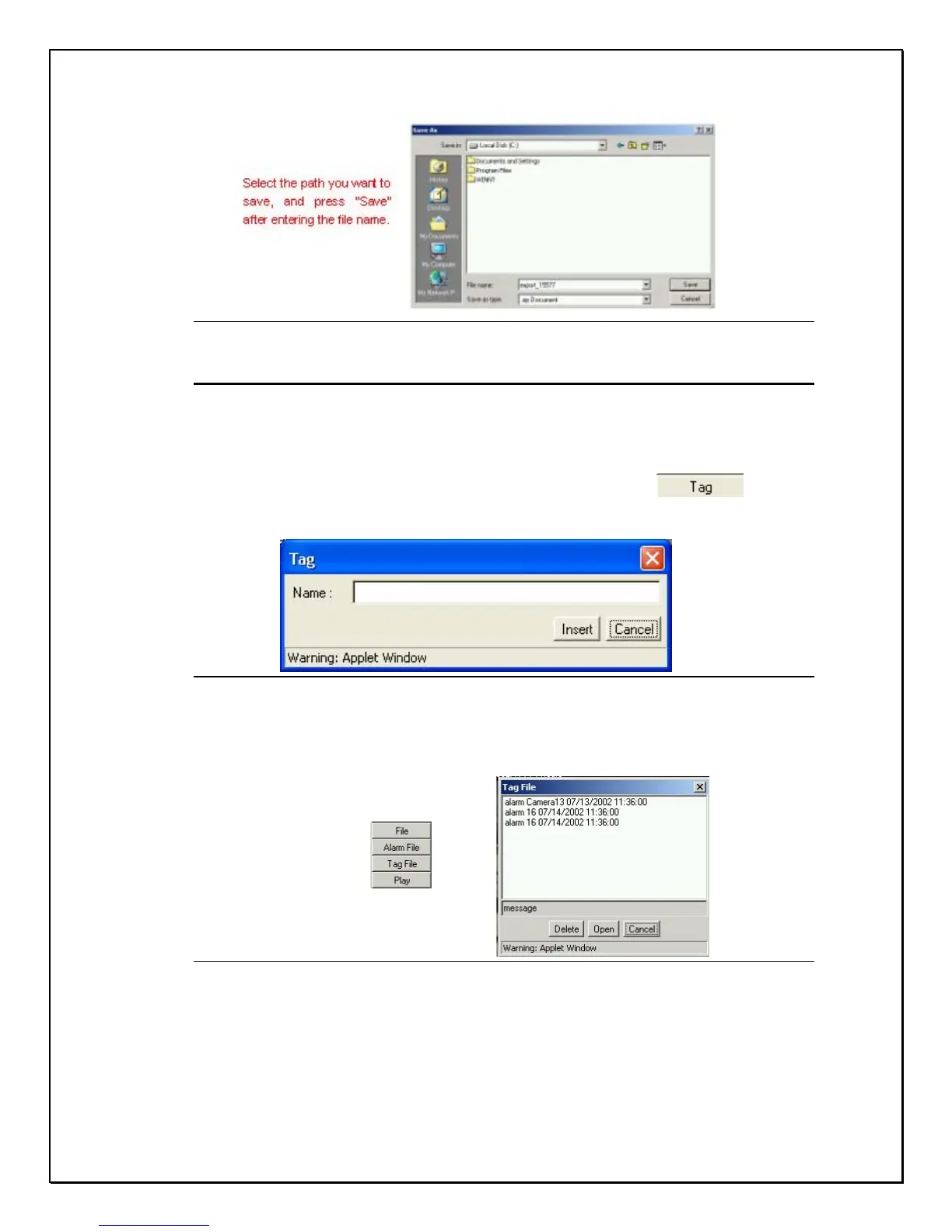
Figure 15-37: Saving to Location
Inserting a Tag
Inserting a tag allows users the choice to watermark an image or recorded video
so that they can reference it in the future. To create a tag:
1. Click the Tag button on the playback side toolbar
2. The Tag pop-up window will appear asking for a tag name
Figure 15-38: Tag Name Field
3. Insert a Tag name
4. Click on the Playback Side Toolbar and click Tag File
Figure 15-39: Tag File List
5. Select the file you wish to view.
6. Click Open (to view the image) or delete to discard the file



 To Next Page