31
Another way to view Single-mode Camera view is by clicking on a single camera
within the Main Screen. Double-clicking that image several times will expand it to
Single-mode camera view.
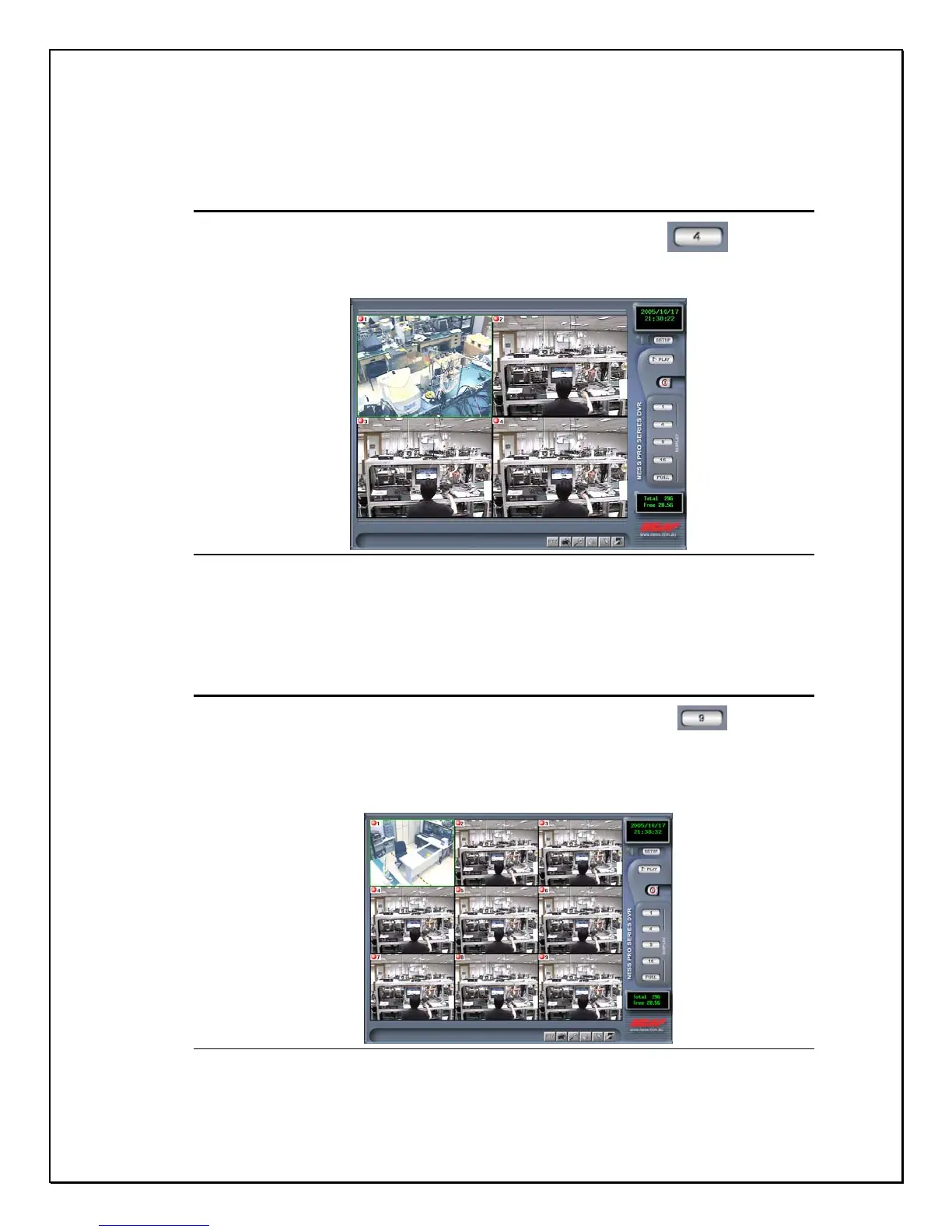
Quad Camera View Screen
1. Step 1: Click the quad view camera icon on the right-side toolbar…
2. Step 2: The screen will display four cameras in one screen. If the system has 16 cameras,
this view can be configured to display four camera viewpoints at 6-second intervals.
Figure 3-5: The Quad Camera View Screen
Depending how your system is configured, the DVR can be configured to display
four separate cameras at 6-second intervals. This can be configured in the main
Settings Panel. This will be covered later in this manual.
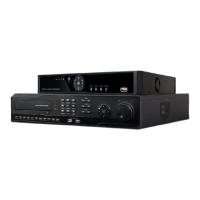
9 – Camera View Screen
1. Step 1: Click the 9 - Camera view icon on the right-side toolbar…….
2. Step 2: The screen will display nine cameras in one screen. If the system has 16
cameras, this view can be configured to display nine different camera viewpoints at 6-
second intervals.
Figure 3-6: The Nine-Camera View Screen


 To Next Page