Set Up a WiFi Schedule.......................................................................................87
Specify WPS Settings..........................................................................................88
Use the Router as a WiFi Access Point...............................................................89
Use the Router in Bridge Mode............................................................................91
Chapter 7 Optimize Performance
Use Dynamic QoS to Optimize Internet Traffic Management...............................95
Enable Dynamic QoS......................................................................................95
Enable or Disable the Automatic QoS Database Update................................96
Manually Update the Dynamic QoS Database................................................97
Participate in Dynamic QoS Analytics.............................................................98
Improve Network Connections With Universal Plug and Play..............................98
Wi-Fi Multimedia Quality of Service.....................................................................99
Chapter 8 Manage Your Network
Update the Router Firmware..............................................................................102
Change the admin Password.............................................................................102
Set Up Password Recovery...............................................................................103
Recover the admin Password............................................................................104
View Router Status............................................................................................105
Display Internet Port Statistics...........................................................................106
Check the Internet Connection Status...............................................................107
View and Manage Logs of Router Activity.........................................................108
View Devices Currently on the Network.............................................................109
Monitor Internet Traffictraffic metering................................................................110
Manage the Router Configuration File...............................................................112
Back Up Settings...........................................................................................112
Erase the Current Configuration Settings......................................................113
Restore Configuration Settings.....................................................................113
Set Up Remote Management............................................................................114
Use Remote Access..........................................................................................116
Access the Router With NETGEAR genie Apps................................................116
Remotely Access Your Router Using the genie App..........................................116
Chapter 9 Share USB Storage Devices Attached to the Router
USB Device Requirements................................................................................118
Connect a USB Device to the Router.................................................................118
Access a USB Storage Device Connected to the Router From a Windows
Computer...........................................................................................................119
Map a USB Device to a Windows Network Drive...............................................119
Access a USB Storage Device That Is Connected to the Router From a Mac....120
Back Up Windows Computers With ReadySHARE Vault...................................121
Back Up Mac Computers With Time Machine....................................................121
Set Up a USB Hard Drive on a Mac..............................................................121
Prepare to Back Up a Large Amount of Data................................................122
Use Time Machine to Back Up Onto a USB Hard Disk.................................122
Use FTP Within the Network..............................................................................124
View or Change Network Folders on a USB Storage Device.............................124
5
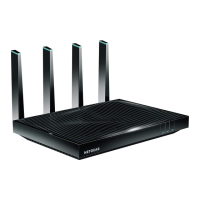
Nighthawk X8 AC5300 Tri-Band WiFi Router


 To Next Page
 Loading...