EasyManua.ls Logo

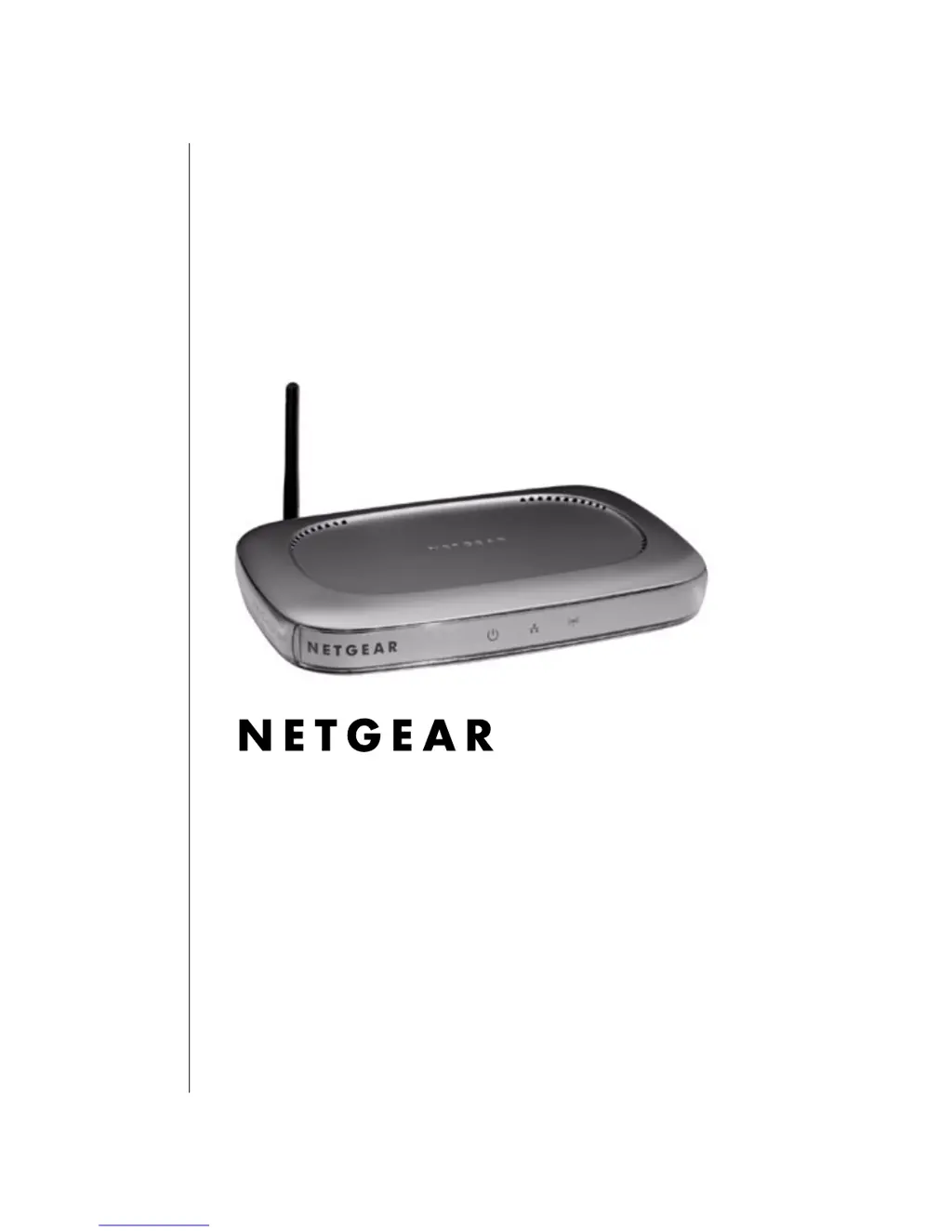
NETGEAR WG602 - 54 Mbps Wireless Access Point - User Manual

NETGEAR WG602 - 54 Mbps Wireless Access Point
122 pages
Print Icon
To Next Page IconTo Next Page
Loading...
M-10181-03
M-10181-03
March 2004
NETGEAR, Inc.
4500 Great America Parkway
Santa Clara, CA 95054 USA
Phone 1-888-NETGEAR
Reference Manual for the
WG602 v2 54 Mbps Wireless
Access Point

Table of Contents

Questions and Answers

  • D
    Dylan JohnsonAug 18, 2025
    How to troubleshoot no lights on my NETGEAR WG602 - 54 Mbps Wireless Access Point?
    • B
      bergercrystalAug 18, 2025
      If no lights are lit on your NETGEAR Wireless Access Point, it means the access point isn't receiving power. Ensure the power cord is securely connected to both the access point and a working power outlet or power strip. Also, verify that you are using the correct NETGEAR power adapter supplied with your access point.
  • C
    cannonrachelAug 20, 2025
    What to do if I cannot configure my NETGEAR Wireless Access Point from a browser?
    • M
      Matthew HillAug 21, 2025
      To configure your NETGEAR wireless access point from a browser, first check that the LAN port LED is amber or green to verify that the Ethernet connection is OK. If you are using the NetBIOS name of the WG602v3 to connect, ensure that your PC and the WG602v3 are on the same network segment or that there is a WINS server on your network. If your PC uses a Fixed (Static) IP address, ensure that it is using an IP Address in the range of the WG602v3.
  • L
    Lauren WoodsAug 23, 2025
    Why can't I access the Internet with my NETGEAR WG602 - 54 Mbps Wireless Access Point?
    • A
      Angel ContrerasAug 23, 2025
      If you can't access the Internet or LAN with a wireless-capable computer, it might be due to a configuration issue. First, restart the computer with the wireless adapter to ensure TCP/IP changes take effect. Also, verify that the computer's TCP/IP settings are correct for your network. If the default values of the NETGEAR Wireless Access Point don't align with your network, compare its configuration with other devices on your network.
  • A
    Ashley PenningtonAug 26, 2025
    What to do if I get a timeout error with NETGEAR WG602 - 54 Mbps?
    • J
      johnthompsonAug 26, 2025
      If you encounter a timeout error when entering a URL or IP address, start by checking if other PCs are working correctly. If they are, verify that your PC's TCP/IP settings are accurate. If the PCs are configured correctly but still not functioning, ensure that the NETGEAR WG602v3 Wireless Access Point is properly connected and powered on. If the WG602v3 is configured correctly, examine your Internet connection (DSL/Cable modem, etc.) to confirm it's working as expected.
  • B
    briancarterAug 27, 2025
    Why are no lights lit on my NETGEAR WG602 - 54 Mbps Wireless Access Point?
    • C
      Charles SmithAug 27, 2025
      If no lights are lit on the NETGEAR Wireless Access Point, it likely isn't receiving power. Ensure the power cord is securely connected to both the access point and a functioning power outlet or power strip. Also, confirm you're using the correct NETGEAR power adapter that came with your access point.
  • H
    Heidi ThompsonAug 29, 2025
    What to do if the Ethernet LAN light is not lit on NETGEAR WG602 - 54 Mbps Wireless Access Point?
    • E
      Earl LopezAug 30, 2025
      If the Ethernet LAN light on your NETGEAR Wireless Access Point isn't lit, there may be a hardware connection problem. Ensure that the cable connectors are securely plugged into both the access point and the network device (hub, switch, or router). Also, verify that the connected device is turned on and that you're using the correct cable—a standard Category 5 Ethernet patch cable. Note that if the network device has Auto Uplink™ (MDI/MDIX) ports, you can use a cross-over cable.
  • N
    Nathan CuevasSep 1, 2025
    Why is the Wireless LAN activity light off on my NETGEAR WG602 - 54 Mbps Wireless Access Point?
    • D
      Dawn ArnoldSep 1, 2025
      If the Wireless LAN activity light isn't lit on your NETGEAR Wireless Access Point, the antenna may not be working correctly. Try disconnecting the adapter from its power source and then plugging it back in. Ensure the antenna is tightly connected to the WG602v3. If the Wireless LAN light remains off, contact NETGEAR.
  • T
    Taylor CoxSep 3, 2025
    Why no lights are lit on NETGEAR Wireless Access Point?
    • D
      Dr. Daniel CoxSep 3, 2025
      If no lights are lit on your NETGEAR Wireless Access Point, it might not be receiving power. Ensure that the power cord is securely connected to both the access point and a working power outlet or power strip. Also, verify that you are using the correct NETGEAR power adapter supplied with your access point.
  • R
    ronald64Sep 6, 2025
    What to do if Wireless LAN activity light is not lit on NETGEAR WG602 - 54 Mbps?
    • S
      Shelley FieldsSep 6, 2025
      If the Wireless LAN activity light is not lit on your NETGEAR Wireless Access Point, the access point’s antenna might not be working properly. Try disconnecting the adapter from its power source and then plugging it in again. Also, ensure that the antenna is tightly connected to the WG602 v2. If the Wireless LAN light remains off, contact NETGEAR.
  • H
    harrisheidiSep 8, 2025
    Why can't my wireless computer access the Internet or LAN with my NETGEAR Wireless Access Point?
    • J
      Joshua TranSep 8, 2025
      If your wireless-capable computer cannot access the Internet or the LAN, it might be due to a configuration issue. First, restart the computer with the wireless adapter to ensure that TCP/IP changes take effect. If that doesn't work, verify that the computer has the correct TCP/IP settings to communicate with the network. Also, the access point’s default values may not work with your network. Check the access point default configuration against the configuration of other devices in your network.

Summary

Chapter 2 Introduction

About the 54 Mbps Wireless Access Point WG602 v2

Introduces the WG602 v2 as a fundamental building block for wireless LAN infrastructure.

Key Features

Highlights the primary functionalities and capabilities of the WG602 v2 access point.

Hardware Description

Details the front and rear panel components and status LEDs of the WG602 v2.

Chapter 3 Basic Installation and Configuration

Observing Placement and Range Guidelines

Provides guidance on optimal placement for wireless coverage and performance.

Installing the 54 Mbps Wireless Access Point WG602 v2

Step-by-step instructions for setting up and testing basic wireless connectivity.

Understanding WG602 v2 Wireless Security Options

Explains available wireless security features like WEP, WPA, and MAC address filtering.

How to Configure WEP Wireless Security

Detailed steps for configuring Wired Equivalent Privacy (WEP) encryption.

Chapter 4 Management

Viewing General Information

Displays current system status, IP settings, and wireless configuration.

Upgrading the Wireless Access Point Software

Procedure for updating the access point's firmware to the latest version.

Rebooting and Resetting Factory Default Options

Instructions on how to restart or restore the device to its original factory settings.

Chapter 5 Advanced Configuration

Configuring Wireless Bridge or Repeater Links

Guides on setting up advanced wireless modes like bridging and repeating.

How to Configure a WG602 v2 as a Point-to-Point Bridge

Detailed steps for establishing a point-to-point wireless bridge connection.

How to Configure a WG602 v2 as a Repeater

Instructions for configuring the access point to extend wireless network range.

Chapter 6 Troubleshooting

I cannot configure the wireless access point from a browser.

Troubleshooting steps for issues accessing the device via its web interface.

I cannot access the Internet or the LAN with a wireless capable computer.

Diagnosing and resolving connectivity problems for wireless clients.

Using the Reset Button to Restore Factory Default Settings

How to use the physical reset button to restore default configurations.

Appendix D Preparing Your PCs for Network Access

Preparing Your Computers for TCP;IP Networking

Steps required to prepare PCs for TCP/IP network configuration.

Enabling DHCP to Automatically Configure TCP;IP Settings

Guide on enabling DHCP for automatic network configuration on PCs.

NETGEAR WG602 - 54 Mbps Wireless Access Point Specifications

General IconGeneral
Maximum Data Rate54 Mbps
Frequency Band2.4 GHz
SecurityWEP, WPA, WPA2
Wireless StandardIEEE 802.11g
Ports1 x 10/100 Mbps Ethernet
Power Supply12V DC
Compliant StandardsIEEE 802.11g, IEEE 802.11b

Related product manuals