EasyManua.ls Logo

NETGEAR WG302 - 802.11g ProSafe Wireless Access Point - User Manual

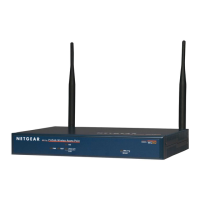
NETGEAR WG302 - 802.11g ProSafe Wireless Access Point
128 pages
Print Icon
To Next Page IconTo Next Page
Loading...
July 2005 v3.0
202-10008-03
July 2005
NETGEAR, Inc.
4500 Great America Parkway
Santa Clara, CA 95054 USA
Phone 1-888-NETGEAR
Reference Manual for the
NETGEAR ProSafe Wireless
Access Point 802.11g WG302

Table of Contents

Questions and Answers

  • A
    Andrew MartinAug 19, 2025
    Why the Wireless LAN activity light does not light up on NETGEAR WG302 - 802.11g ProSafe?
    • H
      Heather HarperAug 20, 2025
      If the Wireless LAN activity light does not light up, it may be due to the access point’s antennae not working. If the Wireless LAN activity light stays off, disconnect the adapter from its power source and then plug it in again. Make sure the antennas are tightly connected to the WG302. If the Wireless LAN activity light remains off, contact NETGEAR technical support.
  • A
    Ashley BakerAug 21, 2025
    Why can't I access the Internet with my NETGEAR WG302 - 802.11g ProSafe?
    • L
      Laura PatelAug 21, 2025
      If you cannot access the Internet or your LAN with a wireless capable computer using a NETGEAR Wireless Access Point, there may be a configuration problem. Restart the computer with the wireless adapter so that TCP/IP changes take effect. Also, ensure the computer with the wireless adapter has the correct TCP/IP settings to communicate with the network. Check the access point default configuration against the configuration of other devices in your network. A typical Windows setting is to 'Obtain an IP address automatically'.
  • A
    Angel FisherAug 25, 2025
    What to do if NETGEAR Wireless Access Point gives a timeout error?
    • L
      Linda PittmanAug 25, 2025
      If you get a timeout error when entering a URL or IP address with your NETGEAR Wireless Access Point, first check if other PCs are working. If they are, make sure your PC's TCP/IP settings are correct, including the Subnet Mask, Default Gateway, DNS, and IP Addresses if you're using a Fixed (Static) IP Address. If the PCs are configured correctly but still not working, make sure the WG302 is connected and turned on, and then check its settings. If you still cannot connect, check your Internet connection (DSL/Cable modem etc.) to ensure it is working correctly.
  • C
    Carolyn SmithAug 26, 2025
    Why is the LAN light off on my NETGEAR Wireless Access Point?
    • A
      Ashley DuranAug 26, 2025
      If the LAN light is not lit on your NETGEAR Wireless Access Point, it may indicate a hardware connection problem. Ensure that the cable connectors are securely plugged in at both the access point and the network device (hub, switch, or router). A switch, hub, or router must be installed between the access point and the Ethernet LAN or broadband modem. Also, make sure the connected device is turned on and that you are using a standard Category 5 Ethernet patch cable. If the network device has Auto Uplink™ (MDI/MDIX) ports, you can use either a cross-over cable or a normal patch cable.
  • H
    Hannah WoodsAug 27, 2025
    What to do if Wireless LAN activity light is off on NETGEAR WG302 - 802.11g ProSafe Wireless Access Point?
    • N
      Nancy LewisAug 28, 2025
      If the Wireless LAN activity light does not light up on your NETGEAR Wireless Access Point, it could indicate an issue with the access point’s antennae. Try disconnecting the adapter from its power source and then plugging it in again. Ensure that the antennas are tightly connected to the WG302. If the Wireless LAN activity light remains off, contact NETGEAR.
  • K
    kelseyfisherAug 29, 2025
    How to fix a NETGEAR WG302 - 802.11g ProSafe Wireless Access Point with no lights?
    • J
      James CollierAug 30, 2025
      If no lights are lit on your NETGEAR Wireless Access Point, ensure that the power cord is connected to the access point and that the power adapter is connected to a functioning power outlet. If it is in a power strip, make sure the power strip is turned on. If it is plugged directly into the wall, verify that it is not a switched outlet. Also, make sure you are using the correct NETGEAR power adapter supplied with your access point.
  • U
    usanchezAug 31, 2025
    What to do if I cannot access the Internet or the LAN with a wireless capable computer NETGEAR WG302 - 802.11g ProSafe?
    • K
      Kevin HughesAug 31, 2025
      If you cannot access the Internet or LAN with a wireless capable computer, it might be due to a configuration problem. Restart the computer with the wireless adapter to ensure TCP/IP changes take effect. Also, verify that the computer has the correct TCP/IP settings to communicate with the network. Ensure that TCP/IP is set up properly for that network. The usual setting for Windows the Network Properties is set to “Obtain an IP address automatically.” Finally, the access point’s default values may not work with your network. Check the access point default configuration against the configuration of other devices in your network.
  • D
    david29Sep 2, 2025
    What to do if the LAN light is not lit on my NETGEAR WG302 - 802.11g ProSafe Wireless Access Point?
    • M
      moorejeffreySep 3, 2025
      If the LAN light is not lit, it could indicate a hardware connection problem. Ensure the cable connectors are securely plugged in at both the access point and the network device (hub, switch, or router). A switch, hub, or router must be installed between the access point and the Ethernet LAN or broadband modem. Also, make sure the connected device is turned on and that you are using a standard Category 5 Ethernet patch cable. If the network device has Auto Uplink™ (MDI/MDIX) ports, you can use either a crossover cable or a normal patch cable.
  • D
    dawn71Sep 4, 2025
    How to fix timeout error when I enter a URL or IP address with NETGEAR WG302 - 802.11g ProSafe?
    • T
      Teresa KnappSep 4, 2025
      If you encounter a timeout error when entering a URL or IP address, first check if other PCs are working correctly. If they are, ensure your PC's TCP/IP settings are correct. If using a Fixed (Static) IP Address, verify the Subnet Mask, Default Gateway, DNS, and IP Addresses. If the PCs are configured correctly but still not working, ensure that the WG302 is connected and turned on, then check its settings. If you cannot connect to it, check the LAN and power connections. If the WG302 is configured correctly, check your Internet connection (DSL/Cable modem etc.) to make sure that it is working correctly. You can also try again.
  • D
    Doris NewmanSep 7, 2025
    How to connect to the WG302 to configure NETGEAR WG302 - 802.11g ProSafe Wireless Access Point?
    • J
      Jacqueline BrownSep 7, 2025
      To connect to the WG302 for configuration, first ensure the WG302 is properly installed, LAN connections are OK, and it is powered on. Check that the LAN port LED is green to verify that the Ethernet connection is OK. The default configuration of the WG302 is for a static IP address of 192.168.0.228 and a Mask of 255.255.255.0 with DHCP disabled, so make sure your network configuration settings are correct. If you are using the NetBIOS name of the WG302 to connect, ensure that your computer and the WG302 are on the same network segment or that there is a WINS server on your network. If your computer is set to “Obtain an IP Address automatically” (DHCP client), restart it. If your computer uses a Fixed (Static) IP address, ensure that it is using an IP Address in the range of the WG302.

Summary

About This Manual

Audience, Scope, Conventions, and Formats

Defines the manual's intended audience, scope, and typographical conventions used.

How to Use This Manual

Explains how to navigate and utilize the HTML version of the manual effectively.

How to Print this Manual

Provides instructions for printing pages, chapters, or the full manual.

Introduction to WG302 Access Point

About the NETGEAR WG302 Access Point

Describes the WG302 as a basic building block for wireless LAN infrastructure.

Key Features of the WG302 Access Point

Highlights supported standards, security features, and operating modes of the WG302.

System Requirements for WG302 Installation

Lists the necessary system prerequisites for installing and configuring the WG302.

Whats In the WG302 Product Box

Details the items included in the WG302 access point package.

WG302 Hardware Description and LEDs

Describes the front and rear hardware features and LED indicators of the WG302.

Basic Installation and Configuration

Placement and Range Guidelines for WG302

Provides guidelines for optimal placement of the WG302 for best wireless coverage.

Default Factory Settings of the WG302

Lists the default user name, password, IP address, and other configurations.

Understanding WG302 Wireless Security Options

Explains various methods to enhance wireless network security, including MAC filtering and encryption.

Setting Up and Testing Basic Wireless Connectivity

Guides users through establishing and verifying basic wireless network connectivity.

How to Configure WEP Encryption on WG302

Step-by-step guide for setting up Wired Equivalent Privacy (WEP) for wireless security.

How to Configure WPA-PSK on WG302

Provides instructions for configuring WPA-PSK, a strong security measure for home networks.

How to Configure WPA2-PSK on WG302

Details the steps to set up WPA2-PSK for enhanced wireless security.

Management and Maintenance of WG302

Remote Management Settings for WG302

Configures remote access options like SSH and SNMP for managing the access point.

Upgrading WG302 Access Point Software

Instructions for downloading and installing new firmware to update the access point's software.

WG302 Configuration File Management

Describes how to save, retrieve, or reset the access point's configuration settings.

Changing the WG302 Administrator Password

Provides steps to change the default administrator password for enhanced security.

Advanced Configuration Options for WG302

Understanding Advanced Wireless Settings

Explains advanced wireless features like AutoCell RF Management and WMM.

Enabling Wireless Bridging and Repeating

Details how to configure the WG302 for wireless bridging and repeating functions.

Configuring WG302 as a Point-to-Point Bridge

Step-by-step guide to setting up the WG302 in Point-to-Point Bridge mode.

Troubleshooting Common WG302 Issues

Troubleshooting: No Lights on Access Point

Provides steps to diagnose and resolve issues where the access point has no power.

Troubleshooting: Wireless LAN Activity Light Off

Guides users on troubleshooting when the Wireless LAN activity light is not illuminated.

Troubleshooting: Cannot Connect to WG302

Provides solutions for problems preventing connection to the WG302 for configuration.

Appendix A: WG302 Specifications

Specifications for the WG302 Wireless Access Point

Details technical specifications including data rates, frequencies, encryption, and compliance.

Appendix B: Wireless Networking Basics

Wireless Networking Overview

Explains the 802.11b/g standards and wireless network configurations like ad hoc and infrastructure.

WPA and WPA2 Wireless Security

Explains WPA/WPA2 security standards, benefits, and comparison to WEP.

Appendix C: Command Line Reference

Command Line Interface (CLI) Command Sets

Lists available commands for configuring and managing the WG302 via CLI.

NETGEAR WG302 - 802.11g ProSafe Wireless Access Point Specifications

General IconGeneral
Wireless Standard802.11g
Frequency Band2.4 GHz
Data RateUp to 54 Mbps
Antenna TypeExternal
Antennas2
SecurityWEP, WPA, WPA2
Ports1 x 10/100 Ethernet
Power Supply12V DC

Related product manuals