68
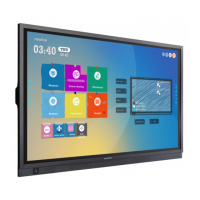
Step 3 Add or delete applications on the tab.
In the list, click the icon to add it as a shortcut on the Home page. A check icon will appear at
the upper right corner of the shortcut icons. Up to 5 shortcuts can be added.
Tap the icon with the check mark again. The check icon will disappear and the shortcut will
be removed from the Home page.
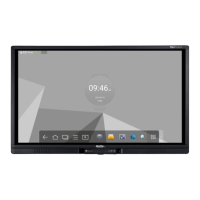
Step 4 At the Home page, click the shortcut icon and you can start the program/application or change to
the external signal source.
4.10.2 Add Quick Start Windows Programs in Smart System
Step 1 In Windows, run the Newline Assistant program and drag the software icons or folder shortcut
icons that you want to add from the desktop or menu to the Newline Assistant window. The
applications added or deleted through the Windows system will be automatically updated to the
embedded operating system until the upload progress reaches 100%. If there is an application not
updated, click in the upper right corner to manually update all icons in the Newline assistant
window to the smart system.
Only folders and .exe files are supported.


 To Next Page
 Loading...