SHAPING THE FUTURE SATELLITE OF COMMUNICATIONS
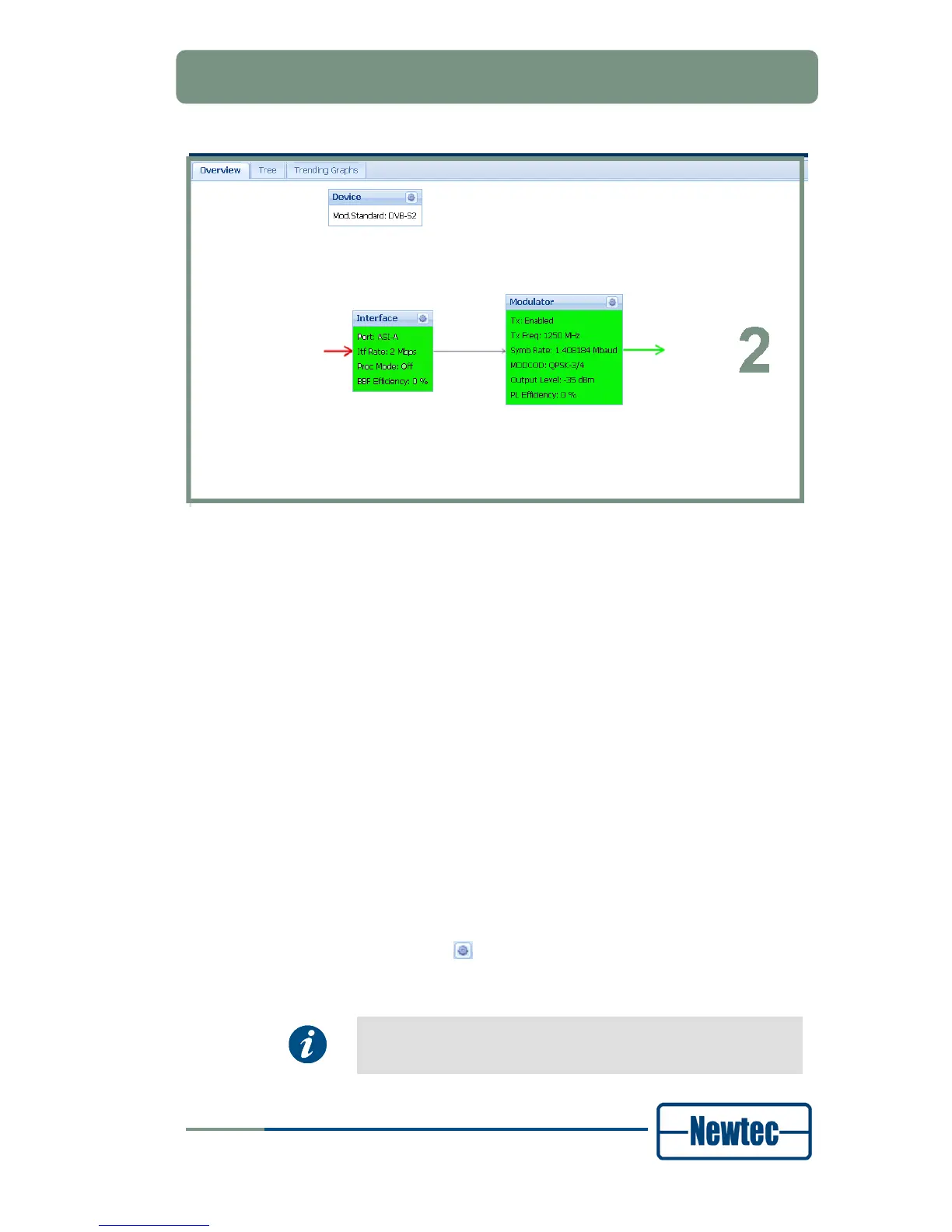
Figure 19 – Example of a Functional Overview
For every functional block of the device the following information is displayed:
• Arrows from and towards the functional block which indicates the signal flow;
• Relevant parameters;
• A link at the right top corner. Clicking this link opens the detailed view of that
specific functional block.
The functional blocks and diagram arrows can change colour (red, yellow, green or
grey) based on the current condition.
The following conditions can occur:
• Error: The block and/or arrow has a red colour. There is an alarm, at least one
counter indicates an error .
• Warning: The block and/or arrow has a yellow colour. At least one counter
does not change as expected.
• OK & IN-USE: The block and/or arrow has a green colour. This block behaves
normal.
• IDLE: The block and/or arrow has a grey colour. This functional block is
currently not in use.
Click the detailed view icon (
) on top of the functional block to open the detailed
overview page of this block. A new tab containing the function details opens in the
central stage area.
When a value changes in the central stage area it briefly gets a
yellow background.


 To Next Page