EN 38
DLNA -
Share the display from another device that supports DLNA connections.
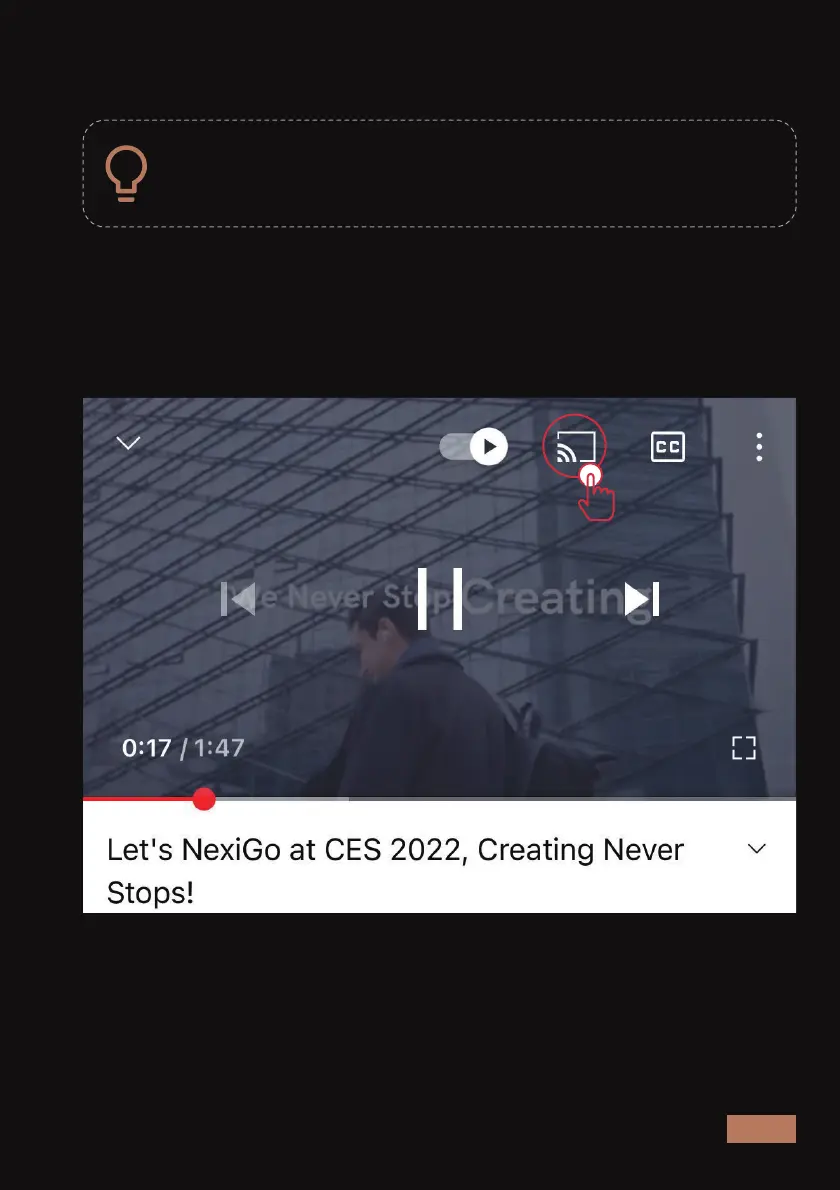
On the device that you want to cast from, open a video or other file you
want to share that supports DLNA (YouTube for instance), and then tap
the button on the app that allows you to cast. Next, select "Aurora Pro
XXXX" from the list of options. Finally, press the play button on the video
and it will now show the video on the projector.
To connect via DLNA, first ensure that both devices are
connected to the same network.


 To Next Page