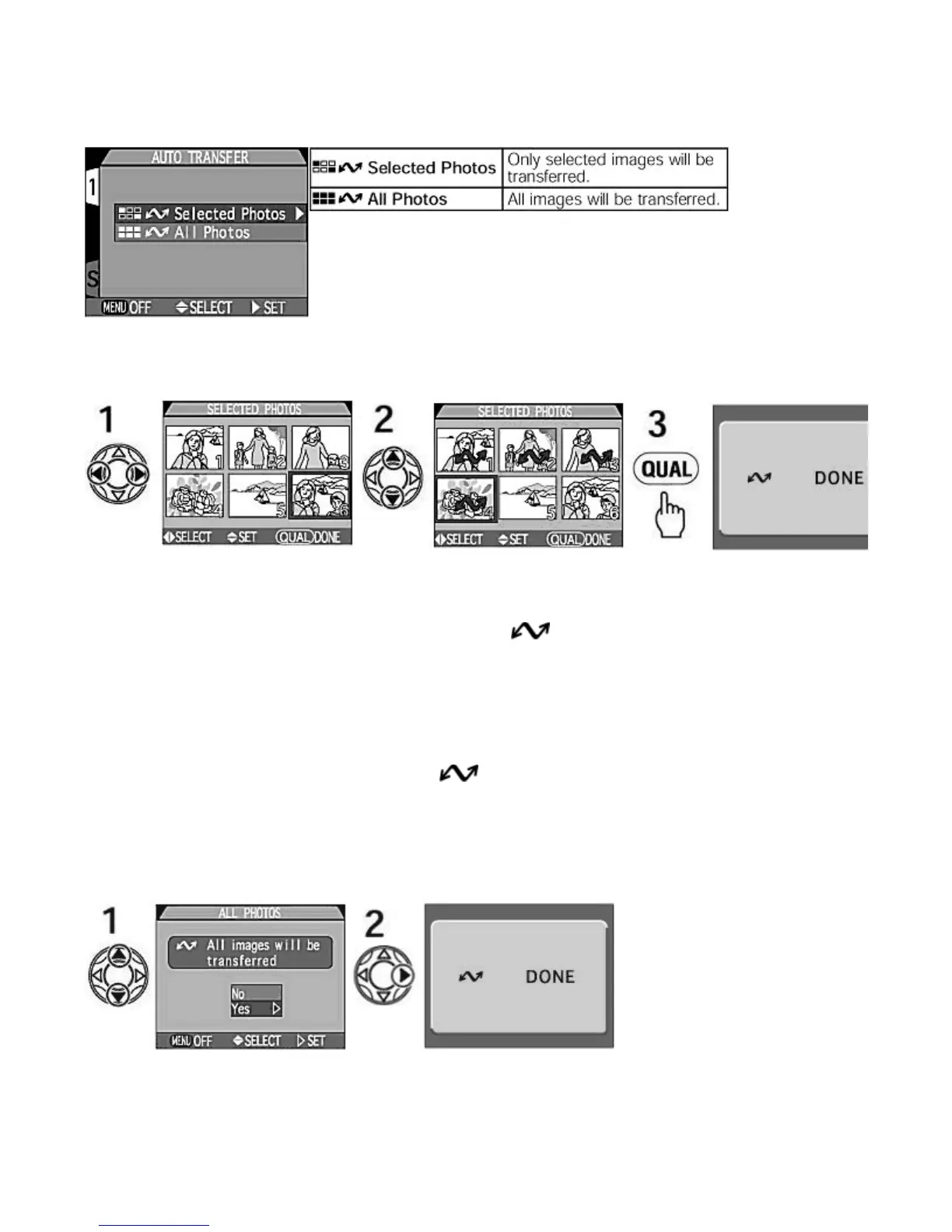
The
Auto Transfer
setting controls whether or not the Nikon View 4 software will automatically copy selected images to a
computer when the camera is connected by the USB cable.
-- Setting Auto Transfer --
1.
Press LEFT
/
RIGHT
on the Multi selector to highlight the desired images.
2.
Press UP
/
DOWN
to select the images to be transferred.
{
Selected images are marked with the
Auto Transfer
icon. To deselect, press
UP
/
DOWN
on the Multi
selector.
3.
Press the QUAL
button to complete the operation.
-- Canceling auto transfer --
1.
Press LEFT
/
RIGHT on the Multi selector to highlight (with orange frame) the thumbnail image for which you
want to cancel auto transfer. Press UP
/
DOWN
to cancel the Auto Transfer setting.
{
The Auto transfer setting is canceled and disappears.
2.
Press the QUAL
button to complete the operation.
-- Transferring all images --
To set all image files to be transferred, select
All Photos
.
1.
In the confirmation dialog for transfer of all images, press =/ on the Multi selector to highlight Yes
.
2.
Press RIGHT
to execute.
Pa
e 119 of 136
ikon COOLPIX995 Di
ital Camera
3/15/2002htt
://www.livemanuals.com/
acka
es/
roducts/NK002/2136/manual/fullmanual.html



 To Next Page