219N The Retouch Menu: Creating Retouched Copies
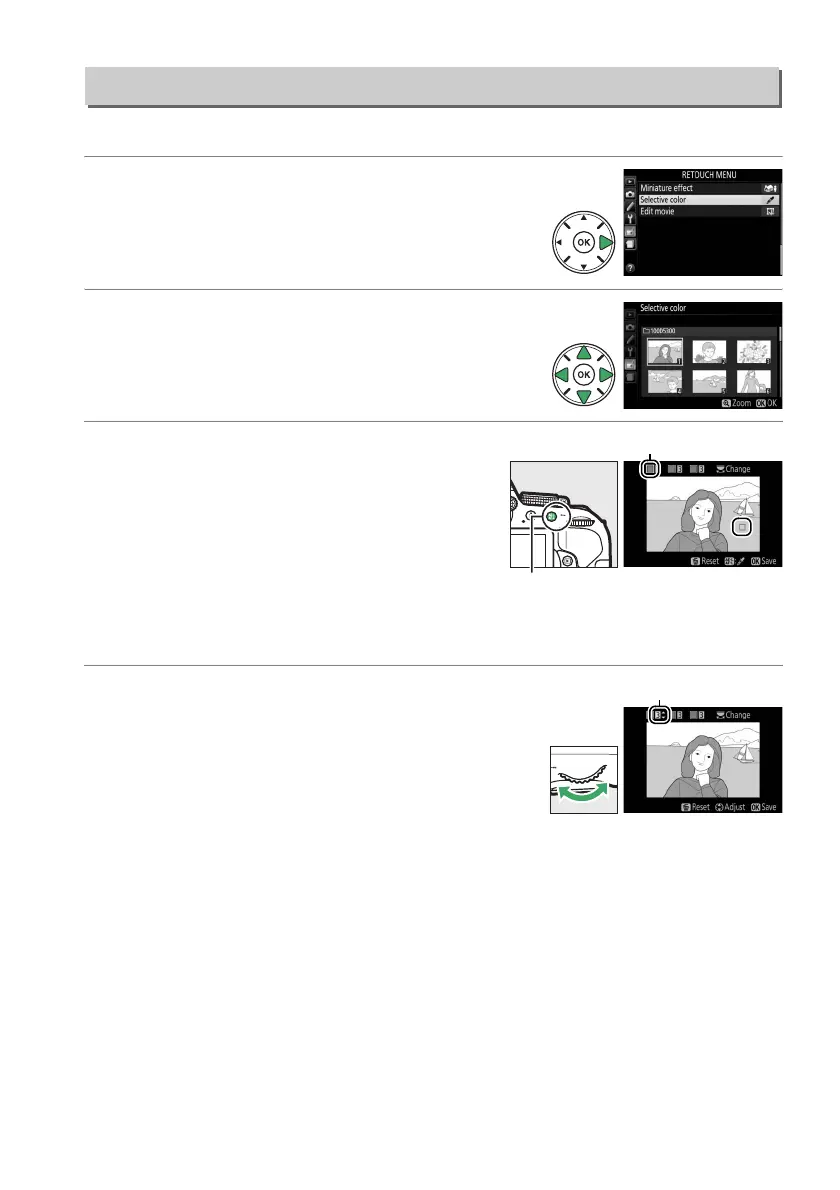
Create a copy in which only selected hues appear in color.
1 Select Selective color.
Highlight Selective color in the retouch menu
and press 2.
2 Select a photograph.
Highlight a photograph and press J (to view the
highlighted photograph full frame, press and
hold the X button).
3 Select a color.
Use the multi selector to position the cursor
over an object and press A (L) to select
the color of the object as one that will
remain in the final copy (the camera may
have difficulty detecting unsaturated colors;
choose a saturated color).
To zoom in on the
picture for precise color selection, press X.
Press W (Q) to zoom out.
4 Highlight the color range.
Rotate the command dial to highlight the color
range for the selected color.
Selective Color
G button ➜ N retouch menu
Selected color
A (L) button
Color range



 To Next Page
 Loading...