100
s
z
8
y
9
t
i
I
Q
o
g
n
Trim footage from movies to create edited copies.
1
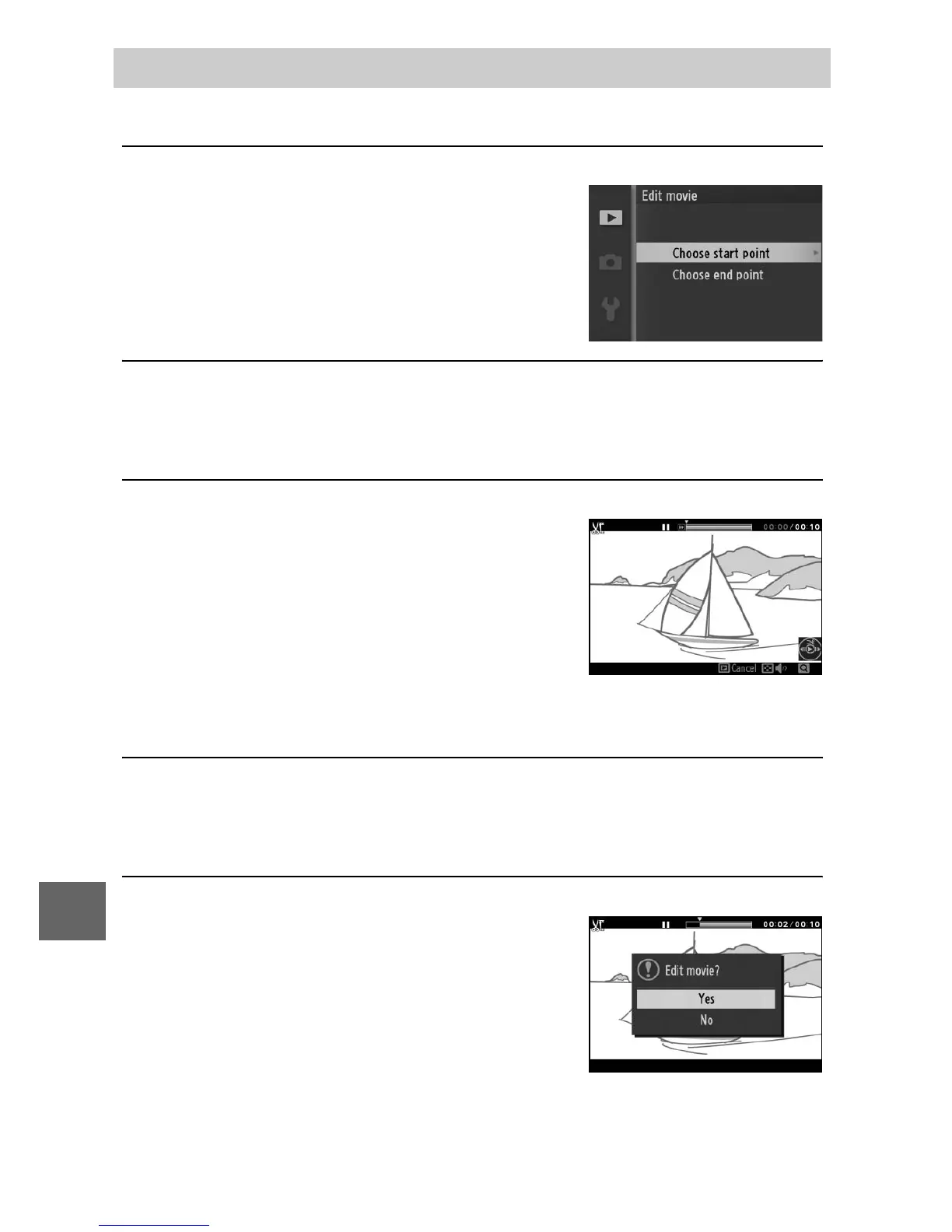
Select Choose start point or Choose end point.
Choose from the following options:
• Choose start point: Trim the opening
footage.
• Choose end point: Trim the closing foot-
age.
2
Select a movie.
Press 4 or 2 or rotate the multi selector to highlight a movie
(0 95) and press J to select.
3
Pause the movie on opening or closing frame.
Play the movie back, pressing J to
begin and resume playback and 3 to
pause (0 42; the first frame is indi-
cated by a h icon in the display, the
last frame by i). Pause playback
when you reach the frame that will
become the new opening or closing frame.
4
Delete the unwanted frames.
Press 1 to delete all frames before (Choose start point) or
after (Choose end point) the current frame.
5
Save the copy.
Highlight Ye s and press J to save the
edited copy. If necessary, the copy can
be trimmed as described above to
remove additional footage. Edited
copies are indicated by a f icon in
full-frame playback.
Edit Movie







 To Next Page