En
19
3
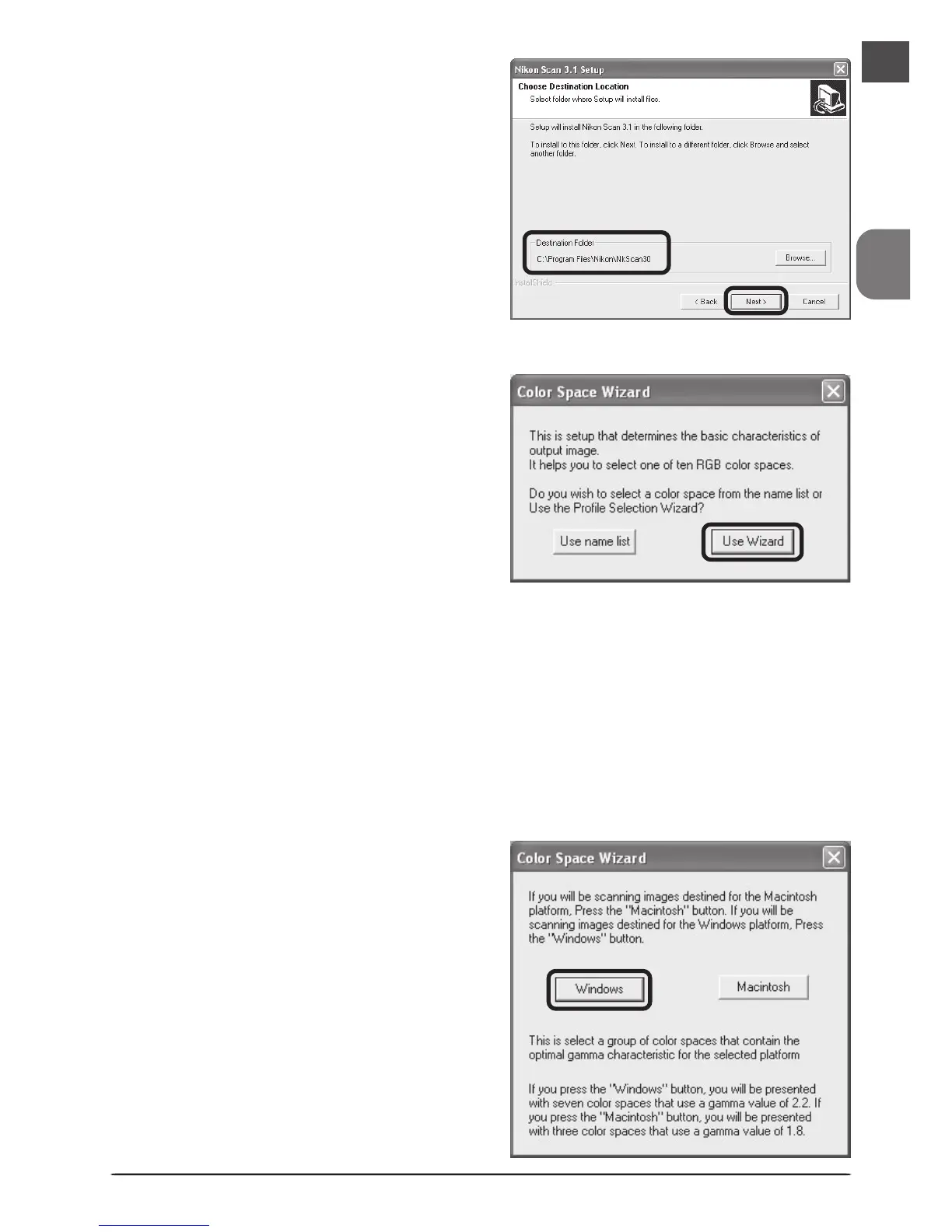
Click Next to install Nikon Scan 3 to the
folder for Nikon Scan 3 shown under “In-
stall Location,” or click Browse… to
choose another location.
4
Once the Nikon Scan program files have
been copied to disk, a color-space selec-
tion wizard will be displayed. Click Use
Wizard to have the wizard assist you in
choosing a color-space profile (recom-
mended) or Use name list to choose a
custom profile (see the Nikon Scan Refer-
ence Manual for details). The color-space
profile selected during installation can be
changed at any time as detailed in the
“Preferences” section of the Nikon Scan
Reference Manual. Choosing the correct
color-space profile is very important if the
scanner is to be used in a professional set-
ting, for example as part of a production
workflow. More information about the
color management system used in Nikon
Scan 3 may be found in the Nikon Scan
Reference Manual.
5
Clicking Use Wizard in the Color Space
Wizard dialog displays the dialog shown
at right. Click Windows.





 To Next Page