COOLSCAN
IV ED
81
Updating the Device Driver (Windows 98 SE)
If the scanner is not listed under “Imaging Device” in the Device Manager or the message
“This device is working properly” does not appear in the Properties dialog, you will need to
reinstall the device driver as detailed below.
1
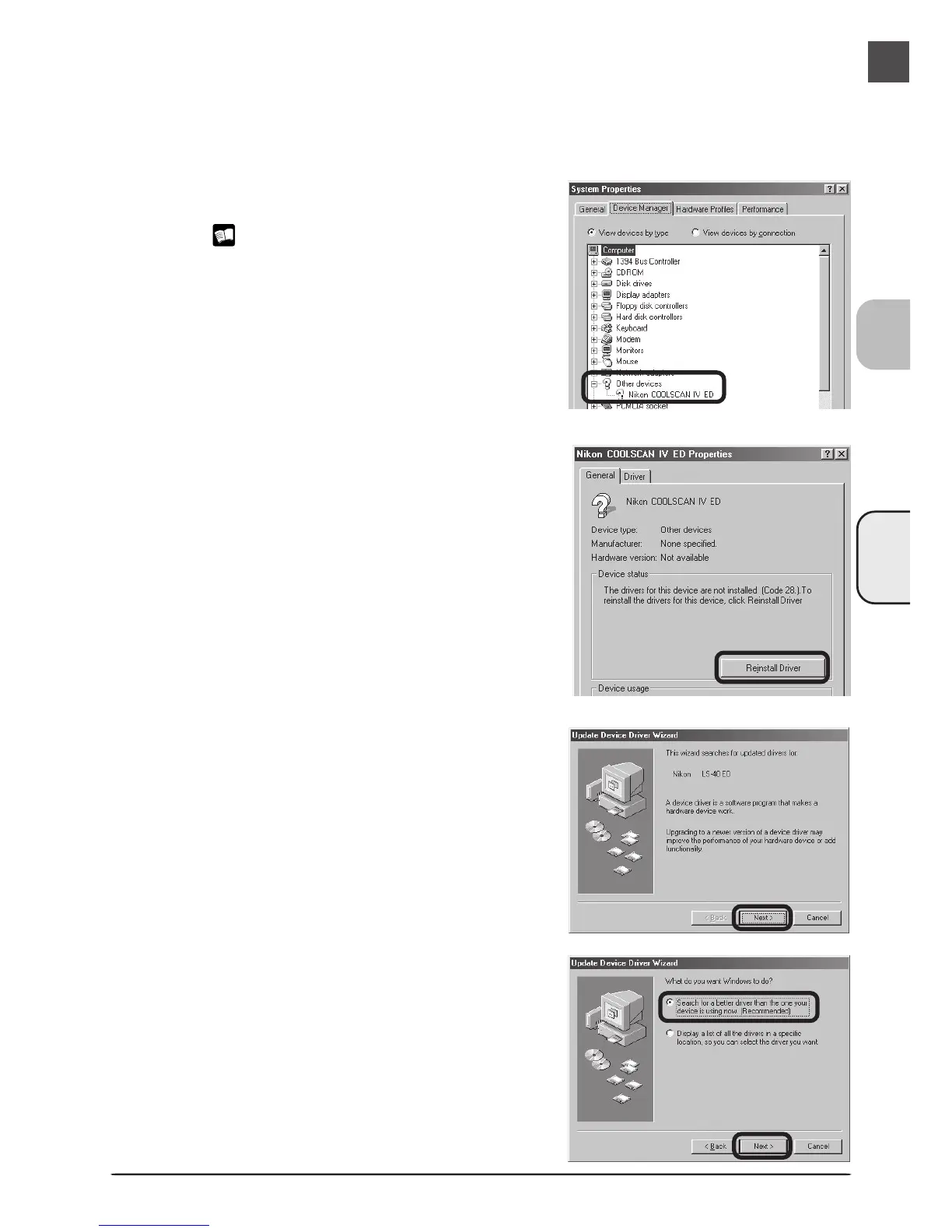
Open the scanner Properties dialog
Display the Device Manager as described in steps
1–3 of “Confirming Device Registration (Windows
98 SE)” ( 79). If the scanner is listed under “Other
devices” or appears next to a “!”, “?”, or “×”,
double-click the entry for the scanner to display the
scanner Properties dialog.
2
Click Reinstall driver
Open the Driver tab and click Reinstall driver.
3
Click Next
When the Update Device Driver Wizard is displayed,
click Next.
4
Select the search option
Select the search option and click Next.





 To Next Page