COOLSCAN
IV ED
82
7
Begin installation of the device drivers
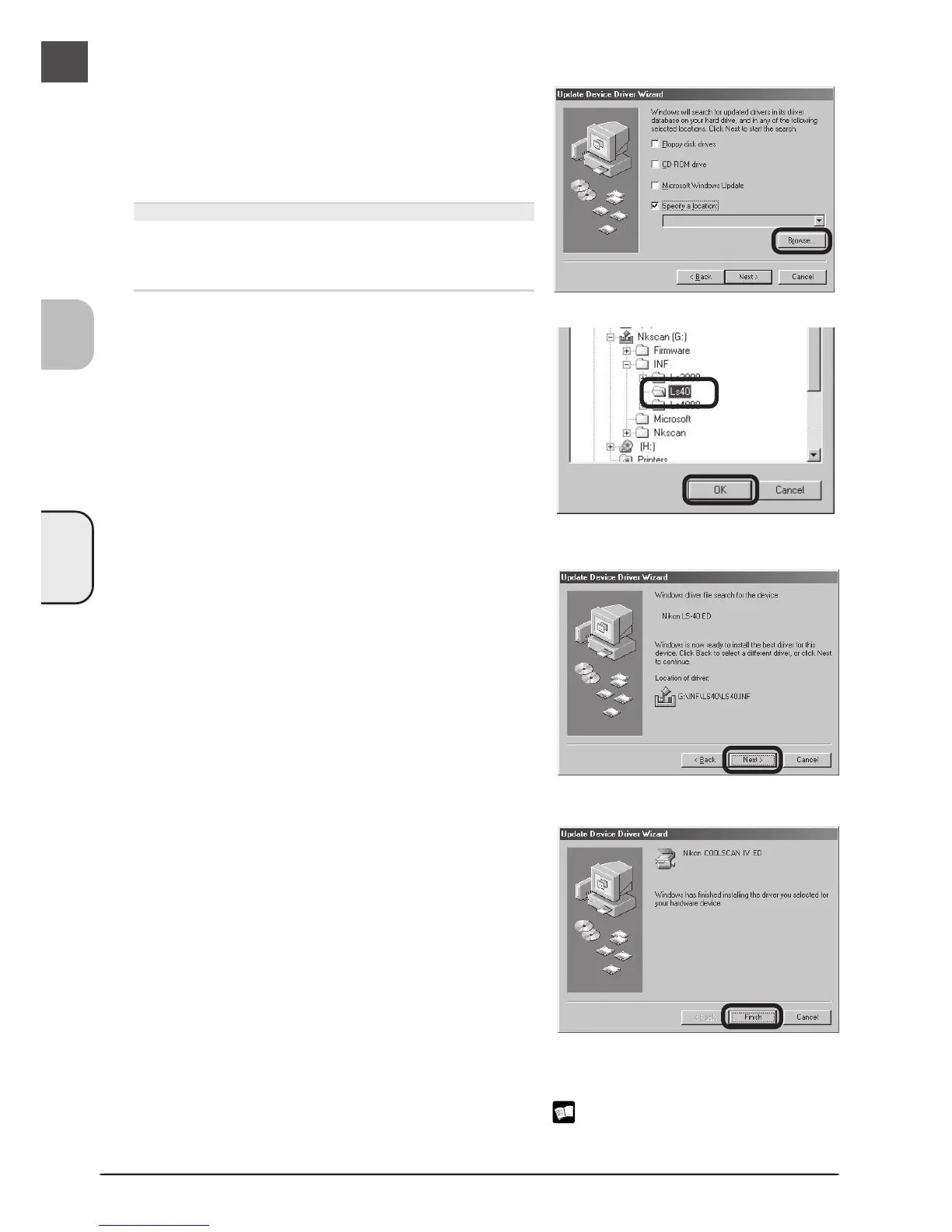
A dialog will be displayed stating that Windows has
found the drivers for the device. Click Next.
5
Insert the Nikon Scan 3 CD
The dialog shown at right will be displayed. Hold-
ing down the shift key to prevent the Welcome pro-
gram from starting automatically, insert the Nikon
Scan 3 CD into the CD-ROM drive, then select
Specify a location and click Browse.
The Welcome Window
If the Welcome program starts automatically when
you insert the Nikon Scan CD, click Exit to close the
Welcome window.
6
Select the Ls40 folder
The Browse for Folder dialog will be displayed. Se-
lect the “Ls40” folder under “Nkscan” > “INF” and
click OK to return to the dialog shown in step 5.
Confirm that the path “\INF\ Ls40” appears after
the drive letter of the CD-ROM drive and click Next.
8
Click Finish
Click Finish to complete installation.
9
Confirm device registration
Confirm that the scanner has been correctly registered with the system as described in
“Confirming Device Registration (Windows 98 SE)” ( 79–80).





 To Next Page