Reference Section
E14
Editing Images (Still Images)
U Paint
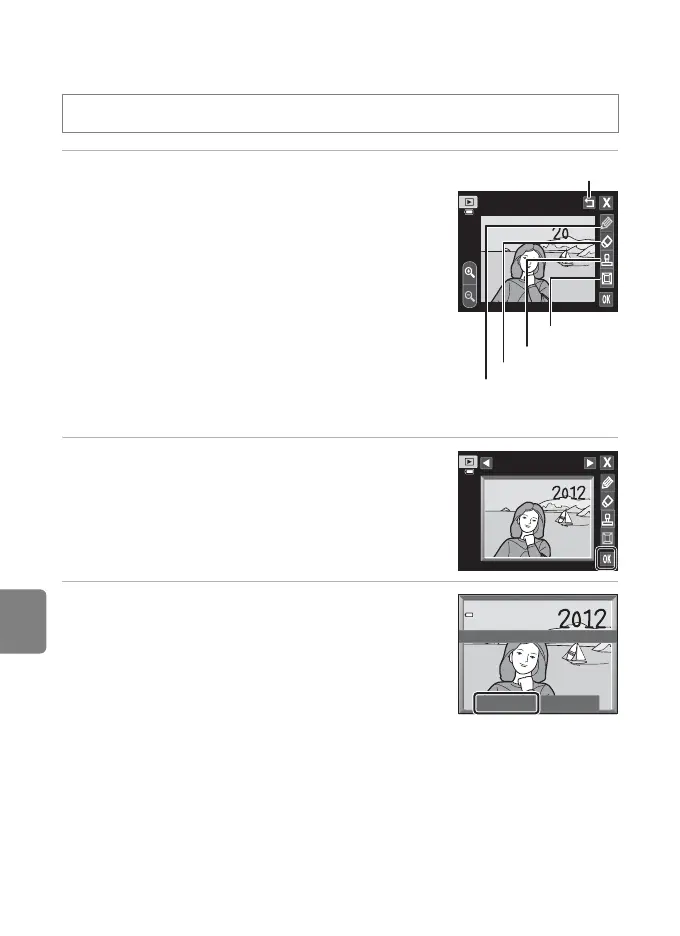
1 Use the I, J, K, and L tools to paint
images.
• For more information about using each tool, see “Write
and Draw on images” (E15).
• Tap n or rotate the zoom control to g (i) to display
the image in full-frame playback mode and tap n or
rotate the zoom control to g (i) again to enlarge the
image display by 3×. Tap A, D, B or C to change
the portion of the image visible in the monitor. Tap o
or rotate the zoom control to f (h) to return to the
original display size.
• Tap J to undo the last operation applied using the
pen, eraser, or decoration tool (up to the last five
operations can be undone).
2 Tap I.
• If you tap H when a drawing has not been saved, a
confirmation dialog is displayed. Tap Yes to quit
without saving the drawing.
3 Tap Yes.
• A new, painted copy is created.
• Pictures taken at an Image mode setting (A64) of
r 2272×1704 or larger are saved at a size of 2048 ×
1536, pictures taken at q 1600×1200 or O 640×480
are saved at a size of 640 × 480.
• Painted copies can be recognized by the d icon
displayed during playback.
c button (playback mode) M select an image M Tap the d tab M U Paint
Pen
Pen
Eraser
Decoration
Frame
n
o
Frame
Save OK?
Yes No



 To Next Page