35
10. FIRST USE OF THE SMART TV MODE
Press the Smart TV to access the portal on your TV Smart
TV. The first me you start Smart TV portal configuraon
tutorial will help you complete the basic configuraon of
your Smart TV. About this system configuraon tutorial will
provide details on key elements of the Smart TV user.
The first me you access certain elements of the Smart TV
system use will offer advice on the new item.
At the top right you will find a queson mark that will
have access to support opons and rerun the setup tu-
torial acvaon or usage ps
11. BASIC CONFIGURATION OF THE SMART TV
The setup wizard will guide you step by step to set the minimum operang para-
meters of the Smart TV.
Language Selecon:
Select the language you want to use in the system.
The Smart TV portal can work with the languages shown in the setup wizard, if
you need another language click Other to display available system languages
Tip: If you select a language other than those offered in the configuraon assistant
only apply to the system, not the Smart TV Portal, which will be set in English
Weather informaon:
Enter the desired temperature unit and locaon.
You can also change the date format to be displayed.
Internet access
You can connect via Wi-Fi or Ethernet cable.
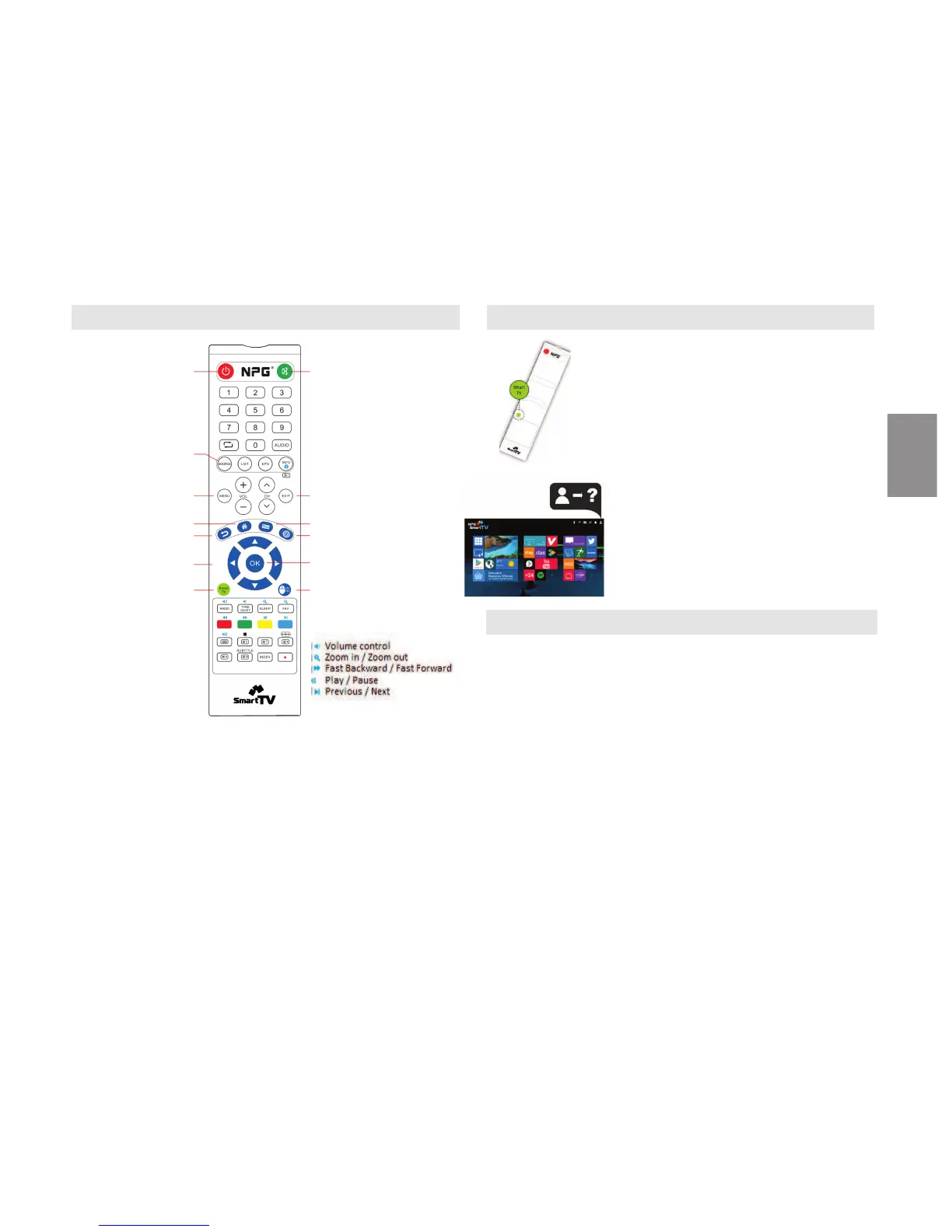
9. REMOTE CONTROL SMART TVMODE
NPG offers various accessories such as movement remote controls or ‘Mo-
on’, or incorporang physical QWERTY keyboards for more comfortable use
of the Smart TV and have access to all the funcons of the applicaons and
easy game play.
The remote control shown above allows you to set up the basic opons of
the Smart TV but it is recommended to use, whenever possible, devices 'Mo-
on', QWERTY or compable devices such as mice or keyboards (USB or wire-
less).
To use 'Moon', QWERTY or wireless devices must connect the remote recei-
ver to the USB1 or USB2 port of the TV.
Power ON/OFF
Displays the list of
the available input
sources
OSDaccess
Home
Back
Moves the mouse
cursor on the screen
Exit the Smart TV
portal
Mute
Exit
Opons
Browser
OK /Enter
Acvate/Deacvate mouse
cursor
ENGLISH



 To Next Page
 Loading...