38
You can use these same steps for any other applicaon that is open by de-
fault, as the web browser when you click on a link or the default applicaon
that opens PDF files
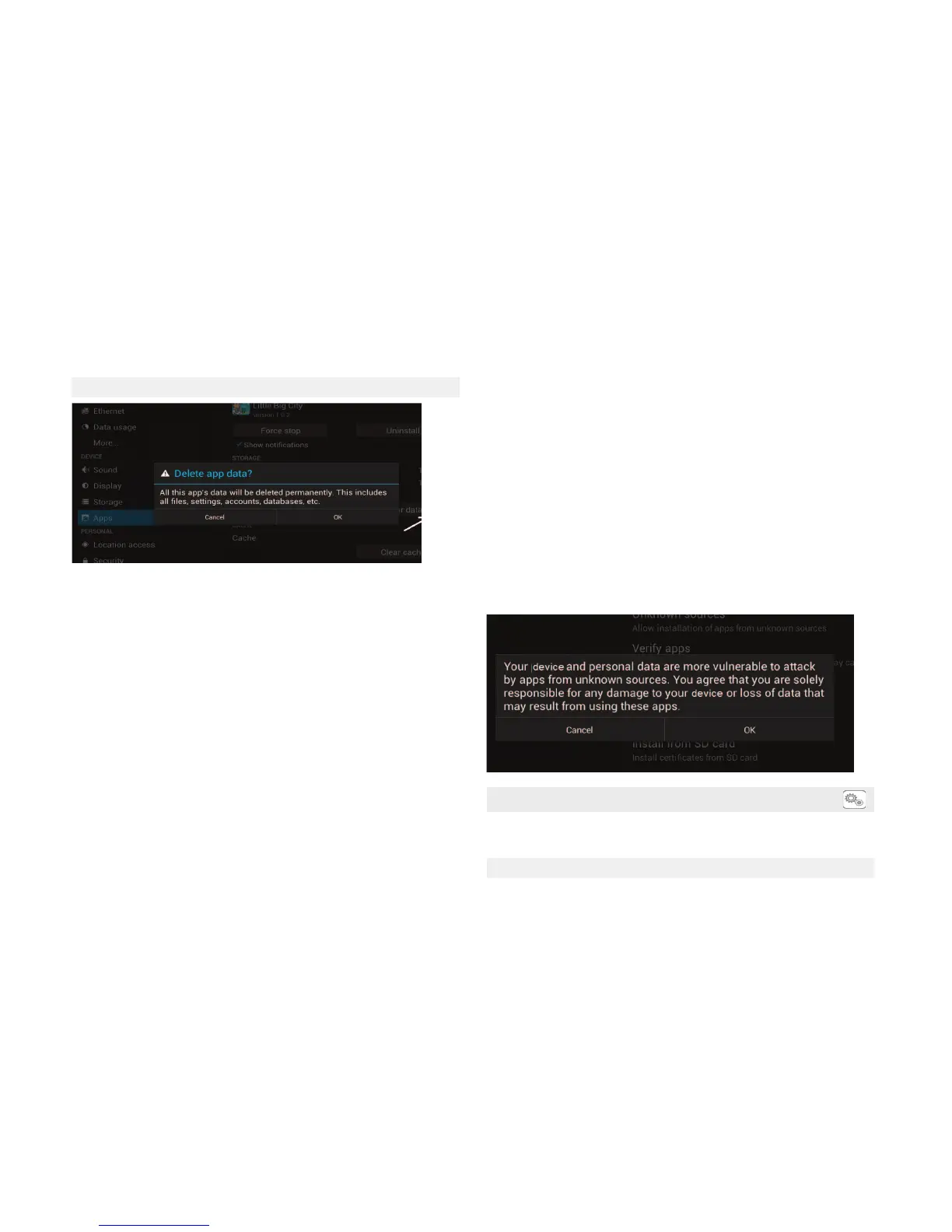
11.4 Delete Applicaon Data
To delete applicaon data from one applicaon (for example to save some
memory or to set to default the values of the applicaon you need to go to
Sengs –> Applicaons –> select the applicaon and it will show a display as
the one above displayed.
First you can clear the applicaon’s cache (the cache is data that the device
stores in a dedicated space, which can be accessed faster, thereby improving
the applicaon's performance. As cache data are only a copy of the data
"used", if you clear the cache will gain space, but performance will be
lost).Then you can press Clear Data (irreversible), and the applicaon will re-
main as in the moment of the installaon. Once the data erased, the applica-
on can be uninstalled, if necessary.
12. Advanced Sengs Smart TV
Click on the sengs icon, select System's sengs, android adjustment. This
allows you to access the configuraon of all system preferences
12.1 WI-FI
Install an applicaon that is not in the Google Play Store
On the official market of Android applicaons (Google Play), you can find plenty
of games and applicaons to download. However, there are mes when we
want to access an applicaon that is not on the Play Store. For example, it might
be an applicaon that's been given to us by a friend, or that we have found sur-
fing the net.
Before aempng to install anything manually check if that applicaon or game
is not really in Google Play, and if it is, will be beer to install it from there (you'll
have access to the latest versions and updates, and you can learn the opinion
of other users).
Having decided to manually install something, you must know that you need
the file with the apk extension. This file contains everything you need to install
the applicaon and then run it. Once you have it, you have to proceed to copy
it to your device. In your Android device you will use a file manager applicaon
(eg ES File Explorer) to access the apk file; clicking on the file will ask us whether
we want to install the applicaon.
At this point, and especially if it is the first me you do it, you may see a warning
message like this: Installaon Blocked
For safety reasons, the device is set to block the installaon of applicaons that
have not been obtained from Android Market. Most devices are configured to
allow the installaon of applicaons only from Google Play (official market).
But you can change the sengs. To do this you have to access Sengs, and wi-
thin it to the Security secon. And in it you have to acvate the opon Unknown
Sources: Allow the installaon of applicaons from unknown sources. Now, if
you try again, you will see the opon to install the applicaon. Aer waing to
be installed, you will have the applicaon available in your device as any other
applicaon.
It is recommended that you to make sure that the apk file contains the appli-
caon you want and not some malicious soware.


 To Next Page
 Loading...