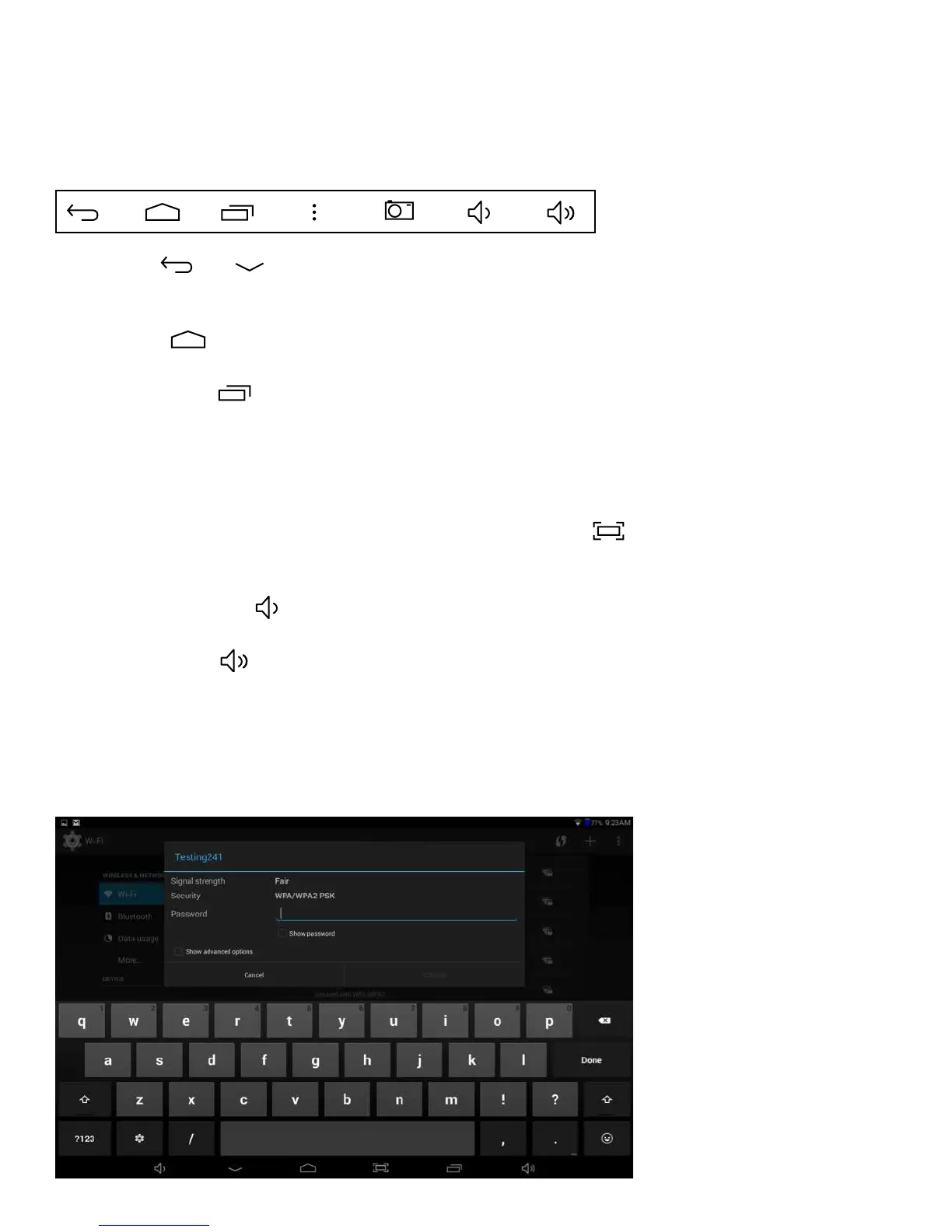
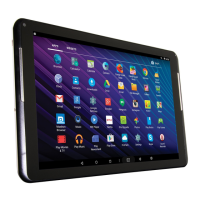
Bottom Navigation Bar Overview
Back – Tap or to go back to the previous screen. Once back to the Home screen you
cannot go further back.
Home – Tap to open the home screen.
Open Apps – Tap to open a list of thumbnail images you have open. To open an app, tap on it.
To close an app, swipe it left or right.
NOTE: Closing open apps will avoid excessive battery drain.
Take a Screen Shot - You can take a screenshot of the current image on your tablet. Save it in
your Gallery or share with others. To capture an image tap the icon
NOTE:Toshareoreditanimage,swipeyourngerdownfromthetopleftofthescreentoselect.
Volume Down – Tap to decrease volume.
Volume Up – Tap to increase volume.
8 9
On Screen Text Entry
Totypeinformation,tapinthetexteld.Anon-screenkeyboardwillappearandallowyou
to type directly on the display.



 To Next Page