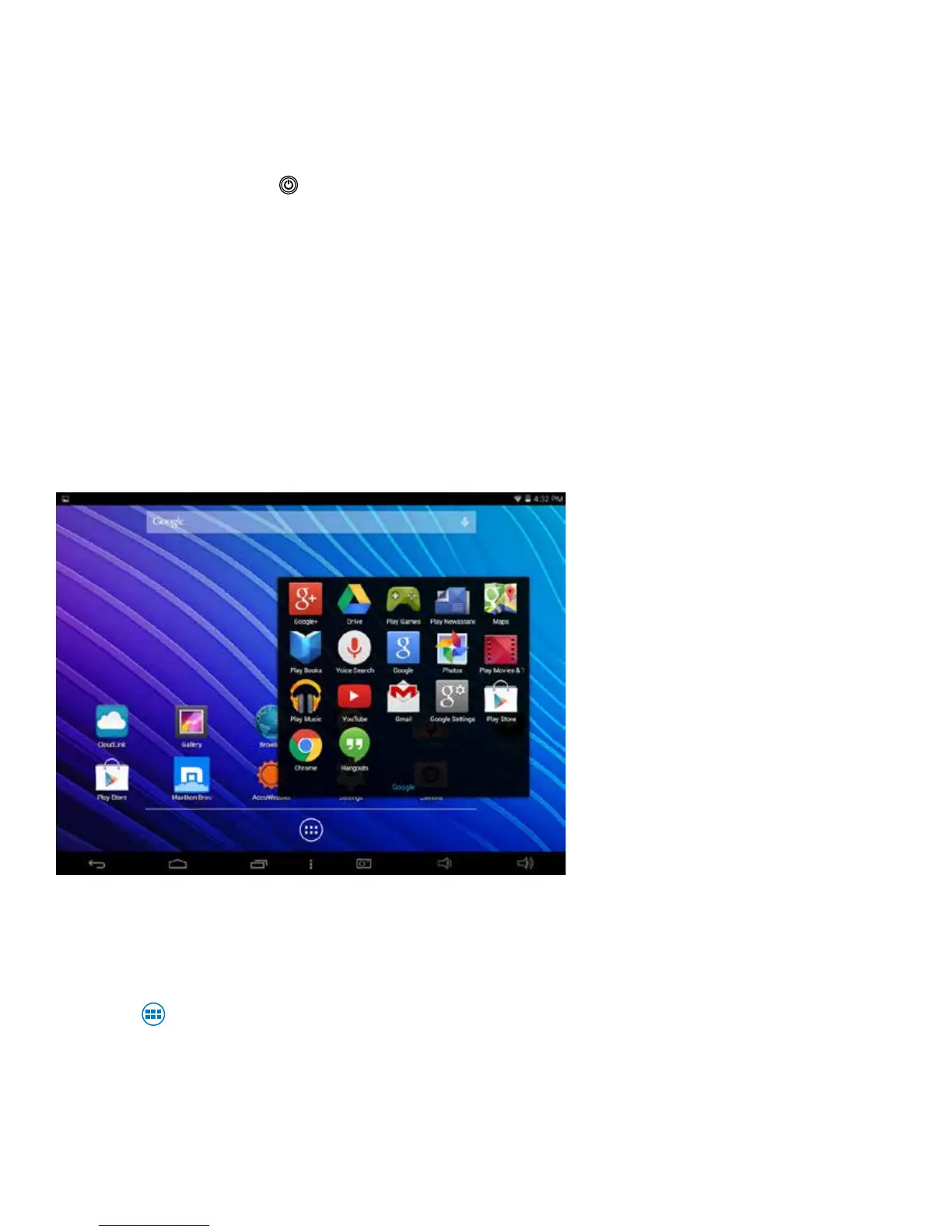
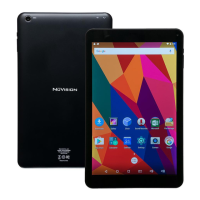
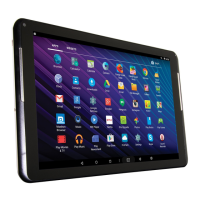
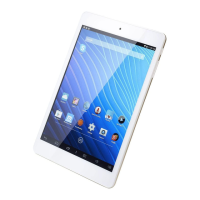
The Home screen is where you can conveniently access applications on your tablet. There
are additional applications in the App Tray. Most Google apps are contained in a folder for
your convenience.
PresstheAppTrayicontolaunchallAppsontheTablet.Swipeyourngertotheleftorright
to view additional Apps (if available). The Home screen is comprised of 5 separate screens; the
main screen, and others on the right and left side.
6
Standby
BrieypressthePOWERbuttontoenterSTANDBYmodewhichwillturnoffthedisplayand
leave the tablet in a low-power mode.
NOTE: Battery drain will occur while in this mode.
Basic Operation
Unlocking the Tablet
The lock screen is the starting point when you power on your Tablet. To unlock, tap the lock icon
thendragyourngertounlock.
Home Screen and Managing Your Apps



 To Next Page