3: Operation
24 225-00000-000-11-201604
Quick View - Displays the spectrum in Quick View mode showing raw, unprocessed data.
This is uncorrected for instrument response vs. wavelength. Quick View shows you a live
shot of what the Flame is “seeing.” From Quick View you can launch application wizards or
construct your own method.
Load a Saved Project - Loads a previously saved project. Click Restore Last Session to
reload the schematic and views as they were when the software was last closed.
Spectroscopy Application Wizards – Use this function to set up a measurement using
simple step-by-step wizards. A large range of applications is available.
OceanView Main Screen
No matter what route you take on start up, you will soon end up on the OceanView main
screen. This is where you can set and view acquisitions, save and load data and save projects.
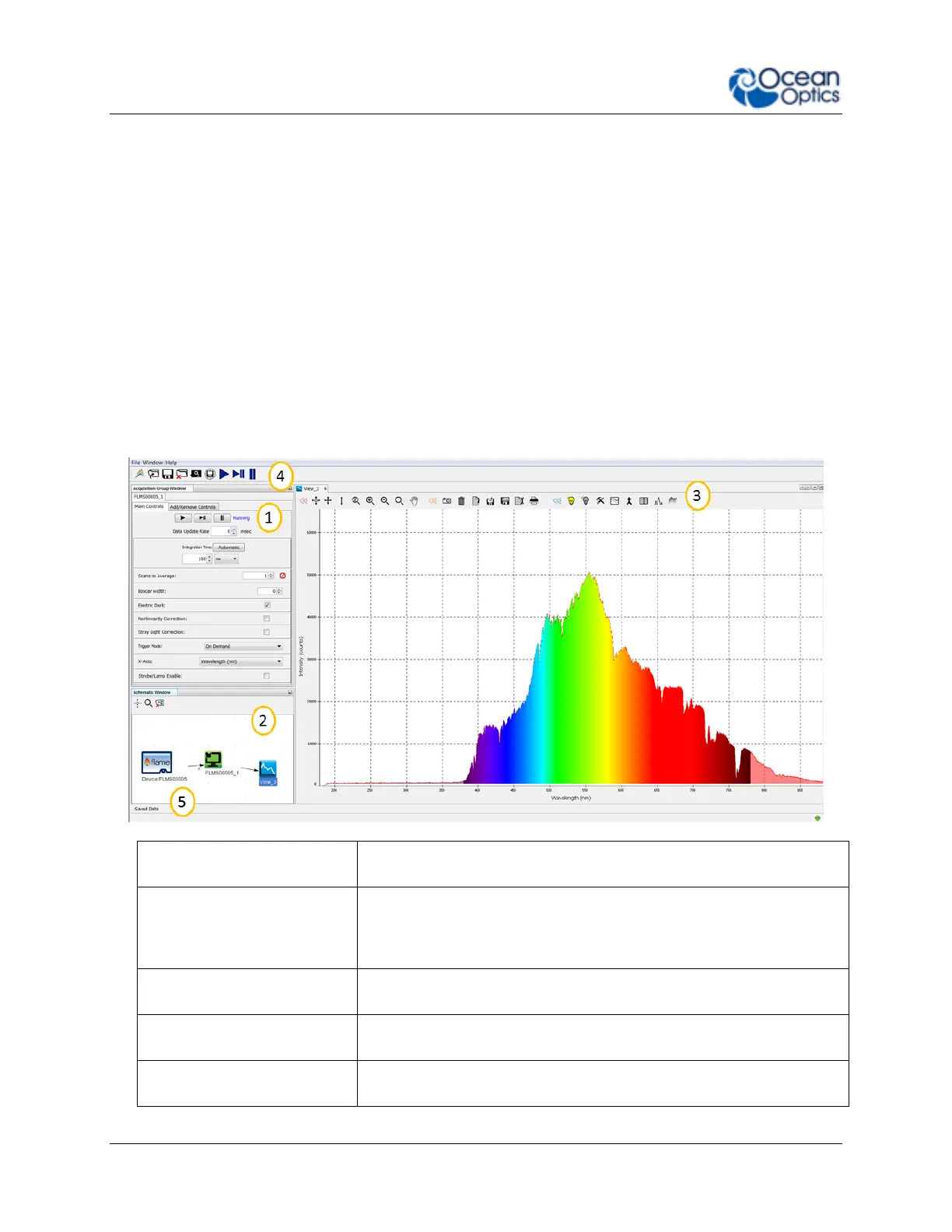
1. Acquisition Group Window
Use to set acquisition parameters such as integration time. Controls
the spectrometer acquisition.
Schematic view graphically displays the flow of information from the
spectrometer to the view. Use nodes to mathematically modify the
data to create processed measurements (methods). This function is
extremely flexible and incredibly powerful.
Display your data, view, save and display controls, as well as other
features such as peak finder and quick dark & reference.
Control all spectrometers synchronously, save projects, and start a
new application wizard.
Displays data saved in the active save file path. Preview data, store
notes and load overlays directly to the active view. Click to open.


 To Next Page