2: Installation
Configure Hardware Screen
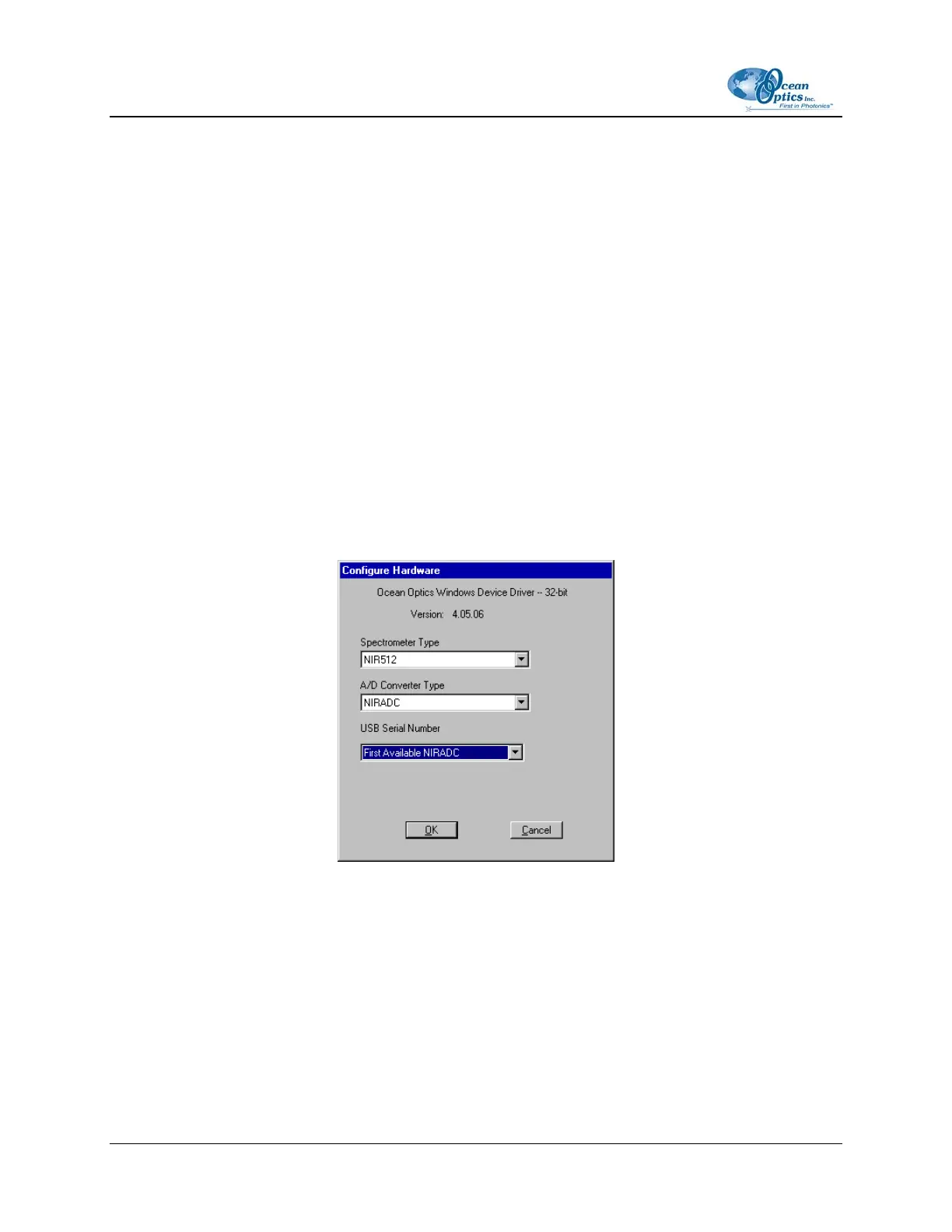
The Configure Hardware screen prompts you to enter spectrometer-specific information into
OOIBase32 the first time you run the program. Typically, you need only enter this information the first
time you run OOIBase32. However, you can alter the hardware configuration at any time using the
Spectrometer Configuration screen. Select Spectrometer | Configure from the OOIBase32 menu bar
to access the Spectrometer Configuration screen.
Configuring Hardware in USB Mode
► Procedure
Follow the steps below to configure the NIR Spectrometer:
1. Specify NIR Spectrometer in the Spectrometer Type drop-down menu.
2. Specify NIR Spectrometer in the A/D Converter Type drop-down menu.
3. Specify the serial number of the NIR Spectrometer under the USB Serial Number drop-down
menu.
4. Click the OK button to finish.
The spectrometer should be able to acquire data and respond to light. If not, exit and restart the
OOIBase32 application.
Configuring Hardware in Serial Port Mode
1. Select the NIR Spectrometer option from the Spectrometer Type drop-down menu.
2. Select the Serial (RS-232) A/D option from the A/D Converter Type drop-down menu. This
selection enables serial-specific options in the lower portion of the Configure Hardware screen.
8 197-00000-512-02-0305



 To Next Page