EasyManua.ls Logo

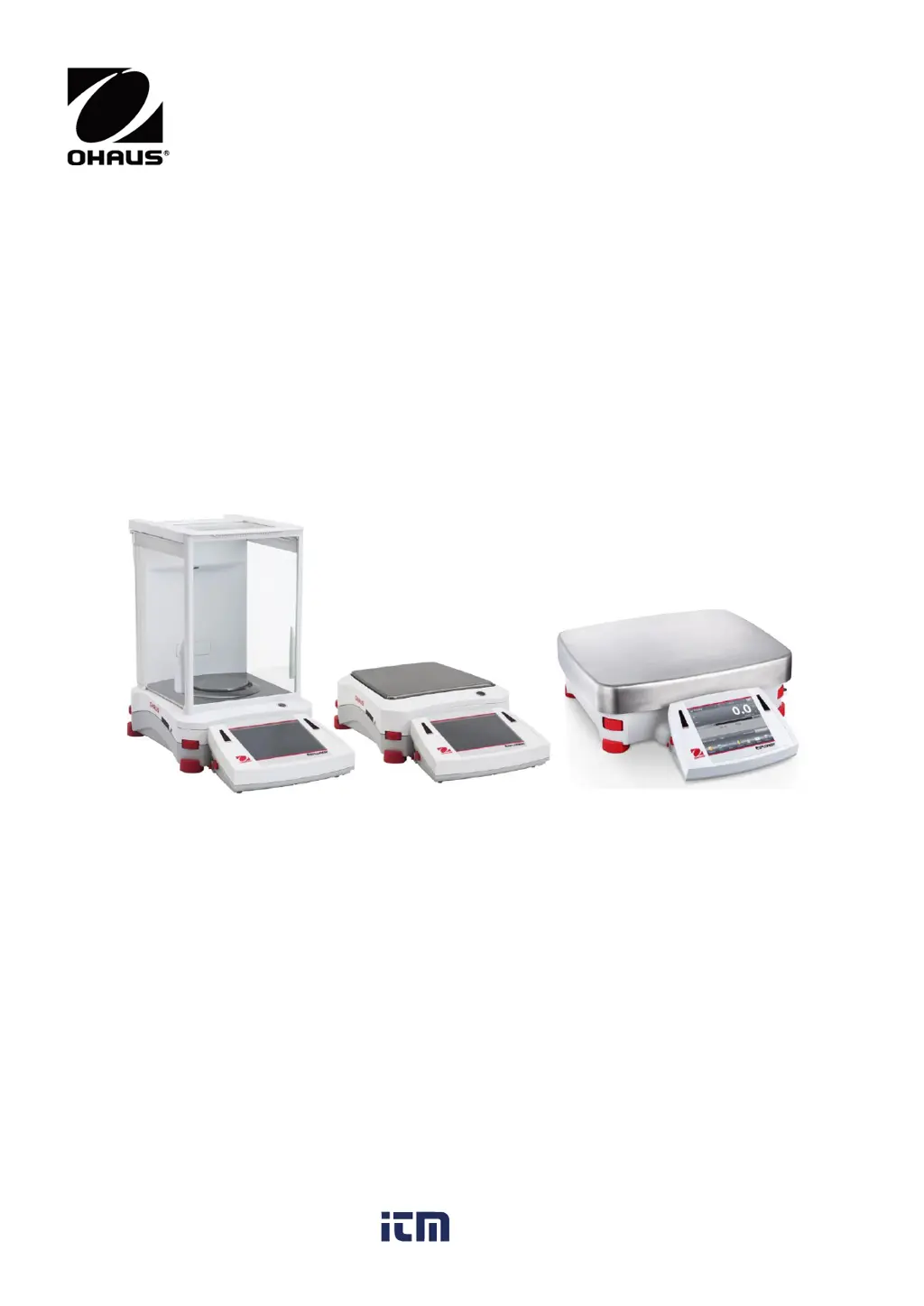
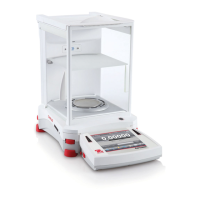
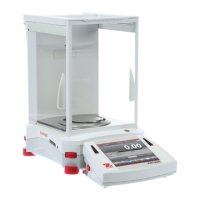
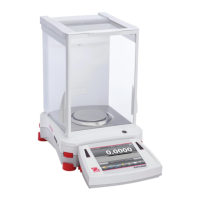
OHAUS Explorer EX225D - User Manual

OHAUS Explorer EX225D
164 pages
Print Icon
To Next Page IconTo Next Page
Loading...
Explorer
®
Balances
Instruction Manual
w ww . . co m
information@itm.com1.800.561.8187

Table of Contents

Other manuals for OHAUS Explorer EX225D

Questions and Answers

  • S
    Sandra HamiltonAug 12, 2025
    How to fix 'Cannot calibrate' error on OHAUS Scales?
    • M
      marymorrisAug 12, 2025
      If the OHAUS Scales display 'Cannot calibrate', first ensure that the Calibration Menu is not locked; if it is, turn the Calibration menu lock off. Also, check if LFT is turned on; if so, turn LFT off. An unstable environment can also prevent calibration, so move the balance to a more suitable location. Finally, verify that you are using the correct calibration masses; if not, use the correct ones.
  • M
    melvinmathisAug 15, 2025
    Why OHAUS Scales will not turn on?
    • C
      Christopher MataAug 15, 2025
      If your OHAUS Scales are not turning on, it could be due to a lack of power. Verify the connection and voltage to ensure the balance is receiving power.
  • D
    Douglas RoseAug 19, 2025
    How to resolve 'Invalid Piece Weight' error on OHAUS Explorer EX225D Scales?
    • M
      Michelle JacksonSep 12, 2025
      If your OHAUS Scales display 'Invalid Piece Weight', it means the average piece weight is too small. To resolve this, increase the average piece weight.
  • M
    Mary RichardsonAug 23, 2025
    What to do if OHAUS Scales show 'Operation Timeout'?
    • R
      Richard MartinezAug 25, 2025
      If your OHAUS Scales display 'Operation Timeout', it means the weight reading is not stable. To resolve this, move the balance to a more suitable and stable location.
  • K
    kwilliamsAug 27, 2025
    Why are my OHAUS Explorer EX225D Scales showing poor accuracy?
    • G
      gonzalezanaAug 27, 2025
      If your OHAUS Scales are showing 'Poor accuracy', it could be due to improper calibration. In this case, perform a calibration. Alternatively, an unstable environment may be the cause; move the balance to a more suitable location.
  • B
    Brandon TaylorAug 31, 2025
    What to do if I cannot change menu settings on OHAUS Explorer EX225D Scales?
    • D
      Dustin AllenAug 31, 2025
      If your OHAUS Scales display 'Cannot change menu settings', it could be because the sub-menu is locked. Unlock the sub-menu to regain access to the settings. Another possibility is that LFT is set to on; in this case, turn LFT off.
  • B
    Bill GonzalezSep 4, 2025
    What does 'Low Reference weight' mean on OHAUS Explorer EX225D Scales?
    • K
      Kimberly MillerSep 4, 2025
      If the OHAUS Scales display 'Low Reference weight', this indicates that the reference weight is too small. Increase the sample size to resolve this issue.
  • D
    Deborah LoganSep 7, 2025
    What to do if OHAUS Explorer EX225D Scales display 'Busy (tare, zero, printing)'?
    • E
      Erica BeardSep 7, 2025
      If the OHAUS Scales display 'Busy (tare, zero, printing)', wait until the current operation is completed.

Summary

Introduction

General Safety Precautions

Essential safety notes, warnings, and symbols for operating the equipment safely.

Installation and Setup

Site Preparation and Power Connection

Guidance on selecting a suitable location, leveling the balance, and connecting power.

Initial Balance Calibration Procedure

Steps for performing the initial calibration to ensure accurate weighing.

Balance Applications

Weighing Application Guide

Using the weighing application to determine item weight in selected units.

Parts Counting Application Guide

Instructions for counting samples of uniform weight using different modes.

Check Weighing Application Guide

Comparing sample weight against target limits using various modes.

Menu Settings and Configuration

Balance Calibration Procedures

Details on various calibration methods including internal, span, and user calibration.

Balance Setup Customization Options

Configuring balance display features like stability indicators, filter levels, and auto-zero tracking.

Application Activation and Management

Activating and managing the balance's various applications.

Weighing Units Configuration

Selecting and configuring desired units of measure for weighing operations.

Communication Setup and Settings

Configuring external communication methods like RS232 and USB.

Diagnostics and Troubleshooting Functions

Using diagnostic tests and troubleshooting guides for balance issues.

Factory Reset Options

Resetting balance menus and settings to their factory defaults.

Printing and Data Output

Printer and Computer Interface Setup

Connecting, configuring, and testing the interface for printers or computers.

Maintenance and Service

Calibration Verification and Cleaning

Procedures for periodically verifying calibration and cleaning the balance.

Troubleshooting Common Issues

A guide to identifying and resolving common balance problems and symptoms.

Technical Data and Specifications

Communication Interface Commands

List and explanation of commands for controlling the balance via interface.

OHAUS Explorer EX225D Specifications

General IconGeneral
ModelEX225D
Capacity220 g
Pan Size90mm
Weighing Unitsg, kg, lb, oz
DisplayLCD with backlight
Power SupplyAC Adapter (Included)
Stabilization Time≤ 3 s
CommunicationRS232, USB
DraftshieldYes
Operating Temperature10°C to 30°C
Operating Humidity10 % to 80 % RH
InterfaceRS232, USB
CalibrationInternal (automatic), external (optional)

Related product manuals