EasyManua.ls Logo

OHAUS EXPLORER PRO - User Manual

OHAUS EXPLORER PRO
60 pages
Print Icon
To Next Page IconTo Next Page
Loading...
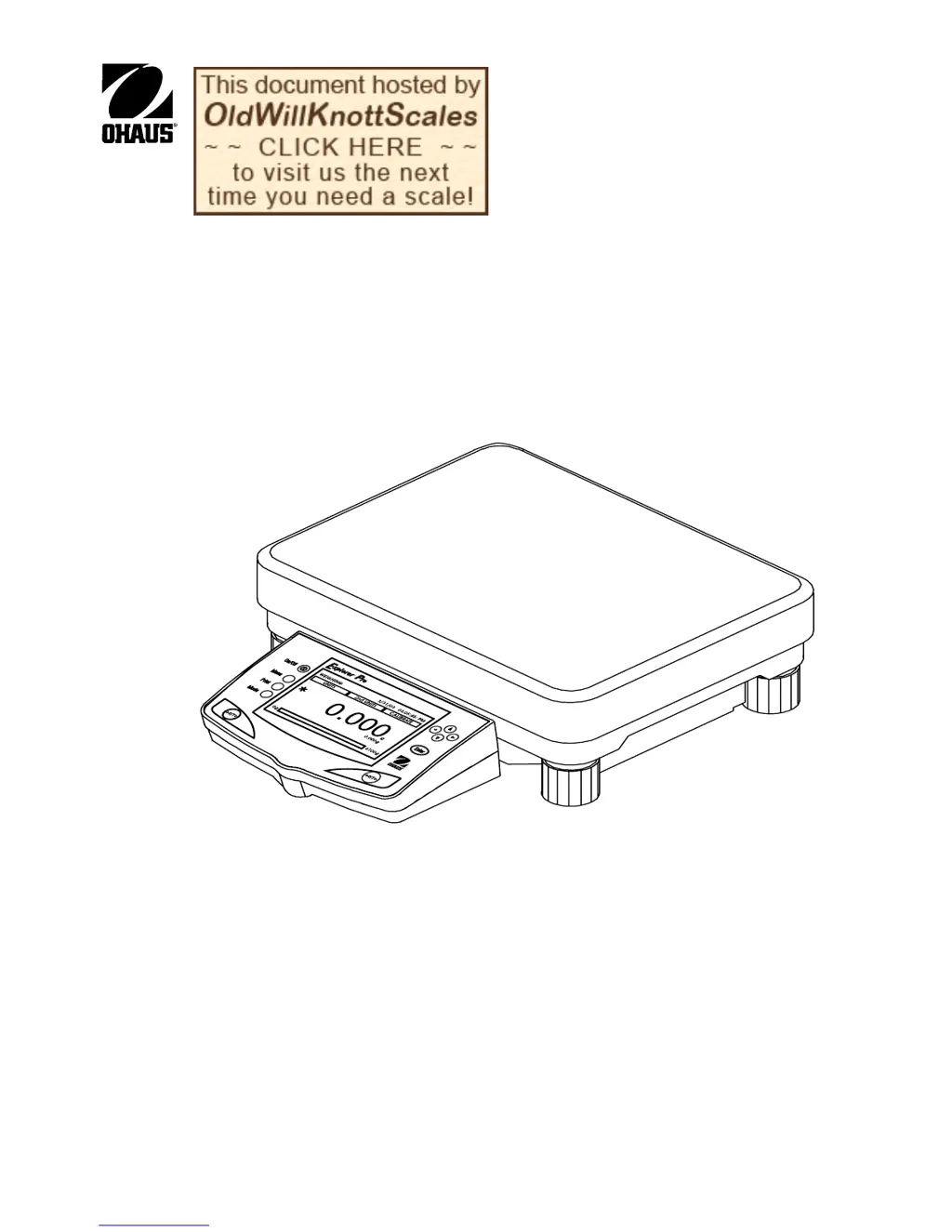
Explorer
®
Pro
Instruction Manual
W
E
I
GH
I
N
G
0
1
/
0
1
/0
3
0
3
:
0
5
:
4
5
:
P
M
U
NI
T
S
2
n
d
U
N
I
T
S
0
.
0
0
g
*
0
.
0
0g
0
g
6
1
0
0
g

Questions and Answers

  • J
    Jonathan HowellAug 17, 2025
    Why are my OHAUS Scales giving an incorrect weight reading?
    • J
      jeffrey97Aug 17, 2025
      An incorrect weight reading may occur if the balance was not tared before weighing. Press the >O/T< button with no weight on the pan, then weigh the item. It could also be caused by the balance being out of level, so adjust the leveling feet. Finally, the balance may not be properly calibrated, so recalibrate it correctly.
  • X
    xrasmussenAug 19, 2025
    What to do if my OHAUS EXPLORER PRO Scales unit will not turn on?
    • D
      Dawn ValdezAug 19, 2025
      If the unit will not turn on, check the power cord connections to ensure it is plugged in and properly connected to the balance.
  • N
    Natalie BlanchardAug 22, 2025
    What to do if I experience unstable readings on my OHAUS Scales?
    • D
      danielle76Aug 22, 2025
      Unstable readings can occur due to several factors: * Vibration on the table surface. Check environmental conditions. * Open draft shield doors. Close the draft shield doors. * Averaging level set too low. Change the averaging level to a higher setting. * Balance not on a stable surface. Place the balance on a stable surface.
  • J
    James DoyleAug 25, 2025
    How to fix incorrect calibration of OHAUS Scales?
    • J
      Jonathan EstradaAug 26, 2025
      An incorrect calibration can happen if the balance was not tared. Tare the balance. It can also happen if the internal calibration was not adjusted properly. Perform calibration adjustments.
  • I
    inunezAug 27, 2025
    What to do if my OHAUS EXPLORER PRO Scales have unstable readings?
    • S
      Samantha DayAug 27, 2025
      Unstable readings can be caused by vibration on the table surface. You can try to improve environmental conditions, close the draft shield doors, change the averaging level to a higher setting, or place the balance on a more stable surface.
  • T
    tony55Aug 30, 2025
    What to do if the RS232 interface is not working on OHAUS EXPLORER PRO?
    • D
      Deborah PerryAug 30, 2025
      If the RS232 interface is not working, verify the interface settings in the RS232 menu correspond to those of the peripheral device. Also, refer to the Accessory list for the proper cable and check that the cable connections are installed properly. Verify the correct cable end is plugged into the balance.
  • S
    staceyguerraSep 2, 2025
    Why is the RS232 interface not working on my OHAUS Scales?
    • W
      William GibsonSep 2, 2025
      If the RS232 interface is not working, the interface parameters may not be properly set up. Verify that the interface settings in the RS232 menu correspond to those of the peripheral device. Also, ensure that the correct cable is being used and that the cable connections are properly installed, with the correct cable end plugged into the balance.
  • P
    Patricia CharlesSep 4, 2025
    Why OHAUS EXPLORER PRO show incorrect weight reading?
    • F
      forddonaldSep 4, 2025
      An incorrect weight reading may occur if the balance was not tared before weighing. Press the >O/T< button with no weight on the pan, then weigh the item. Also, check if the balance is out of level and adjust the leveling feet. Finally, the balance may not be properly calibrated; recalibrate it correctly.
  • J
    jacob12Sep 7, 2025
    What to do if I cannot display weight in desired unit on OHAUS Scales?
    • P
      Paul GilesSep 8, 2025
      If you cannot display weight in the desired unit, it is possible that the desired unit is not enabled. Enable the units in the Units menu.
  • P
    pmorganSep 10, 2025
    What to do if I cannot access desired application on OHAUS EXPLORER PRO Scales?
    • B
      bjamesSep 10, 2025
      If you cannot access the desired application, it might not be enabled. Enable the desired application in the Application Modes menu.

Summary

1. Introduction to Explorer Pro Balance

1.1 Product Description

Provides an overview of the Explorer Pro balance and its capabilities.

1.2 Key Features

Lists the key features and benefits of the Explorer Pro balance.

1.3 Safety Precautions

Details essential safety guidelines for operating the balance.

2. Installation Guide

2.1 Unpacking Procedures

Instructions for safely unpacking the new Explorer Pro balance.

2.2 Location Selection

Guidelines for choosing an optimal environment for balance placement.

2.3 Power and Communications Setup

Steps for connecting power and setting up communication interfaces.

3. Operation

3.1 Controls and Display Overview

Explains the balance's buttons, display elements, and power control.

3.3 Menu and Navigation

Covers accessing and navigating the balance's menu structure.

3.4 Weighing Applications

Details the various weighing modes including Weighing, Parts Counting, Density, and SQC.

3.4.2 Parts Counting

Parts Counting Usage

Explains how to use the parts counting mode to determine quantity.

Parts Counting Adjustments

Details configuration options for parts counting.

3.4.3 Animal Weighing

Animal Weighing Usage

Describes how to perform animal weighing.

Animal Weighing Adjustments

Details configuration options for animal weighing.

3.4.4 Percent Weighing

Percent Weighing Usage

Instructions for setting reference weight and viewing percentages.

Percent Weighing Adjustments

Configuration options for percentage weighing.

3.4.5 Check Weighing

Check Weighing Usage

Instructions for setting limits and checking items.

3.4.6 Filling

Filling Usage

How to use the filling application to achieve target weights.

Filling Adjustments

Configuration options for the filling application.

3.4.7 Gross; Net; Tare Weighing

G;N;T Weighing Usage

How to perform and read G/N/T measurements.

3.4.8 Differential Weighing

Differential Weighing Usage

How to use the feature to track sample changes.

Differential Weighing Setup

Configuration options for differential weighing.

3.4.9 Formulation

Formulation Usage

How to create and use formulations.

Formulation Adjustments

Configuration options for formulation.

3.4.10 Statistics

Statistics Usage

How to use statistics for data analysis.

3.4.11 Statistical Quality Control (SQC)

SQC Usage

How to use SQC for process monitoring.

SQC Setup

Configuration options for SQC.

3.4.12 Density Determinations

Density Measurement Methods

Outlines the four methods for density determination.

Density Setup

Configuration options for density measurements.

Balance Preparation for Density Measurement

Solid Density Determinations

Solid Density Formulas

Explains the formulas used for solid density calculation.

Porous Material Density Determinations

Determining Wet Density

Procedure for calculating wet density.

3.5 Balance Settings

3.5.1 Calibration Procedures

Procedures and methods for calibrating the balance.

3.5.2 Balance Options

Settings for language, date/time, contrast, and other display options.

3.5.3 Readout Settings

Filter Level

Sets the balance reading averaging level.

Stability Level

Sets the balance stability indicator level.

Auto Zero

Sets the balance auto zero tracking level.

3.5.4 Application Modes

Units Selection

Selects available units of measurement for weighing.

3.5.6 Interface Settings

Interface Configuration

Details the settings for serial communication (Baud Rate, Parity, Data Bits, Stop Bits).

3.5.7 Printing Data Configuration

Print Options Setup

Settings for auto-print, interval, stable/numeric data.

3.5.8 GLP Print Options

GLP Print Fields

Selects which GLP data fields to include in printouts.

3.5.9 Library Management

Library Functions

Options to Run, Delete, or Delete All library entries.

3.5.10 Lockout

Lockout Settings

Controls which menu items are locked or unlocked.

3.5.11 Factory Reset

Factory Reset Options

Allows resetting individual menus or performing a global reset.

3.5.12 LFT Legal for Trade

LFT Default Table

Shows default values for LFT and Lockswitch settings.

3.5.13 Hardware Lockswitch

Lockswitch Functionality

Explains how the lockswitch affects menu access.

3.5.14 Sealing the Balance

Balance Sealing Method

Describes the process of applying seals for verification.

3.6 Printing Data

Initiating a Print Operation

How to start the printing process.

4. Care and Maintenance

4.1 Cleaning Guidelines

Guidelines for cleaning the balance housing and pan.

4.2 Troubleshooting

Lists common symptoms, probable causes, and remedies for balance issues.

4.3 Error Codes List

Error Code Categories

Lists and explains different types of errors like Data, Tare, Calibration, RS232, User, Load, and CheckSum.

4.4 Service Information

Contacting Ohaus Service

How to get assistance if troubleshooting fails.

4.5 Replacement Parts

Ordering Replacement Parts

Information on how to order necessary replacement components.

4.6 Accessories

Available Accessories

Details items like calibration masses and interface cables.

5. Technical Data

5.1 RS232 Commands

Lists and describes the commands used for serial communication.

5.2 Specifications

Admissible Ambient Conditions

Environmental conditions for balance operation.

Balance Capacity and Readability

Key performance metrics of the balance.

LIMITED WARRANTY

Warranty Terms and Conditions

Outlines the conditions and duration of the Ohaus product warranty.

OHAUS EXPLORER PRO Specifications

General IconGeneral
BrandOHAUS
ModelEXPLORER PRO
CategoryScales
LanguageEnglish

Related product manuals