Explorer
Pro
EN-19
Unit: g, kg, etc...(default g).
Allows the selection of all activated units.
Reference: 0-99999999 (default is 10)
Defines the reference weight at 100%.
Display Settings: Custom, Default (default is Default)
Allows Display Settings to be set to default or custom. If Display
Settings is set to custom, information on the result lines of the
Percent Weighing mode can be individually turned on or off. If
Display Setting is set to default, all the information is turned
on.
Reference Key: Locked, Unlocked (default is Unlocked)
Allows locking or unlocking the REFERENCE soft key in the
percent Weighing screen. Message “Key is locked” when Locked
is selected.
New Reference Key: Locked, Unlocked (default is Unlocked)
Allows locking or unlocking the NEW REF soft key in the Percent
Weighing screen. Message “Key is locked” when Locked is
selected.
Exit:
When selected, balance returns to the Percent Weighing Mode.
REFERENCE
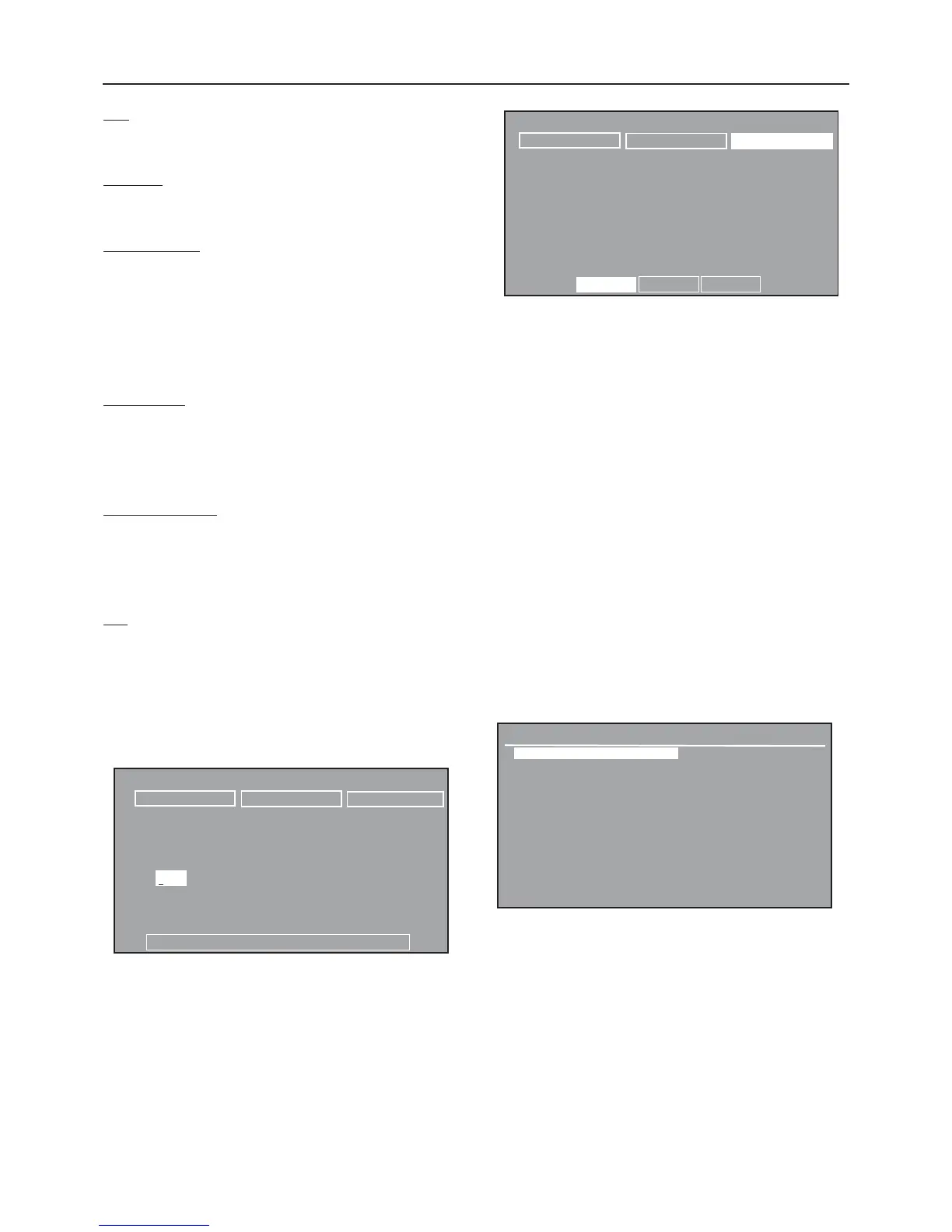
Select REFERENCE soft key and press the Enter button. The
display screen changes with Ref field highlighted. Reference
weight can be specified.
3.4.5 Check Weighing
Check weighing is used when items are checked against preset
balance parameters. This feature permits you to weigh an item,
set balance parameters such as the over weight, target weight
and under weight. A bar graph at the bottom of the Check
Weighing screen indicates UNDER, ACCEPT and OVER for items
being checked.
USE
CHECK WEIGHING
Before using the Check Weighing feature, the Over, Target and
Under limits must be set.
ADJUSTMENTS
The CHECK WEIGHING display contains three soft keys at the top
of the screen UNITS, SETUP and CALIBRATE.
CALIBRATE
When the CALIBRATE soft key is highlighted, and the Enter
button is pressed, calibration can be performed.
SETUP
Select the SETUP soft key and press the Enter button. The
CHECK WEIGHING SETUP display is shown.
CHECK WEIGHING
S
ET
U
P
L
ibrary Name : CHECK WEIGHING
U
nit : g
Over : 15.00
T arget : 10.00
U
nder : 5.00
Display
S
ettings : Custom
Exit
PE
R
CENT WEIGHING 01/01/03 03:05:45 PM
R
EFE
R
ENCE
S
ET
U
P
NEW
R
EF
0.00 g
*
0g
6100



 To Next Page