3A180100A
3A1/FaxSystem(A)/MCE-Eng
/ 164
1-21
Section 1 Basic Use of this Fax
<Notes>
• The FINE and SUPER FINE resolutions reproduce clearer images
in comparison to transmission with the Normal resolution, but
transmission time is longer.
• The PHOTO MODE resolution reproduces greys clearly, but
transmission time is longer than with the Normal or FINE
resolutions.
• To transmit with the ULTRA FINE resolution, 4 MB of optional
Bitmap Memory must be installed. If the additional Bitmap Memory
is not installed, documents will be transmitted with the SUPER
FINE resolution even if ULTRA FINE is selected.
• To transmit with the SUPER FINE or ULTRA FINE resolutions, the
receiving fax must have the corresponding resolution capabilities in
order to benefit from their features. If the receiving fax does not
have the corresponding capability, transmission will be
accomplished with the FINE resolution.
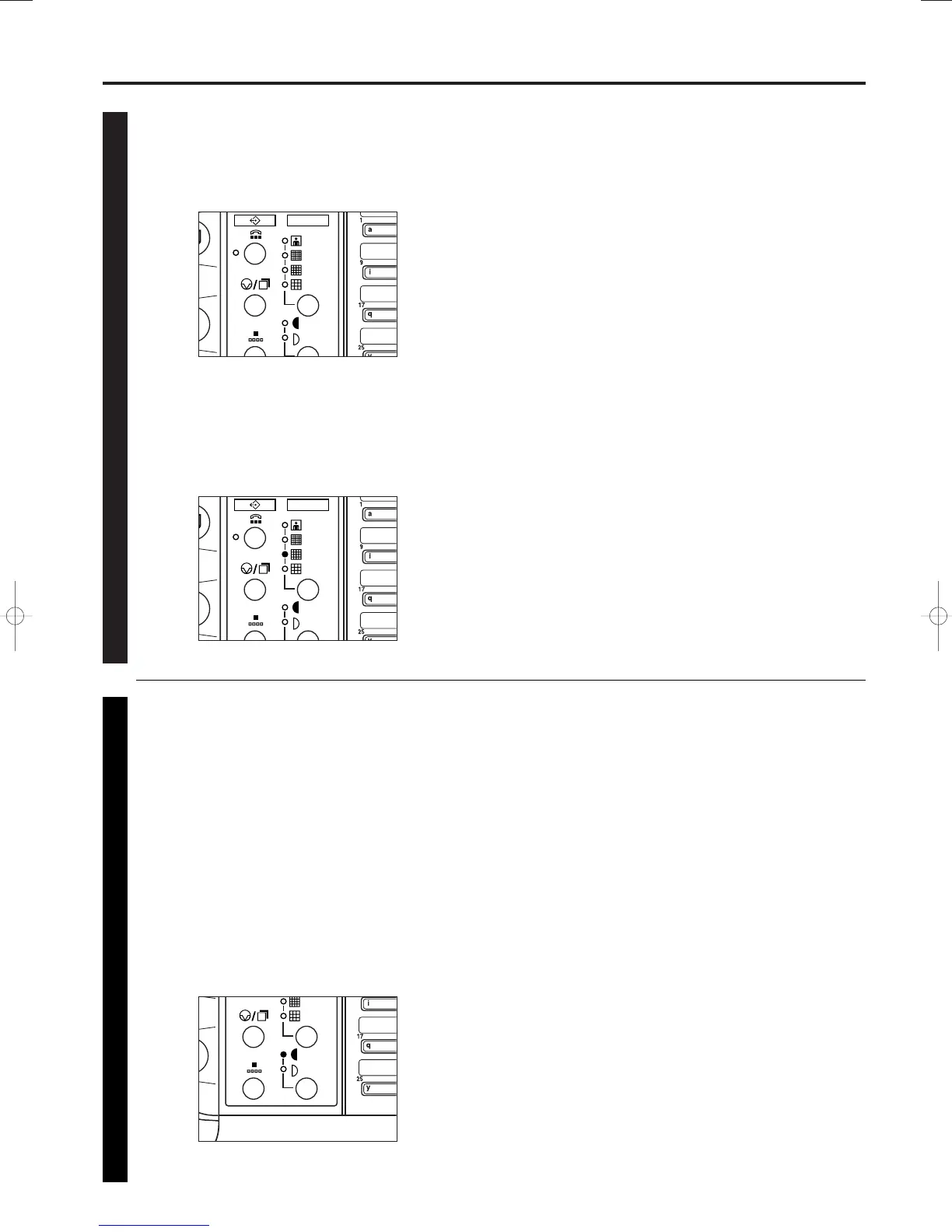
Selecting the resolution
It is possible to select a resolution from among the 5 available
settings.
* Ordinarily, all of the resolution indicators are out; and the
Normal resolution is thus selected. If you want to use the
Normal resolution, there is no need to change this setting.
* If you want to change the resolution, press the resolution
select key until the resolution indicator that corresponds to
the desired resolution is lit.
● Resolutions
• Normal: For transmitting documents with standard size
characters
• FINE: For transmitting documents with relatively small
characters or thin lines
• SUPER FINE: For transmitting documents with detailed lines
and characters
• ULTRA FINE: For transmitting the clearest reproduction of
documents with detailed lines and characters
• PHOTO MODE: For transmitting the clearest reproduction of
documents containing both photographs as well as text
44
55
Selecting the contrast
It is possible to select a contrast from among the 3 available
settings.
* Ordinarily, all of the contrast indicators are out; and the
Normal contrast is thus selected. If you want to use the
Normal contrast, there is no need to changes this setting.
* If you want to change the contrast, press the contrast select
key to select the contrast most suitable to the documents
being transmitted. If you want to increase (darken) the
contrast at which documents are scanned, press the contrast
select key until the DARKER indicator is lit. If you want to
reduce (lighten) the contrast at which documents are
scanned, press the contrast select key until the LIGHTER
indicator is lit.
01/Basic-1/3A1/MCE/Eng.q 23-12-1999 13:08 Page 1-21



 To Next Page