Getting Started 7
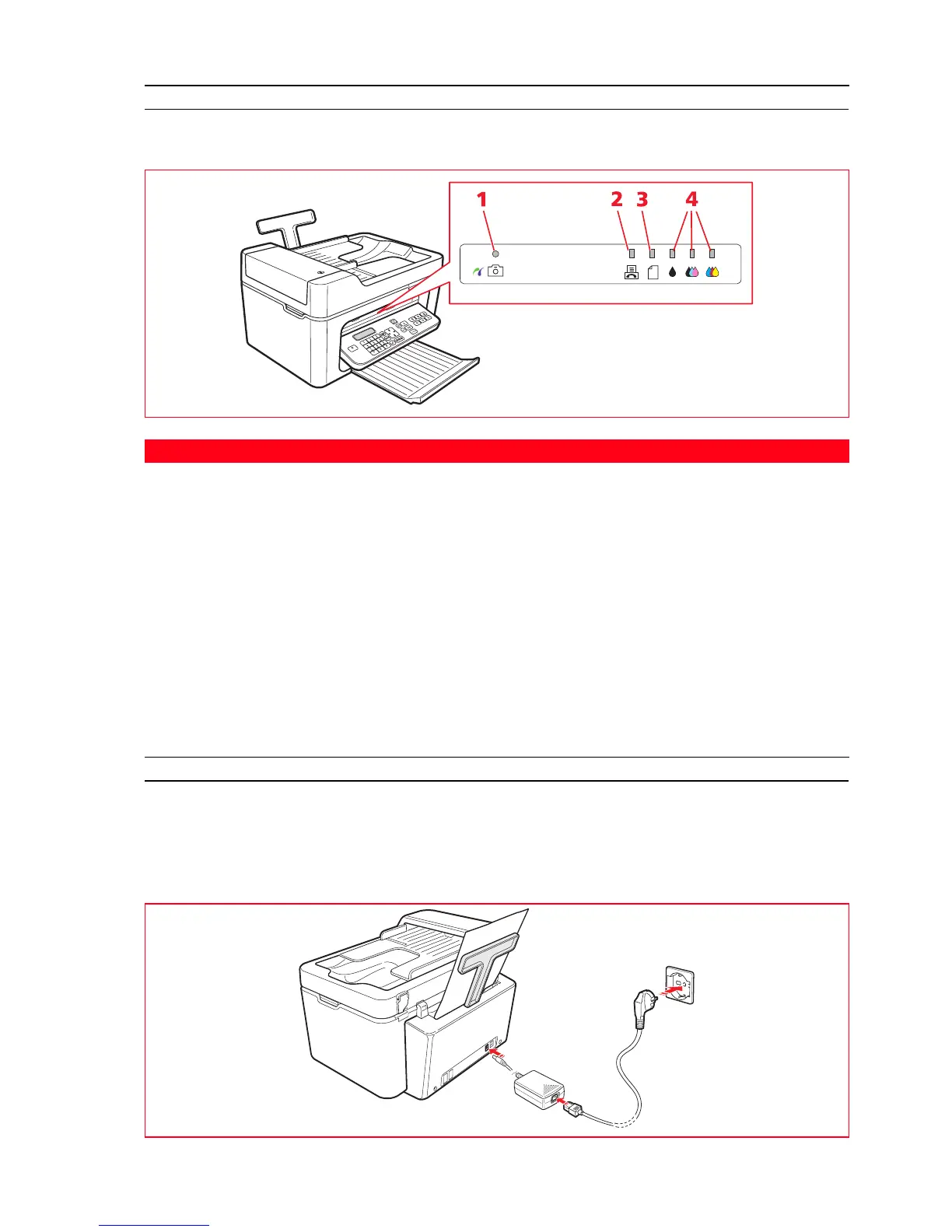
LEDS ON THE PRINTER FRONT PANEL
Open out the keyboard to access the compartment where the LEDs can be seen.
PRINTER POWER SUPPLY
The printer is powered from the mains using the external AC power supply unit provided.
Proceed as follows to connect the power supply unit to the electrical outlet:
1 Insert the plug of the external AC power supply unit cable into the printer socket.
2 Insert one end of the power cable into the power supply unit and the other end into the electrical outlet.
Reference Indicator Description
1 USB status • A green light indicates that a digital camera or compatible memory
device is connected. A flashing light indicates that data is being
transferred to the printer.
2 Fax present
in memory
• A fax is present in memory (i.e. was not printed when it was
received).
The printer cannot be switched off without correcting the reason for
the error, and printing the faxes present in memory.
• A fax transmission or reception error has occurred.
3 Paper error Indicates:
• Paper jam.
• No paper in feeder.
4 Out-of-ink The LEDs flash when the black, photo or colour cartridges are nearly out
of ink. A steady orange light indicates that the ink has run out.













 To Next Page