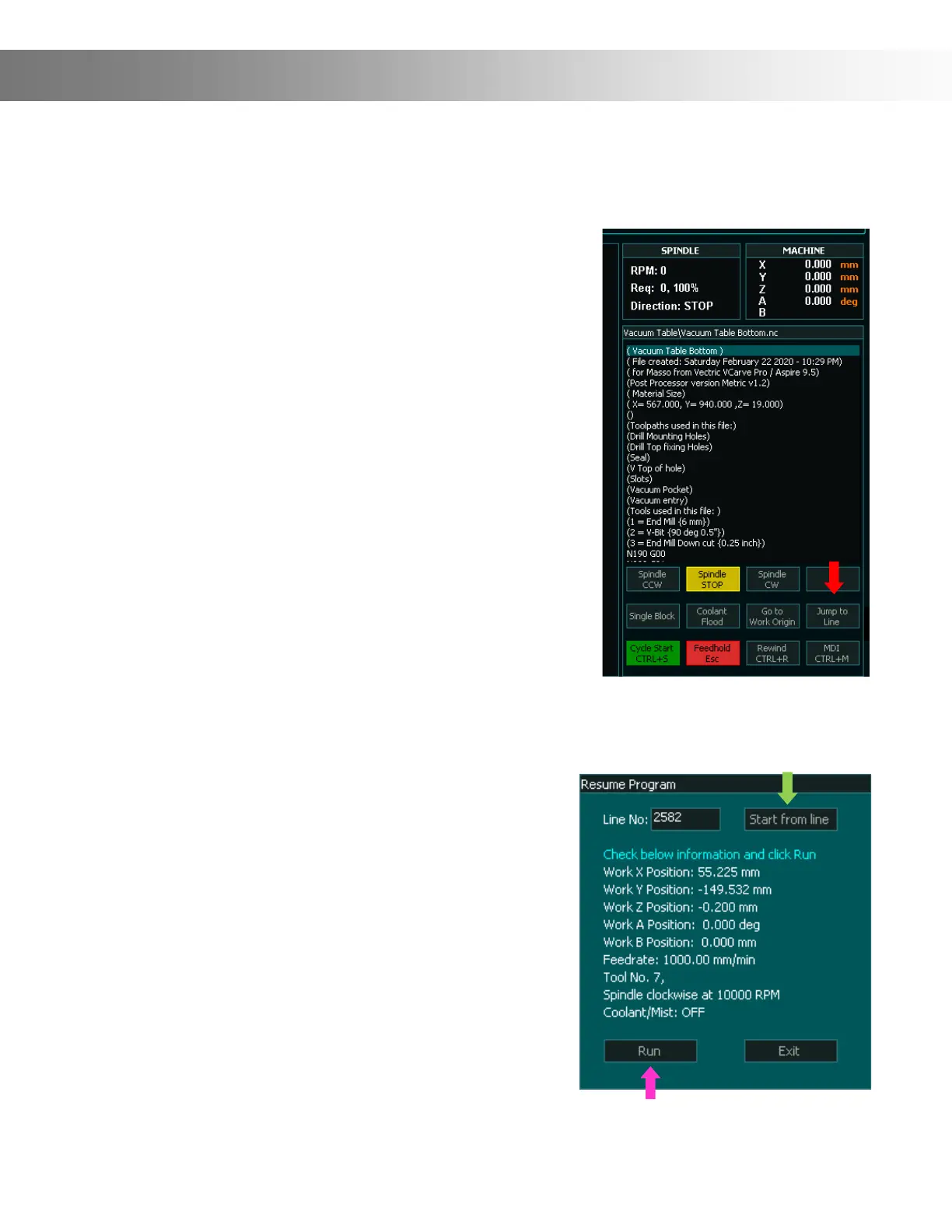
Next Tap the Start from line button (Green Arrow) and Onenity MASSO will process the gcode le
up to the line number entered by you. When done Onenity MASSO will calculate all the machining
parameters from the gcode le as below:
Calculate the X, Y, and Z-axis positions to resume machining.
Cutting feedrate as per gcode.
Tool Number.
Spindle RPM and direction.
Coolant/Mist status.
Carefully check the information and click the Run button.
(Pink Arrow)
Next, MASSO will resume the machining cycle as below:
Move the Z axis up to the homing position.
Change tool if a dierent tool is required.
Sets the status of any output if used with M62 or M63 codes.
Start spindle at the requested RPM and direction.
Start Coolant/Mist as per gcode.
Go to X & Y resume position.
Move the Z axis down to the cutting position and start machining at the feedrate as per gcode le.
When machining complex jobs such as die molds or complex engraving jobs which can take a long time
to machine, power failure or broken tool means that you need to start the entire gcode le from start.
Restarting the gcode le from start is very time and resource consuming. To be able to eectively restart
your machining process from where you left, Onenity MASSO has a Resuming Program or Jump to
Line feature (from software v3.30).
With this feature the current gcode line number is saved into a high
speed internal memory and even if the machine is powered o while
machining, Onenity MASSO will automatically store that last line
number in memory.
Resuming Program or Jump to Line
On power-up, a message is displayed on the gcode list with the last
line number that was running
After this please load the gcode le from the F6-Load File screen
and go to F2-Program & MDI screen
Now tap the Jump To Line (Red Arrow) to open the Resuming Pro-
gram window.
The last line number will automatically be lled and depending on
your program, please go back a few lines from the last running line
so that the machining is resumed a few lines before it stopped.


 To Next Page