Using the XYZ Touch Probe
Your Onenity Elite machine supports in-
teractive part probing that allows the user
to probe parts and set work osets.
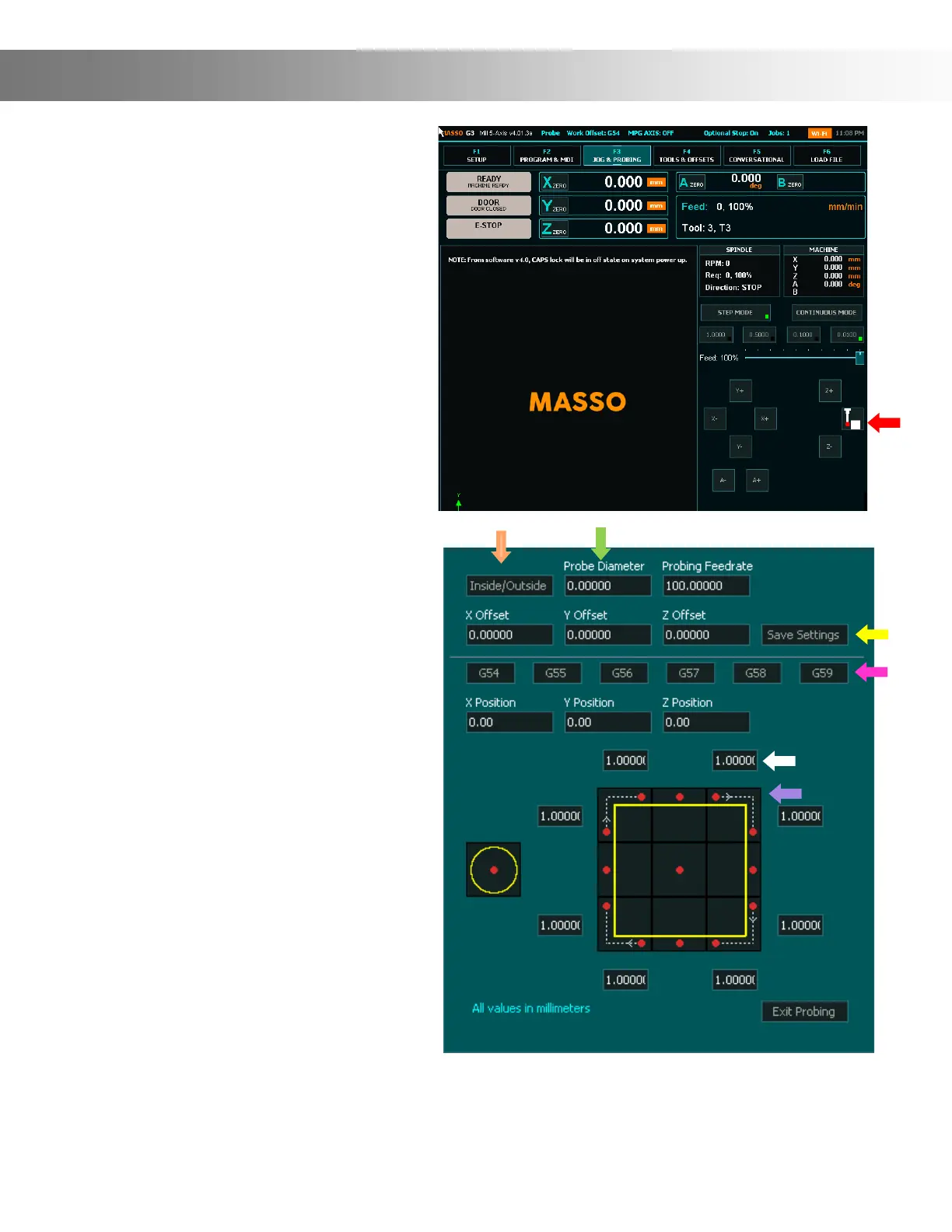
To initiate Probing tap the Probing button
(Red Arrow) on the F3 page.
The dialog box shown below will appear
Understanding the Probing Dialog Box:
The Onenity XYZ Touch Probe is de-
signed for Outside Probing. Tap the Inside/
Outside button (Orange Arrow) until the
red dots are shown on the outside of the
yellow box.
Probe Diameter (Green Arrow) refers to
the diameter of your cutting bit.
The X,Y and Z osets (Yellow Arrow) come
factory set with the nominal dimensions of
the Onenity Touch Probe. Important
Note: The Oset Settings are set for top
right probing (Purple Arrow). If you use one
of the other probing corners/sides you will
need to modify your setting accordingly
and save them using one of the 6 Work
Osets (Pink Arrow)
The numbers located at the corners (White
Arrow) indicate how far the machine will
travel in order to contact the XYZ Touch
Probe.
The Red dot indicates the approximate
position and side where your bit should be
before starting the Probing cycle.
The Yellow Box represent your XYZ Probe.
The white dotted line between the red dots
illustrates the path the machine will travel
while probing.


 To Next Page