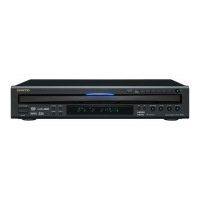
EasyManua.ls Logo

Onkyo DV CP704 - User Manual

Onkyo DV CP704
52 pages
Print Icon
To Next Page IconTo Next Page
Loading...
En
DVD Changer
DV-CP704
Instruction Manual
Thank you for purchasing an Onkyo DV-CP704
DVD Changer. Read this manual carefully
before using your new DVD Changer. A good
understanding of its features and operation will
allow you to achieve optimum performance and
enjoyment.
Keep this manual for future reference.
Contents
Overview ..............................................2
Connections ......................................17
Getting Started and Setting up ........22
Basic Playback ..................................23
Playback Techniques ........................34
Detailed Settings ...............................42
Miscellaneous information...............49

Table of Contents

Other manuals for Onkyo DV CP704

Questions and Answers

  • M
    Megan LoweJul 26, 2025
    Why remote control not working for Onkyo DV CP704 CD Player?
    • A
      April HallJul 26, 2025
      If the buttons on your Onkyo CD Player (DV-CP704) are working but the remote controller isn't, there are several things to check. First, make sure the batteries in the remote are not flat and are installed correctly. Next, ensure you're pointing the remote directly at the DV-CP704's remote sensor and that you're not too far away (the remote has a range of about 16 feet or 5 meters). Finally, check for any strong light sources, like direct sunlight or inverter-type fluorescent lights, that might be interfering with the remote sensor. If necessary, relocate the unit.
  • K
    Kathryn RodriguezJul 31, 2025
    What to do if the disc is dirty in Onkyo DV CP704?
    • B
      Brandon MathewsJul 31, 2025
      Remove the disc and clean it.
  • B
    Brian PatrickAug 10, 2025
    What to do if there is no picture from Onkyo DV CP704 CD Player?
    • C
      christopher20Aug 10, 2025
      If you're not getting a picture from your Onkyo CD Player (DV-CP704), here's what you can do: * Ensure your TV is set to the correct input for the DV-CP704. * Check that the video cables are properly connected. * If using HDMI, make sure the HDMI Output Setting isn't set to Off by pressing the [RESOLUTION] button on the remote. If your TV doesn't support progressive scanning and the HDMI OUT is on, press and hold the [RESOLUTION] button to turn off the HDMI OUT. Also, if the HDMI Resolution isn't set to 480p (480p/576p), try pressing the [RESOLUTION] button repeatedly to change it. If you're using component video output while HDMI OUT is on, turn off HDMI OUT and set the progressive Setting on the onscreen setup menus to Interlaced.
  • D
    Diane BeckAug 14, 2025
    How to fix Onkyo CD Player when it can't start playback?
    • T
      Todd RyanAug 14, 2025
      If your Onkyo CD Player (DV-CP704) is not playing, make sure the disc is clean. Also, ensure that discs are loaded into the player. Check that you're using compatible discs and that they are loaded right-side up and centered in the disc bay.
  • B
    Bryan SanchezAug 20, 2025
    Why is there no digital audio output from my Onkyo CD Player?
    • S
      Scott FloresAug 20, 2025
      If you're not getting any digital audio output from your Onkyo CD Player (DV-CP704), verify that the Digital/HDMI Audio Out setting isn't set to Off; change it to either All or PCM. Also, if your TV or AV receiver doesn't support Dolby Digital, change the Digital/HDMI Audio Out setting to PCM. If your TV or AV receiver doesn't support DTS, the DV-CP704 won't be able to play DTS format audio; select a different audio format on your DVD-Video disc's audio setup menu. If your TV or AV receiver doesn't support 96 kHz PCM, change the Linear PCM Out setting to Down Sample On.
  • C
    Christopher Kelley PhDNov 4, 2025
    Why is there no sound from my Onkyo DV CP704 CD Player?
    • J
      Jennifer KennedyNov 4, 2025
      If you're not getting any sound from your Onkyo CD Player (DV-CP704), here are a few things to check: * Make sure your hi-fi amp or AV receiver is turned on and set to the correct input for the DV-CP704. * Verify the audio cables are properly connected. * Ensure that the Digital/HDMI Audio Out setting is not set to Off; change it to All or PCM. Also, if you're connected via HDMI and using a DVI jack, or if your TV or AV receiver's HDMI setting is set to DVI, you won't get any sound. Make sure your TV or AV receiver supports the audio format being used (Dolby Digital, DTS, or 96 kHz PCM); if not, adjust the Digital/HDMI Audio Out or Linear PCM Out settings accordingly. If your TV or AV receiver doesn’t support DTS, select an audio format other than DTS on your DVD-Video disc’s audio...

Summary

Important Safety Instructions

Safety Warnings

Critical safety notices to reduce risk of fire or electric shock. Includes warnings about moisture and opening the unit.

Safety Instructions

Detailed list of mandatory safety precautions for operation, installation, and maintenance.

Precautions

Moisture and Environmental Precautions

Advice on preventing damage from moisture, heat, and improper environmental conditions.

Precautions-Continued

Connecting the DV-CP704

Connecting the DV-CP704-Continued

Connecting to a TV or Projector

Guide for video and audio connections to display devices like TVs and projectors.

Connecting to an AV Receiver

Instructions for connecting the DV-CP704 to an AV receiver for surround sound.

HDMI Connection Guide

Instructions for high-definition digital audio/video connection using an HDMI cable.

Powering Up & Setting Up the DV-CP704

Initial Setup Procedure

Guide for first-time configuration including TV shape, HDMI settings, and language.

Basic Playback

Basic Playback-Continued

Playback Control: Start, Pause, Stop

Operations for starting, pausing, resuming, and stopping disc playback.

Navigating DVD-Video Disc Menus

How to interact with onscreen menus for DVD content selection and options.

Advanced Playback-Continued

HDMI Video Output Settings

Configuring HDMI output resolution and enabling/disabling the HDMI feature.

Configuring the DV-CP704

Setup Menu Overview

Guide to the six configuration menus (Picture, Audio, Language, Display, Operation, Initial).

Configuring the DV-CP704-Continued

Operation Settings: Parental Lock and Security

Setting up parental controls to restrict content access and managing the security code.

Picture Menu Settings

Adjusting aspect ratio, view mode, and picture format for optimal display.

Troubleshooting

Power and Picture Display Issues

Solutions for problems related to powering on the unit or displaying video output.

Audio Output Issues

Troubleshooting steps for scenarios where no sound is produced or audio is incorrect.

Troubleshooting-Continued

Playback and Disc-Related Problems

Addressing issues with playback, disc recognition, file formats, and error messages.

Abnormal Behavior and HDMI Troubleshooting

Handling system lock-ups, restoring defaults, and diagnosing HDMI connection problems.

Remote Control and Button Functionality

Solutions for unresponsive buttons on the unit or remote control errors.

Onkyo DV CP704 Specifications

Operating Environment IconOperating Environment
Operating temperature5° to 35° C (41° F to 95° F)
Power IconPower
Power supply (U.S. model)120 V AC, 60 Hz
Power supply (Australian model)100–240 V AC, 50/60 Hz
Power consumption13 W
Power consumption in Standby mode (U.S. model)0.35 W
Power consumption in Standby mode (Australian model)0.35 W
Audio Specifications IconAudio Specifications
Signal-to-noise ratio95 dB
Audio dynamic range95 dB
Total harmonic distortion0.007% (1 kHz)
Wow and flutterBelow threshold of measurability
Video Outputs IconVideo Outputs
Component video Y1.0 V (p–p), 75 Ω, negative sync, RCA/phono x3
Component video PB/PR0.7 V (p–p), 75 Ω
S VIDEO Y0.7 V (p–p), 75 Ω, negative sync, 4-pin mini DIN x1
S VIDEO C0.286 V (p–p), 75 Ω
Composite video1.0 V (p–p), 75 Ω, negative sync, RCA/phono x1
Audio Outputs IconAudio Outputs
Optical output–22.5 dBm, optical connector x1
Coaxial output0.5 V (p–p), 75 Ω, RCA/phono x1
Analog output2.0 V (rms), 540 Ω, RCA/phono x2
HDMI output19 pin connector
Weight and Dimensions IconWeight and Dimensions
Weight5.5 kg (12.1 lbs.)
Dimensions (W x H x D)435 X 91 X 432 mm (17-1/8 X 3-9/16 X 17 ins.)

Related product manuals