40 Operating the System
AS7200 User Manual - OPEX Corporation
Adjusting image quality
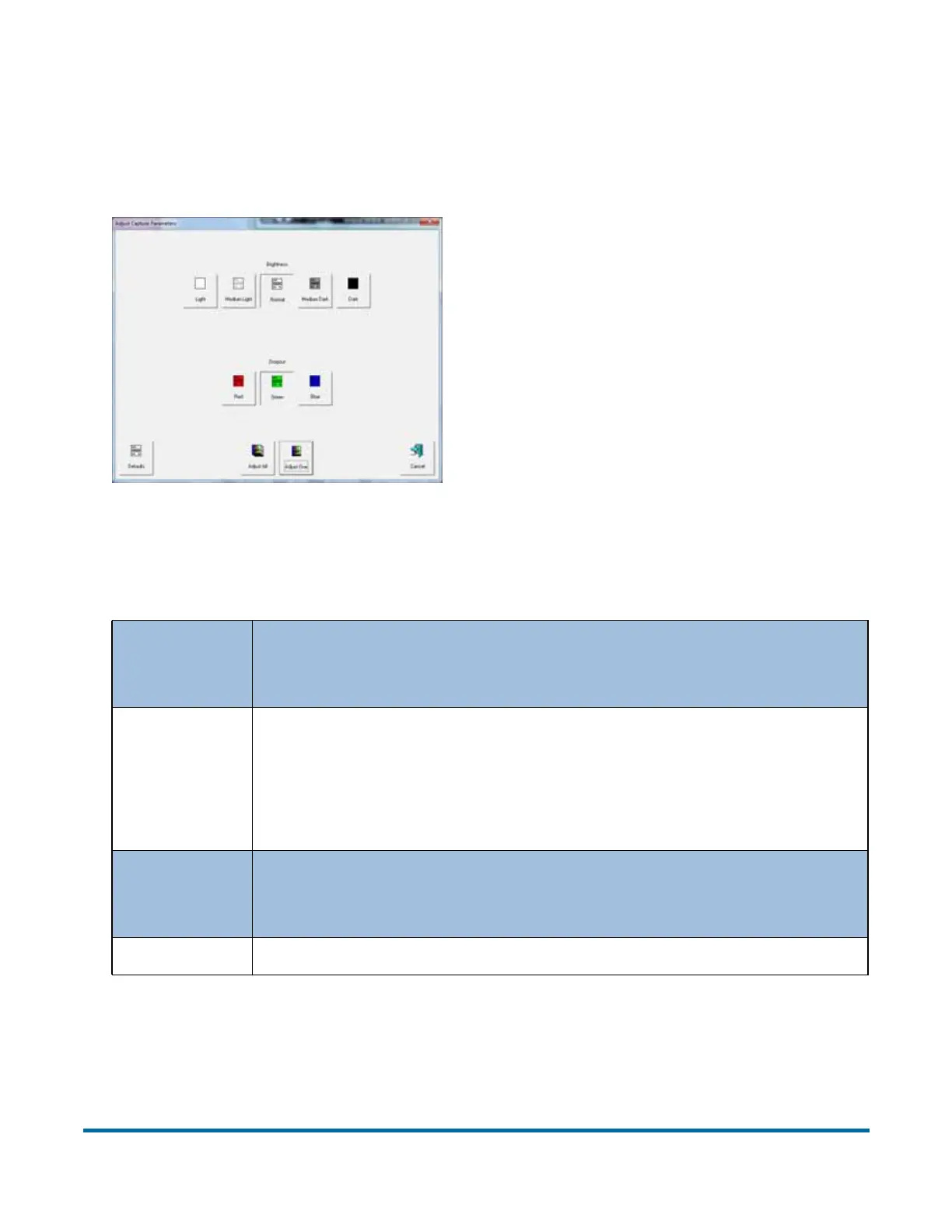
Fine-tune the quality of the document images by pressing ADJUST on the Run
screen. The Adjust Capture Parameters screen will appear, where you can
modify the brightness and dropout colors for the images.
Table 1 describes the Adjust Capture Parameters screen buttons.
Table 1: Adjust Capture Parameters screen buttons
Brightness
Adjust the brightness of the document images from LIGHT to
D
ARK. Press a button to adjust the brightness. The default is
N
ORMAL.
Dropout
Remove a dropout color (R
ED, GREEN, BLUE, or WHITE) from the
document image. The color you select will appear as white.
The default is W
HITE.
Note: To use this feature, the documents must be printed with
a specific dropout color.
Adjust All/
Adjust One
Select ADJUST ALL to apply these changes to all the documents
in the current job, or A
DJUST ONE to make the adjustments only
to the next document scanned.
Defaults Return to the default capture parameters.


 To Next Page