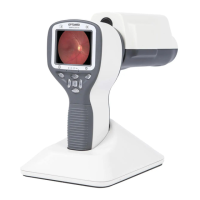
Table below provides explanations for the key functions:
Edit focus window/
Activate Zoom
When focus window is visible it is possible to move it
using arrow keys to better capture the wanted area.
Digital zoom can be used for close up of features and
image focus. Zoom value is saved to camera memory.
Camera is powered on and off by pressing the Left
soft key for longer than 2s.
Auto / Manual focus /
Activate Zoom
Switch between Auto and Manual focus by pressing
Right soft key. Press Right soft key to activate zoom
function. Digital zoom can be used for close up of
features and image focus. Zoom value is saved to
camera memory.
Enter camera menu by pressing Right soft key for
longer than 1s.
Choose between white and blue illumination by
pressing left soft key. Blue light can be used with
fluorescent applied on the eye to reveal any cuts or
defects.
If multiple patients are examined during a same
session, it is recommended to create a new file folder
for each patient’s images. New folder is created by
pressing middle key for 3 seconds. Icon P at the top of
the screen indicates number of the current patient
folder. If the current folder does not have any images
in it, a new folder cannot be created.
Use left and right arrow keys to adjust capture light
brightness.
Move focus window left and right after pressing
Middle key to activate. Window returns to original
position when camera is put to cradle, turned off or
optics module detached.
Use up and down arrows to focus manually.
Zoom in using arrow key up. Zoom out using arrow
key down. There are four zoom levels: 1, 2, 4 and 6.
Zoom value is saved to camera memory.
Move focus window left and right after pressing
Middle key to activate.


 To Next Page