91
touchscreen, select Access Internet (USB & Wi-Fi) and click
OK. Open any web browser and go to http://my.mobilehotspot
or http://192.168.1.1.
NOTE: If you have another device that can connect to your
Hotspot, you can use it to access the Admin Web UI.
2. Navigate to Wi-Fi > Primary Network. In the Security drop-
down, select WPA/WPA2 Mixed Mode.
3. Click Save Change. Your all devices should be able to connect.
Q9. I want to see how many devices are connected
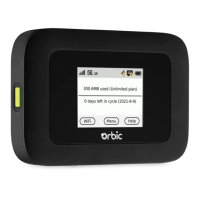
• On the Hotspot touchscreen: Look below the Connected
Devices icon
on the Home screen for the number of
connected devices. Tap the icon for details on the connected
devices.
• On the Hotspot Admin Web UI: The Connected Devices
panel on the Home page lists the number of connected
devices to the right of Connected Devices. Click
in the
bottom-right corner of the panel for details on connected
devices.
Q10. I want to see the rmware (software) version installed on
my Hotspot
• On the Hotspot touchscreen: Tap Menu and then swipe up
and tap Software Update.
• On the Hotspot Admin Web UI: Click
in the bottom-right
corner of the Settings panel and select the Software Updates
tab.
NOTE: Software updates are delivered to the Hotspot
automatically over the mobile network.
Q11. I want to see the phone number for my Hotspot



 To Next Page