90
Wi-Fi clients, however, some older devices require that you set one
of the Wi-Fi bands to support older BGN standards:
1. Access the Hotspot Admin Web UI. Tether your device to the
Hotspot with the USB-C cable.
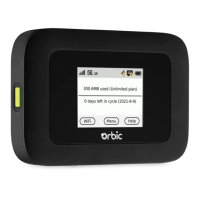
2. On the Hotspot touchscreen, select Access Internet (USB &
Wi-Fi) and click OK. Open any web browser and go to http://
my.mobilehotspot or http://192.168.1.1.
NOTE: If you have another device that can connect to your
Hotspot, you can use it to access the Admin Web UI.
3. Navigate to Wi-Fi > Settings. Under 2.4GHz Band Settings,
use the drop-down to change the 802.11 mode to 802.11
bgnax.
NOTE: This allows older devices to connect on the 2.4 GHz
band, but leaves the 5GHz band in multi-mode to allow newer
devices the fastest available connection.
4. Click Save Changes. Your network name should be visible on
all devices.
Q8. I see the network name, but can not connect a device to my
Hotspot
Tap Wi-Fi Name/Password on the Hotspot Home screen to make
sure you are using the correct Wi-Fi password. Swipe left to view
the guest network credentials if you are connecting to the guest
network.
The default network security settings on your Hotspot work for
most Wi-Fi clients, however, some older devices may not have
access. If you are entering the correct password and still unable
to connect, change the network security setting to WPA/WPA2
Mixed Mode:
1. Access the Hotspot Admin Web UI by tethering the device
to the Hotspot with the USB-C cable. On the Hotspot



 To Next Page