Operator Manual
Display
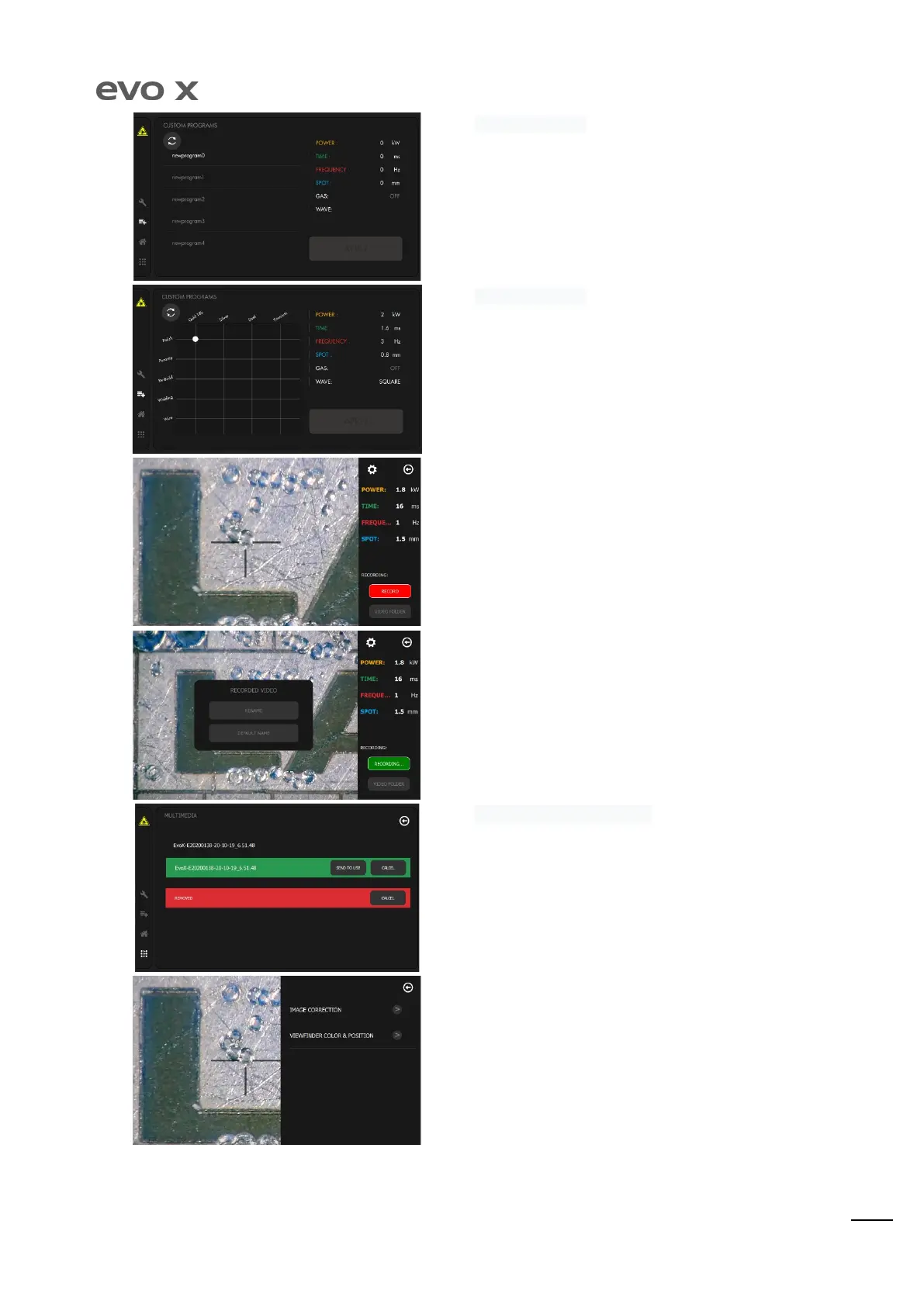
This screen shows the welding programs saved by the user during the
work phase. The list will be empty on commissioning of the machine.
Once the program has been selected, press "APPLY" to set it on the
work screen.
Orotig supplies pre-set welding programs for the material and type
of work to apply. The desired program can be set using the grid
available.
Once the program has been selected, press "APPLY" to set it on the
work screen.
By pressing camera icon, on top right corner of the frame, display will
pass to video screen. Welding parameters modification, on the right
side of the display, will always be available by using the rotary switch
in the welding chamber.
To record video session press on ”RECORD” red button in the bottom
area. Pressing again the same button(this time will be green color)
recording will be stopped and a name/saving windows will popped
up on the screen. It will be possible to rename the file as the operator
wish or giving the default name by pressing its button. EVO X will
save the default name as serial number, date and time.
MULTIMEDIA-VIDEO-RECORDED
Once the file has been recorded, customer can replay it, send to the
USB flash connected on the back of the display or delete it as shown
at page 20.
In this menù we find the saved file inside the display’s memory. By
pointing the finger on the file name and slide it from left to right, file
will be highlighted in green and by pressing ”Send to USB” button, it
will be stored inside the USB flash memory. Sliding the finger from
right to left, file will be highlighted in red and will be deleted from
In the camera screen, pressing top right gear icon, operator will enter
the settings of the video camera.


 To Next Page