ORTEC
®
Detective
®
X Handheld Radioisotope Identifier 1107231N / 082020
70
4.16 MODIFYING NUCLIDE THREAT STATUS
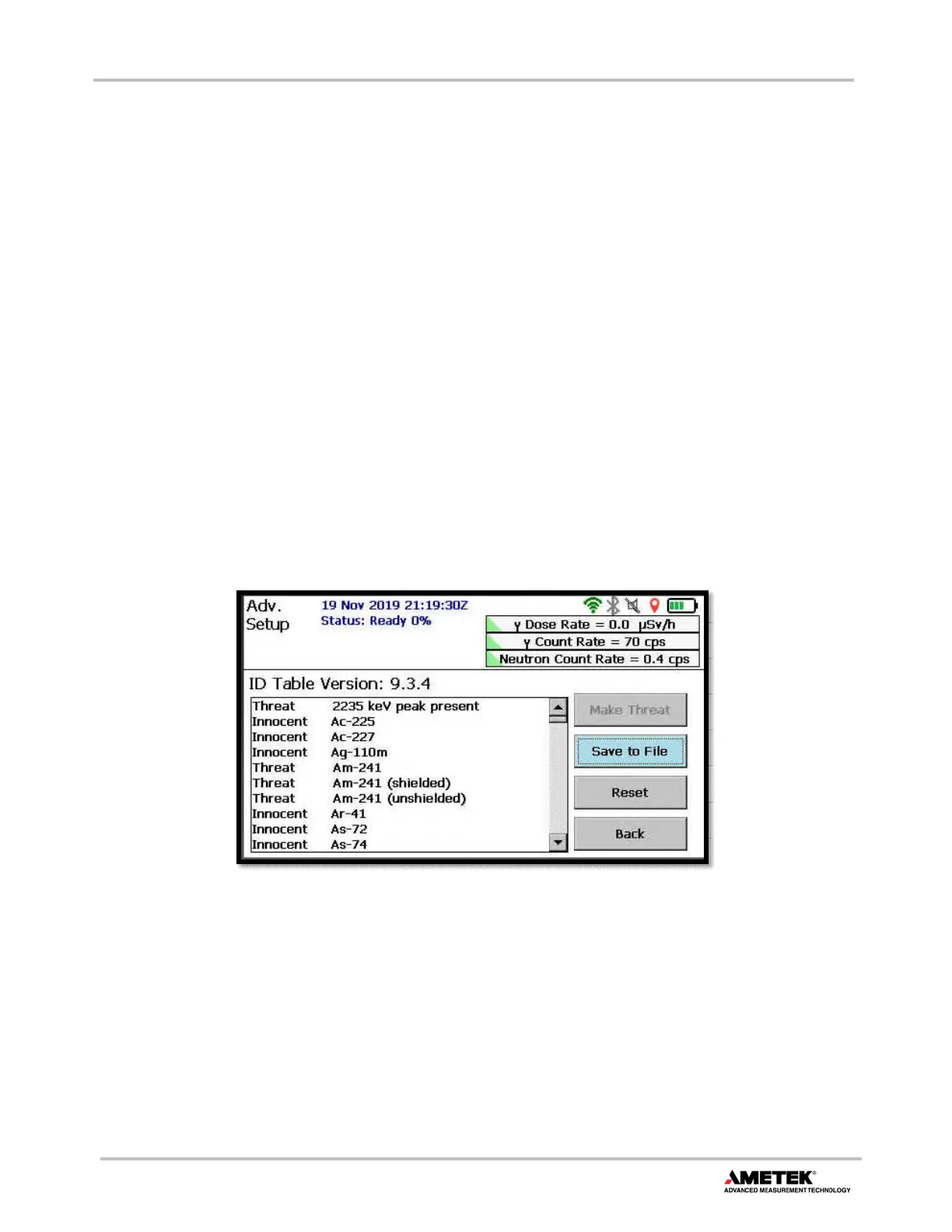
Figure 89 shows the ID Table page, which lets the user change the innocent nuclides in the Identification
Table threat status and back. Default threat nuclides cannot be changed to innocent status. They are always
categorized as threats because of their association with Special Nuclear Material or bremsstrahlung caused
by a shielded, high-activity beta emitter. Note also that the list of nuclides in the Identification Table is fixed;
nuclides cannot be added or removed.
To change an innocent nuclide to threat status, tap the scrollbar or use the up/down arrow buttons
(▲▼) to move through the list, tap to highlight the desired nuclide (Figure 90), then tap the top-
right button, which will be labeled Make Threat (the button will be disabled for default threat
nuclides). An innocent nuclide that has been changed to threat status will be marked in the list with
an asterisk (*), as shown in Figure 91.
To revert a nuclide to its default innocent status, highlight it and tap the top-right button, which will
now be labeled Make Innocent.
To restore all nuclides to their factory default settings, tap Reset and confirm the reset action. There
is no undo for the reset operation; all of the desired changes must be made again unless Export
Settings has been performed with the modified nuclide threat values.
To output the list of nuclides and their current classifications to a text file that can be exported to a
computer, tap Save to File. The file will be saved in the USB drive’s \data folder under the filename
nuclides.txt.
Figure 89. Default Identification Table Listing


 To Next Page