16
Setup Manual - Butler XT2
tion Suite, available for download from www.ecue.com for free.
When the Butler XT2 is in online mode all defined Triggers and Actions
are run in the Programmer. For standalone mode only those Triggers
and Actions get exported that the Butler XT2 can handle in standalone
mode. All online mode-only Actions and Triggers are not exported.
Using the standalone web interface
You can set the network parameters of the Butler XT2 without any other system
using a standard web browser on any PC or PC-like system.
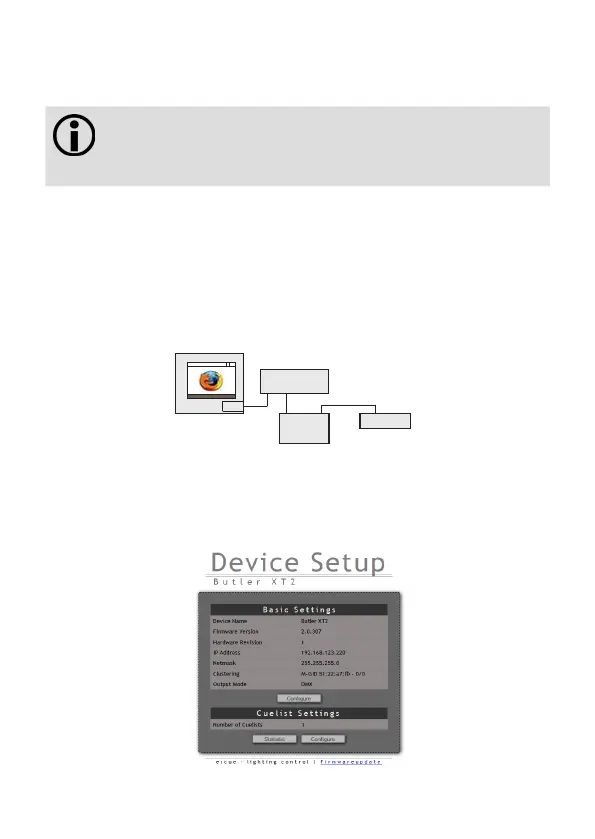
Connect the Butler XT2 with power and via a standard LAN patch cable over an
Ethernet switch to the server (LCE or PC). If you want to connect the Butler XT2
without Ethernet switch to the server use a so called cross cable, as not all Ethernet
interfaces support automatic RX/TX detection.
LAN
Ethernet switch
Power supply
Butler XT2
RJ45
RJ45
24 V DC
Start the web browser and enter the IP address of the Butler XT2 in the address
field of the browser, in factory state 192.168.123.1 (if the Butler was configured
differently before and you do not know the IP address, perform a »Reset to factory
settings«). You can now see the current settings and parameters.


 To Next Page