6 Managing test data
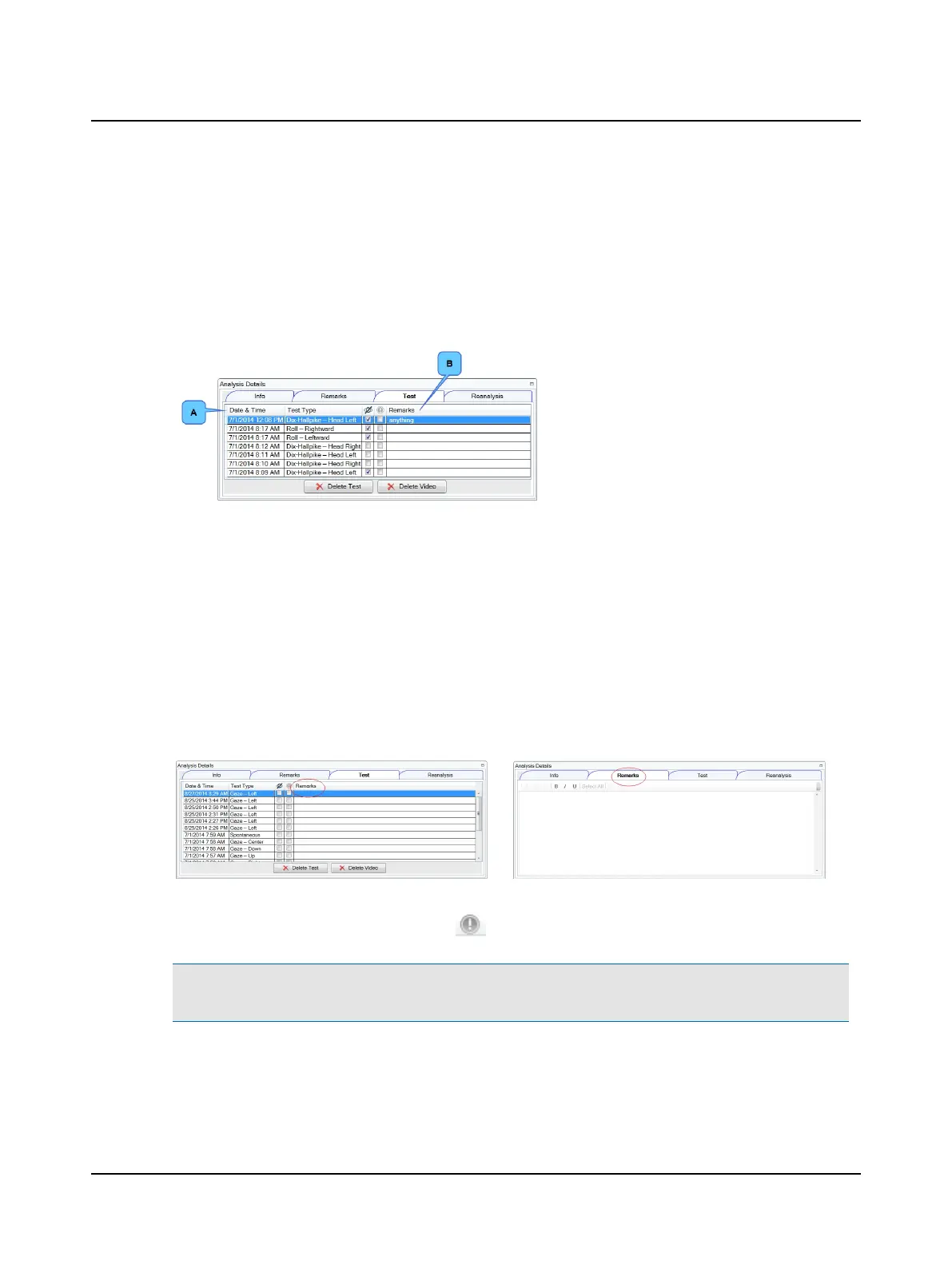
In this window you can view the list of tests for a patient. Clicking on the column headings allows you to reorder the tests
for ease of finding a specific test. Remarks can be added to a specific test.
Selecting a test
To view a specific test, click on the Test window tab
and then click the desired test to highlight it.
To make it easier to locate a specific test, click one of
the column headings. For example
• Click the Date & Time column heading (A)
to change the order from ascending order
(older to more recent) to descending order
(more recent to older).
• Click the Remarks column (B) to change the
order from ascending order (A to Z) to des-
cending order (Z to A).
Adding remarks to a selected test
For more information about selecting a test, refer to Selecting a test ► 12.For more information about test remarks, refer
to Entering test remarks ► 15.
With the test selected, add remarks in
• the Remarks column of the Test window, or
• click on the Remarks tab. The Remarks window includes editing tools.
Remarksare visible in both the Test and Remarks windows.
To mark a test for a specific purpose (for example, to indicate abnormal results), click in the check box under the column
heading marked with the unique identifier symbol: .
Note• The status of the Vision Denied check box is set when performing the test. It is not possible to change the status
in the test selection window.
12 Otometrics - ICS Impulse USB
6 Managing test data




 To Next Page