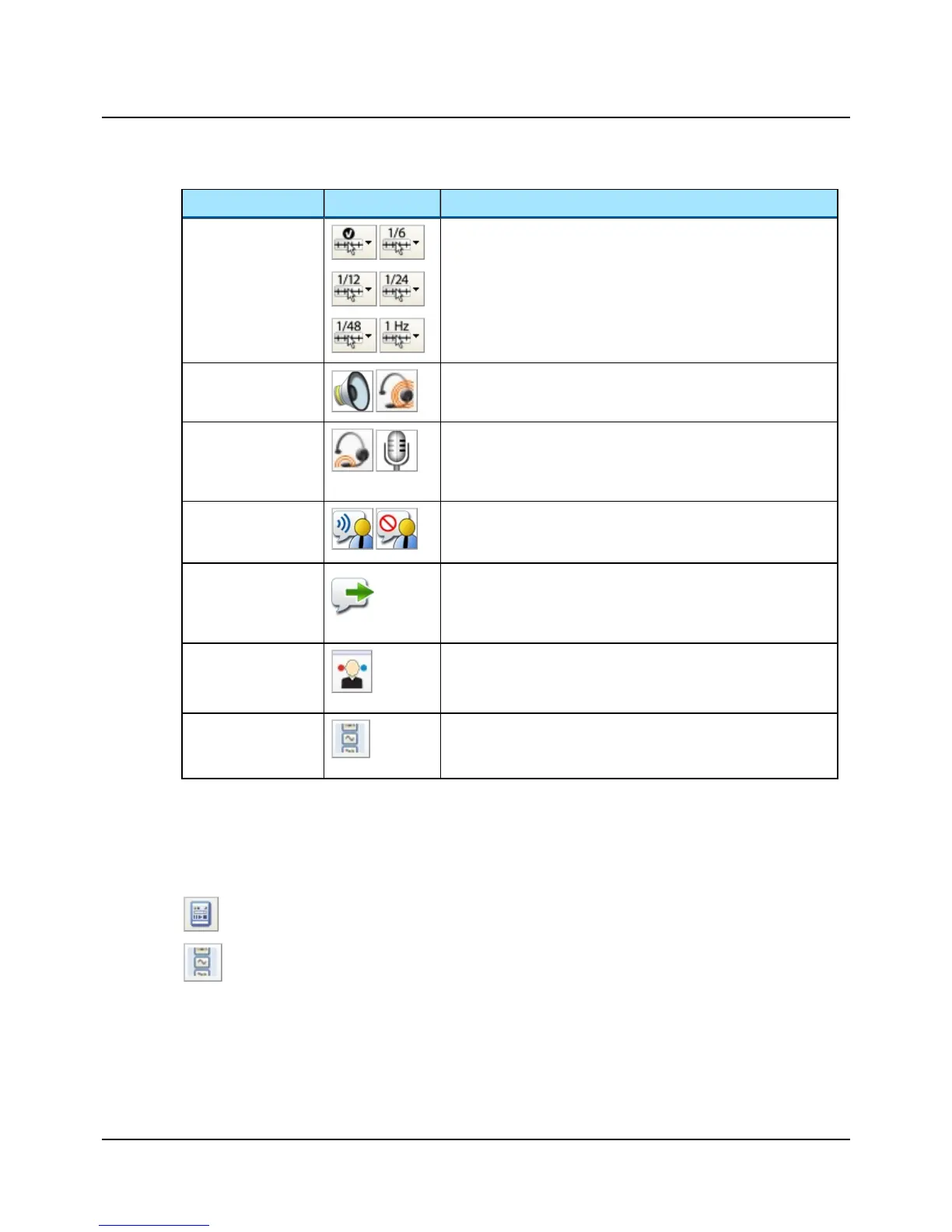
Menu item Icon Description
Frequency Resolution
The options for frequency resolutions are 1/6, 1/12, 1/24 and 1/48
octave as well as 1 Hz. Select the different tone stimulus resolutions
from the toolbar or from Tools > Options > Audiometry > General.
You can store up to 24 points for each audiometry curve. You will be
prompted if you try to store more than the maximum number of
points.
Monitoring
Enables or disables the monitor speaker for monitoring stimuli presen-
ted to the patient from the Stimulus or Masking channel.
Desktop/Headset
Microphone
Toggle microphone types
Click to toggle between the operator headset boom microphones and
desktop microphone used to communicate with the patient and/or the
assistant. The one displayed is the one currently active.
Enable Talk to Assist-
ant
Click to enable or disable talking to another party (usually a second
tester) in the booth.
Talk Forward
Enables communicating with the patient in the sound booth. This will
display the Talk Forward dialog box, where you can control the talk for-
ward microphone sensitivity and the output level (in dB HL) to the
patient.
Select Orientation
Click to select the perspective of the patient's ears as presented on the
screen for graph and table views.
You can also select the location of the stimulus control.
Sunshine Panel
When you have enabled the Control Panel icon on the toolbar, you can
choose between using the Classic Control Panel and the Sunshine
Panel.
10 The Sunshine Panel
Click the Control Panel icon in the toolbar to activate the Control Panel.
Click the Sunshine Panel icon in the toolbar to select or deselect the Sunshine Panel in either Tone or
Speech testing.
14 Otometrics - MADSEN Astera²
10 The Sunshine Panel




 To Next Page