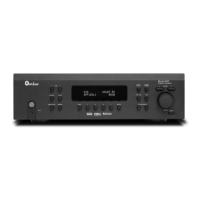
Model 975 7.1 Channel Preamp/Processor
33
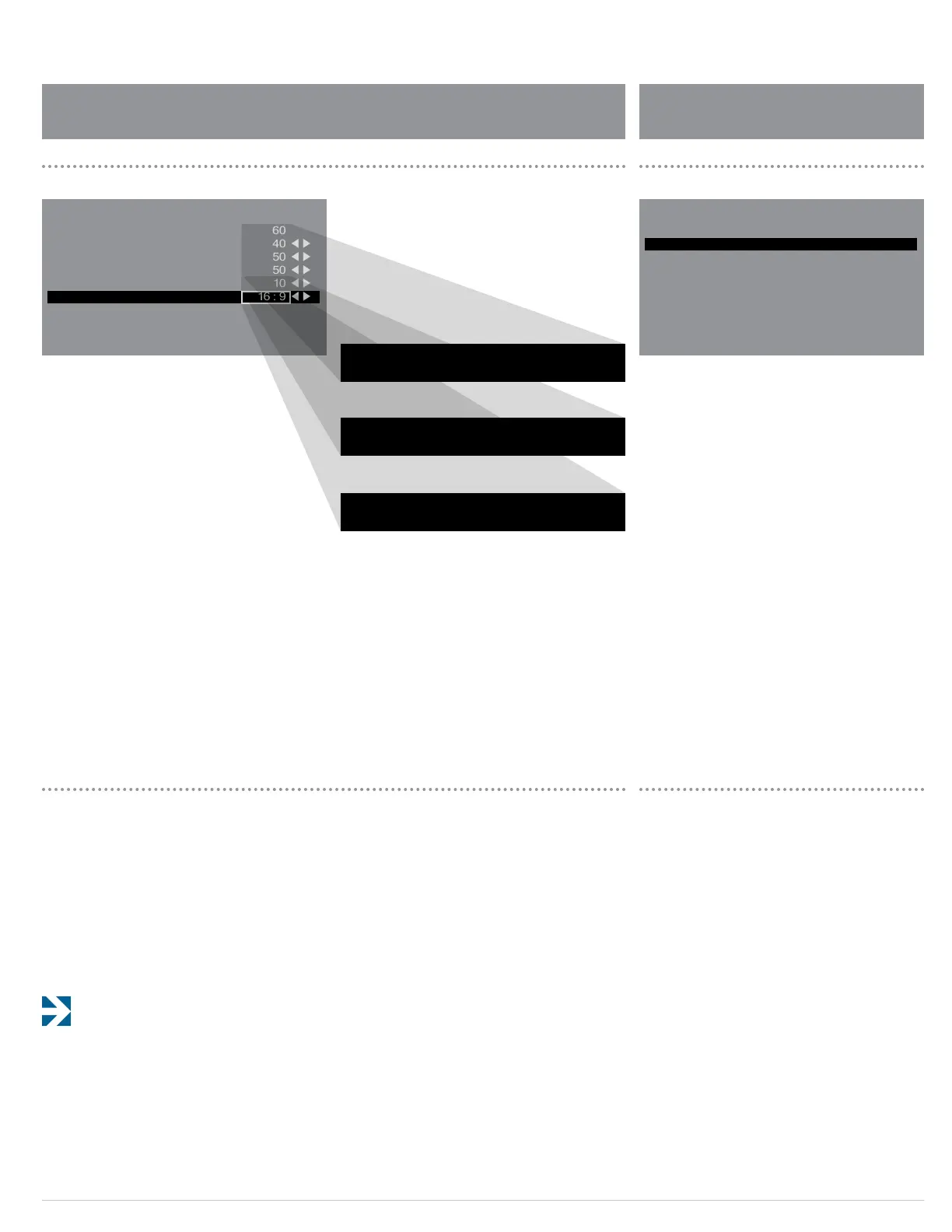
To make adjustments to the video parameters:
1. Use the remote control’s menu button and naviga-
tion keys to access the Input Setup menu.
2. Select the parameter you want to adjust.
Use the remote control to change the setting. As you use
the LEFT and RIGHT arrow keys, the OSD will disappear and
the adjustment reading will display at the bottom of the
picture from the currently selected video source.
3. Adjust the setting until it’s to your liking, then
press OK/FUNC button.
You are returned to the Video Setup menu.
4. Repeat the process for other parameters you want
to adjust.
5. When you are nished, use the remote control’s
menu button and navigation keys to access the
next menu, or exit the OSD.
The Audio Setup menu is shown above. It lets you adjust
basic audio parameters such as Bass and Treble, and also
provides extremely exible control of subwoofer levels.
You can ne-tune the bass performance to suit dierent
audio formats and types of soundtracks, and your settings
will be used automatically whenever you’re listening to
that type of material.
To adjust the audio parameters of the Model 975:
1. Use the remote control’s menu button and naviga-
tion keys to access the Audio Setup menu.
2. Select the audio parameter you want to adjust.
3. Use the remote control to adjust the selected
parameter.
Below is a brief explanation of the dierent adjustments
available for each item in the Audio Setup menu.
Bass Use this control to boost or cut bass. The available
choices are:
-10db
-8dB -6dB -4dB -2dB 0
+2dB +4dB +6dB +8db +10db
Video Setup
The Model 975’s Video Setup menu is shown above. It lets
you adjust the basic video parameters (Brightness, Con-
trast, Saturation, Hue, and Sharpness) of the video image.
Of course, these controls are also available on your video
display, so they’re provided here merely as a convenience.
The one control you may need to set is for Aspect Ratio,
which must be set to either 16:9 (for widescreen displays)
or 4:3 (for old-style standard displays). The factory setting
is for 16:9, which is correct for every TV set and almost
every home theater projector currently on the market.
The options in this menu are only active on video inputs
set to “Autoscale” in the Video Output Setup Menu. See
page 35 for more information.
Brightness
Contrast
Saturation
Hue
Sharpness
Aspect Ratio
60
40
50
50
10
16 : 9
:
:
:
:
:
:
Video Setup
Bass
Treble
LFE Tr im
Dolby Digital/DTS Sub Trim
Dolby Digital/DTS Bass Aug
Dolby PLII/NEO Sub Trim
Dolby PLII/NEO Bass Aug
Stereo+Sub Trim
HDMI Out to TV
0 dB
0 dB
0 dB
0 dB
Off
0 dB
Off
0 dB
Off
:
:
:
:
:
:
:
:
:
Audio Setup
Video Setup Menu Audio Setup Menu
16 : 9 4 : 3
0 1 2 3 4 5
… 100
0 1 2 3 4 5
… 20
Audio Setup


 To Next Page