10400589-001 ©2008-14 Overland Storage, Inc. 64
SnapServer / GuardianOS 7.6 Administrator’s Guide 4 - Network Settings
4. Click
OK
to update Windows network settings immediately.
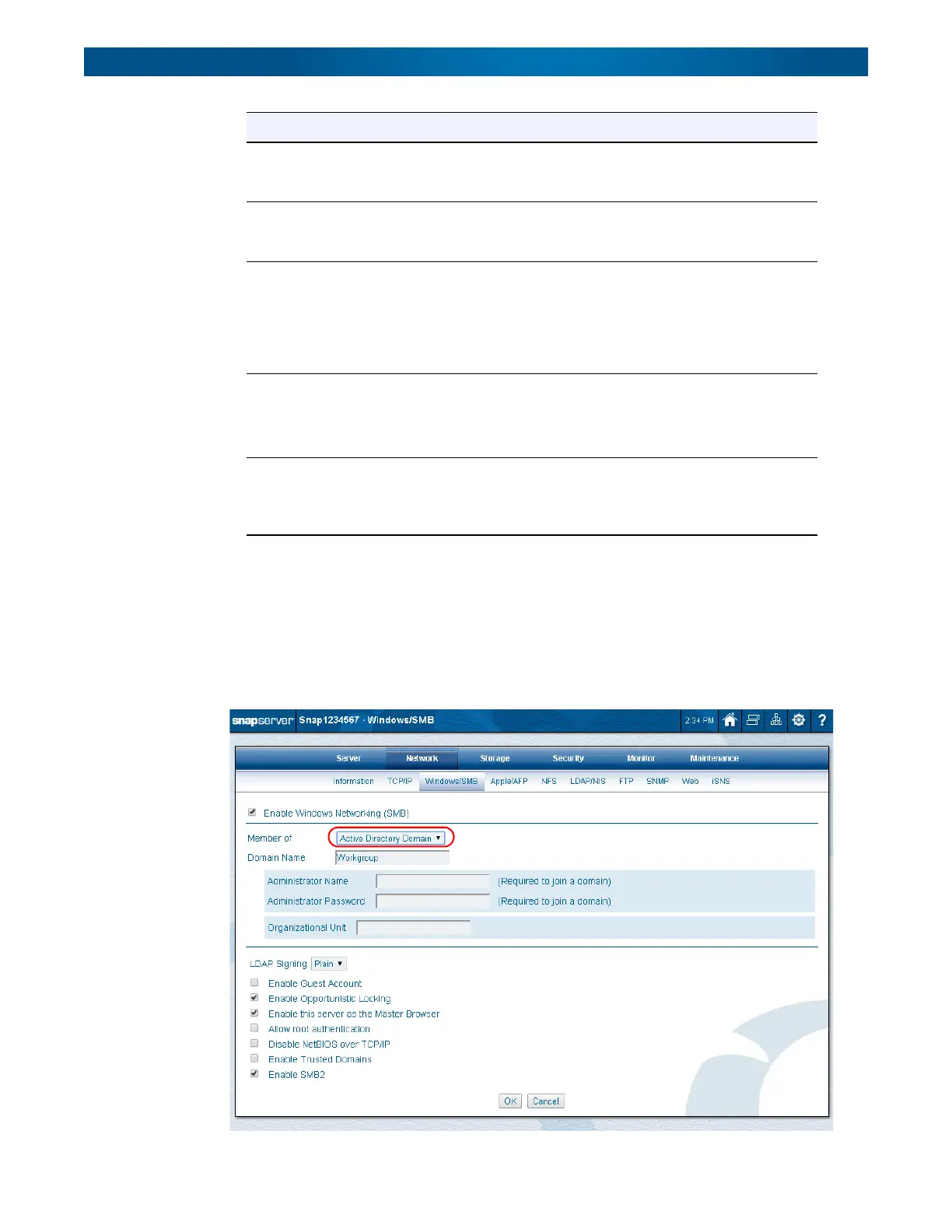
To Join an Active Directory Domain
1. Go to
Network > Windows/SMB
.
2. From the drop-down Member list, select
Active Directory Domain
to view the
configuration page.
Enable Guest Account Check the box to allow unknown users (or users explicitly logging
in as
Guest) to access the SnapServer using the guest account.
Clear the box to disable this feature.
Enable Opportunistic
Locking
Enabled by default. Opportunistic locking can help performance if
the current user has exclusive access to a file. Clear the box to
disable this feature.
Enable this Server as
the Master Browser
Enabled by default. The SnapServer can maintain the master list
of all computers belonging to a specific workgroup. (At least one
Master Browser must be active per workgroup.) Check the box if
you plan to install this server in a Windows environment and you
want this server to be able to serve as the Master Browser for a
workgroup. Clear the box to disable this feature.
Allow Root
Authentication
Check the box to allow root login to the server; clear the box to
disable this feature.
NOTE: The root password is synchronized with the server admin
password.
Enable SMB2 Enabled by default. This more robust version of SMB reduces
protocol overhead and is used by default by Windows Vista and
later clients. Clear the box to disable this feature (clients that
default to SMB2 will automatically connect via SMB1).
Option Settings




 To Next Page