EN
ONE – User manual Page 27/44
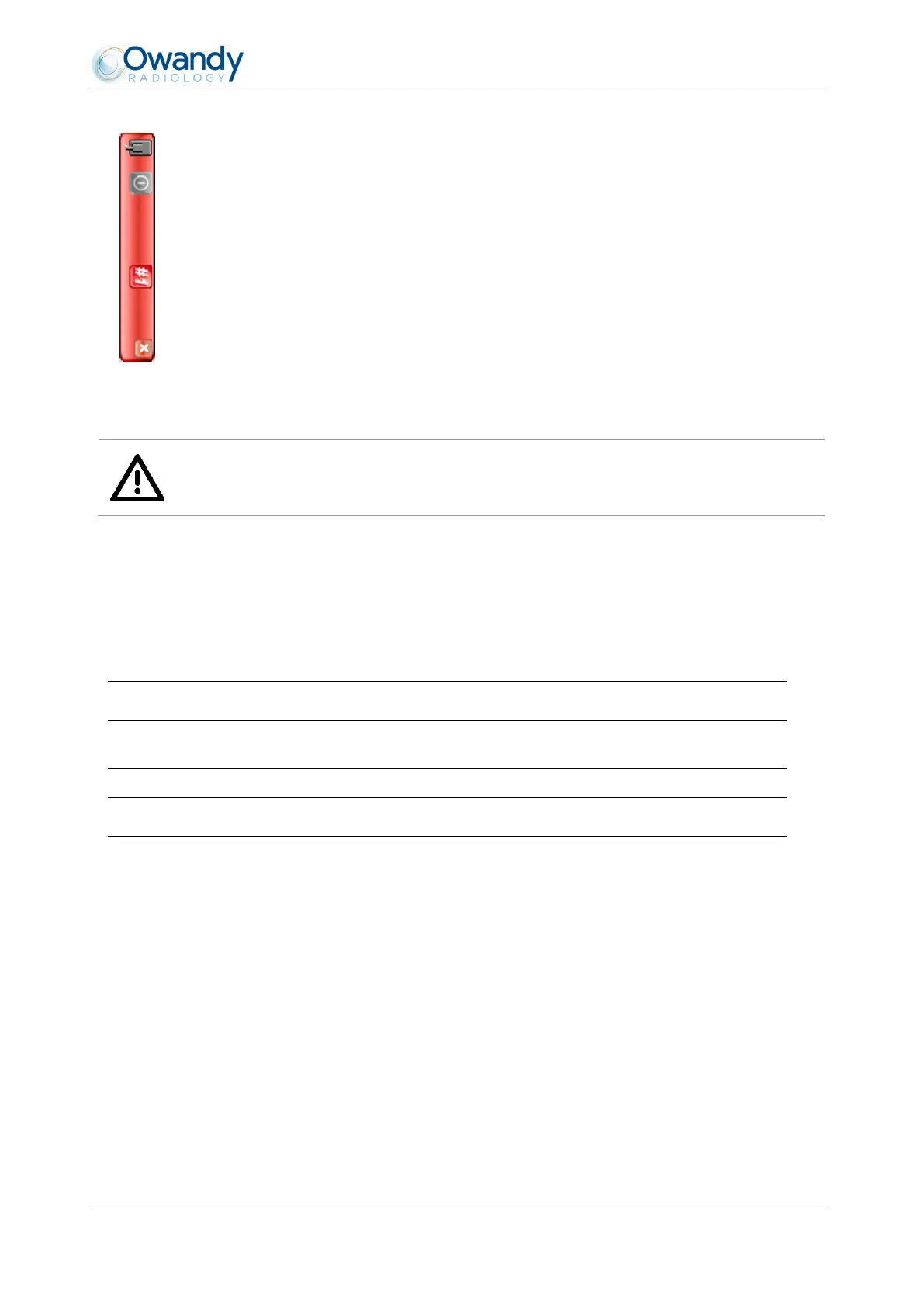
◄ Orientation of the sensor (vertical or horizontal), double-click the icon to change the
orientation of the sensor.
◄ Activate/deactivate the sensor.
◄ Selection of the sensor to activate (case of simultaneous use of a size 1 sensor and size 2
sensor on the same computer).
◄ Iconize the toolbar in the taskbar.
Warning
The sensor automatically switches to standby mode after a few minutes of not being used; the sensor
toolbar turns red.
Check that the sensor toolbar is displayed in green before each acquisition.
4.3.3 Configuration menu
A right-click on the sensor icon in the taskbar or on the sensor toolbar displays the configuration menu:
Displays the sensor toolbar.
Start when Windows starts
Once checked, the StandAlone program will be launched each time
your computer is started.
Displays the configuration menu (see “3.4 Configuration in the
Owandy imaging software”).
Adjusts the display time of the image.
Allows you to browse through the images waiting to be
transferred. If no image is acquired this option is not displayed.
Closes the resident software program. Warning: the acquisition
will no longer be available until the resident program is restarted.
4.3.4 Image transfer interface



 To Next Page